
Lumber Industry Management, Reimagined
LumberSuite runs lumber yards, distributors and truss plants inside NetSuite, in board feet from the purchase order to the load ticket. The yard counts each load against the order, every bundle knows its delivered cost, yard location and certification, work orders reserve real bundles, quotes are priced from your species, grade and size price list, and every job reports its yield.
Board Feet Engine
Board feet under every unit, from each item's size and the unit's own formula
Tally Management
End-to-end tally sheet tracking from receiving to consumption
Yield & Waste Tracking
Real-time yield analysis with waste monitoring dashboards
Repack Processing
Re-bundle, sort, grade or resaw a bundle, previewed at cost before it posts
Process Targets & By-Products
Manage by-products and production targets
Work Order Integration
Auto-calculated BF on work order components
Sales & Purchase BF
BF summaries and calculations on transactions
Advanced Reporting
Comprehensive analytics and reporting dashboards
Control Center
Centralized settings and configuration management
Receiving & Vendor Bills
Count every load against the order, carry freight into each bundle's cost, and hold bills for wood that never arrived
Price Matrix & Quotes
Price lumber by species, grade and size from a dated price list, with the board-foot margin on quotes
Item Generator
Build a species, grade and size catalog in one pass, with S4S sizes, BF per piece and buy / stock / sell units
Bundles & Yard
Bundle records and history, yard tags, regrades, kiln charges and oldest-first shipping
Chain of Custody
FSC, SFI and PEFC claims carried from the mill's purchase order to the load ticket
Why LumberSuite?
A lumber business runs on numbers a standard ERP doesn't keep: the board feet under every unit, the count off each truck, the bundle every board came from, what that wood really cost once the freight was on it, the certification it carries, and how much of it survived the saw. When those live on tally sheets and spreadsheets, the yard counts twice, bills get paid as billed, and yield is a guess at month end. LumberSuite keeps them inside NetSuite, on the purchase orders, receipts, bills, work orders, quotes and shipments your team already uses.
Board Feet in Every Unit
Buy in MBF, stock in board feet, and sell by the piece, the foot or the thousand. Every quote, sales order, work order and shipment line carries its board feet, worked out from the item's size and the unit's own formula.
Every Bundle Accounted For
Each bundle is a record from the count at the truck to the load that ships: its yard location, delivered cost, certification, and a history that links each movement to its document.
Yield on Every Job
Jobs are sized with their cutting waste, draw from reserved bundles and report yield from the lumber the crew actually issued. Yield Analysis shows it by product and by work order, against target.
Native to NetSuite
LumberSuite works on NetSuite's own transactions and posts value changes through standard inventory adjustments, so there is no second system to keep in step with the books.
Board Feet Engine
The Board Feet Engine puts board feet under every unit LumberSuite handles. Whether you're buying by the thousand, stocking bundles or selling by the piece, each quote, sales order, work order, receipt and shipment line gets its board feet from the item's size and the formula for the unit it is in. Species and grade don't change the board feet; they change the price. This eliminates manual calculations and keeps the numbers consistent from the receipt to the customer's load ticket.
Item Setup
Each lumber item carries its species and grade, its nominal thickness, width and length, and the units it is bought, stocked and sold in, so the same wood can be bought in MBF, stocked in board feet and sold by the piece. Its board feet per piece come from the nominal size alone: a 2x10x16 is 26.667 BF whatever its species or grade. The Item Generator builds a whole species and grade grid of these items in one pass.
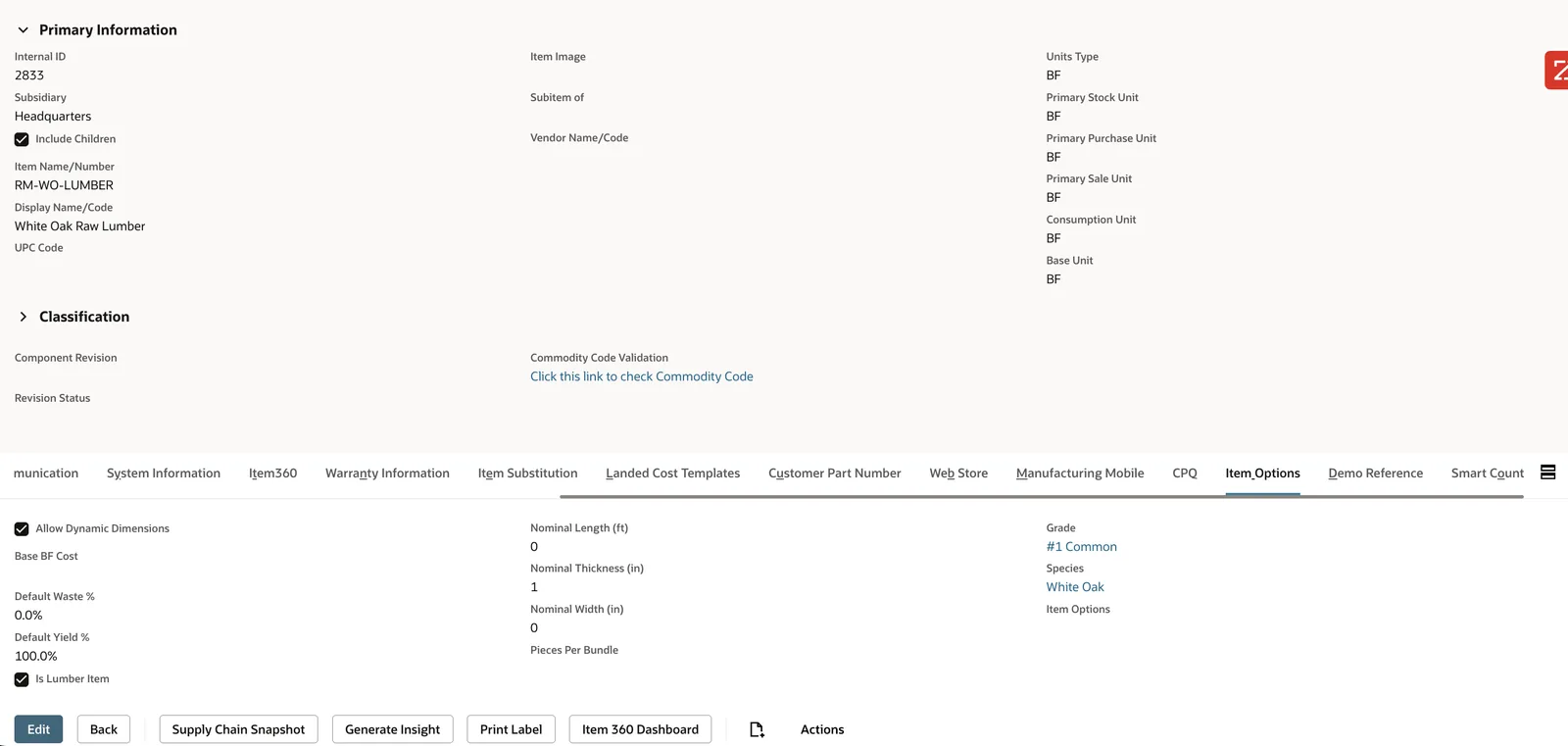
Lumber item configuration with BF units, species, and grade settings
UOM Types & Formulas
Each unit LumberSuite buys or sells in has a CLS UOM Type record holding its board-foot formula, written with the quantity, the thickness (T), width (W) and length (L), the pieces per bundle and the unit's factor. A board foot counts as itself and MBF as a thousand, a piece is T x W x L / 12, a linear foot is T x W / 12, square feet are multiplied by the thickness in inches, MSF is a thousand square feet, and a bundle is its pieces per bundle times one piece. An administrator can edit a formula; one that uses anything other than those values is refused, and a line missing a size its formula needs can't be added.
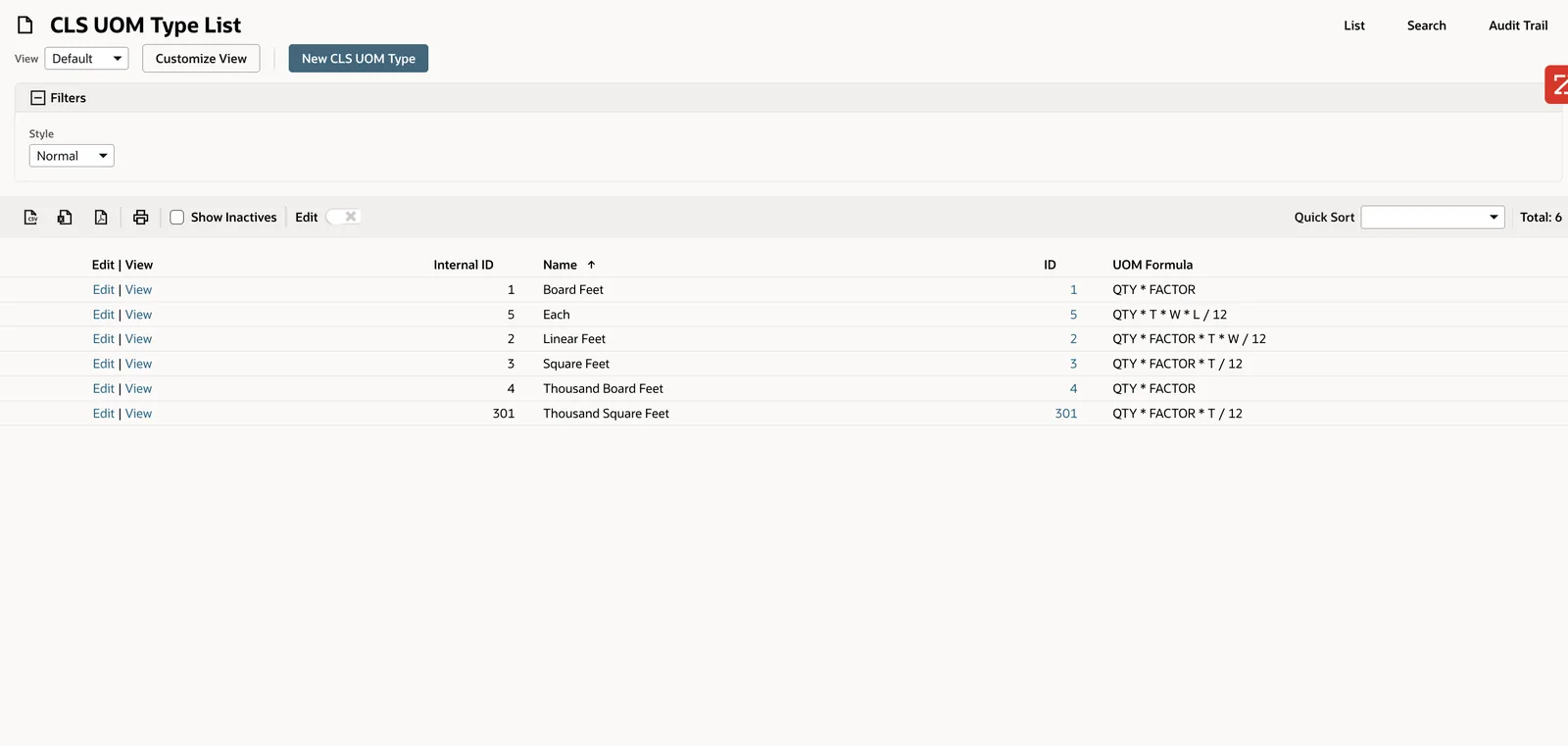
CLS UOM Type List with dynamic BF formulas
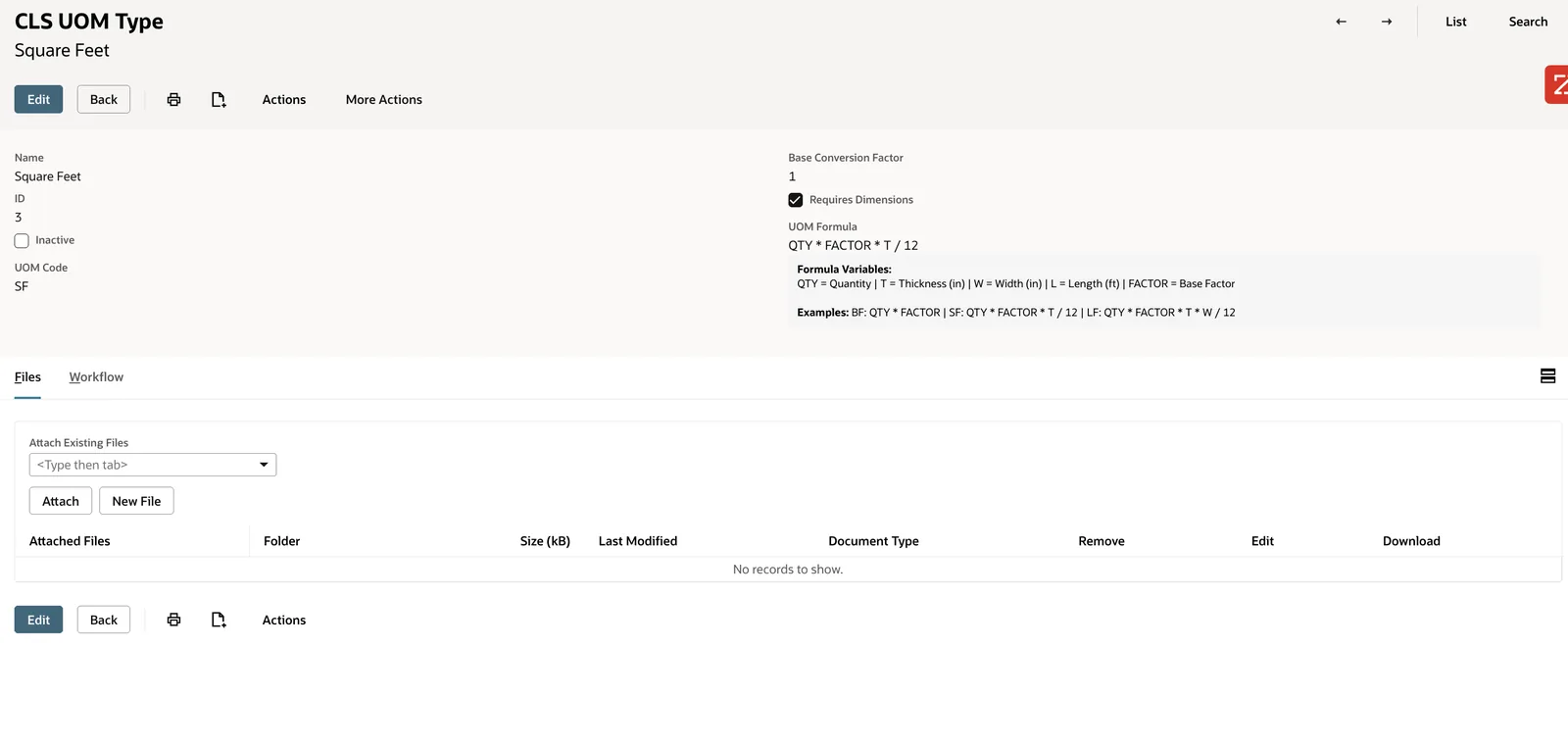
Square Feet UOM Type with custom formula
Key Capabilities
- BF calculated from the item's nominal size and each unit's editable formula
- Support for multiple unit types on a single item
- Automatic UOM conversion with custom formulas
- BF worked out on quote, sales order, work order, receipt and shipment lines
- Validation and error checking for invalid configurations
- Historical tracking of BF calculations for audit purposes
Calculation Accuracy
Dynamic formulas eliminate manual calculation errors and ensure consistent results across the entire system.
Flexibility
Support for multiple unit types and custom formulas adapts to your unique business processes.
Audit Trail
A movement log and each bundle's own history tie board feet to the documents that moved them.
Reduced Training
Automatic calculations reduce the need for specialized training on unit conversions and pricing logic.
Tally Management
Tally Management provides end-to-end tracking of lumber from vendor receipt through allocation and consumption. Whether you're capturing vendor tally sheets, creating tallies from item receipts, allocating materials to work orders, or tracking consumption, LumberSuite maintains a complete audit trail of material movement and allocation decisions. This visibility enables better inventory management, yield analysis, and traceability.
Vendor Tally Entry
When receiving lumber from vendors, you can manually enter tally information or upload data via CSV. Vendor tallies capture individual lumber dimensions, quantities, and grades, creating a detailed record of incoming material. The system supports both single-entry and batch import workflows, adapting to your receiving processes.
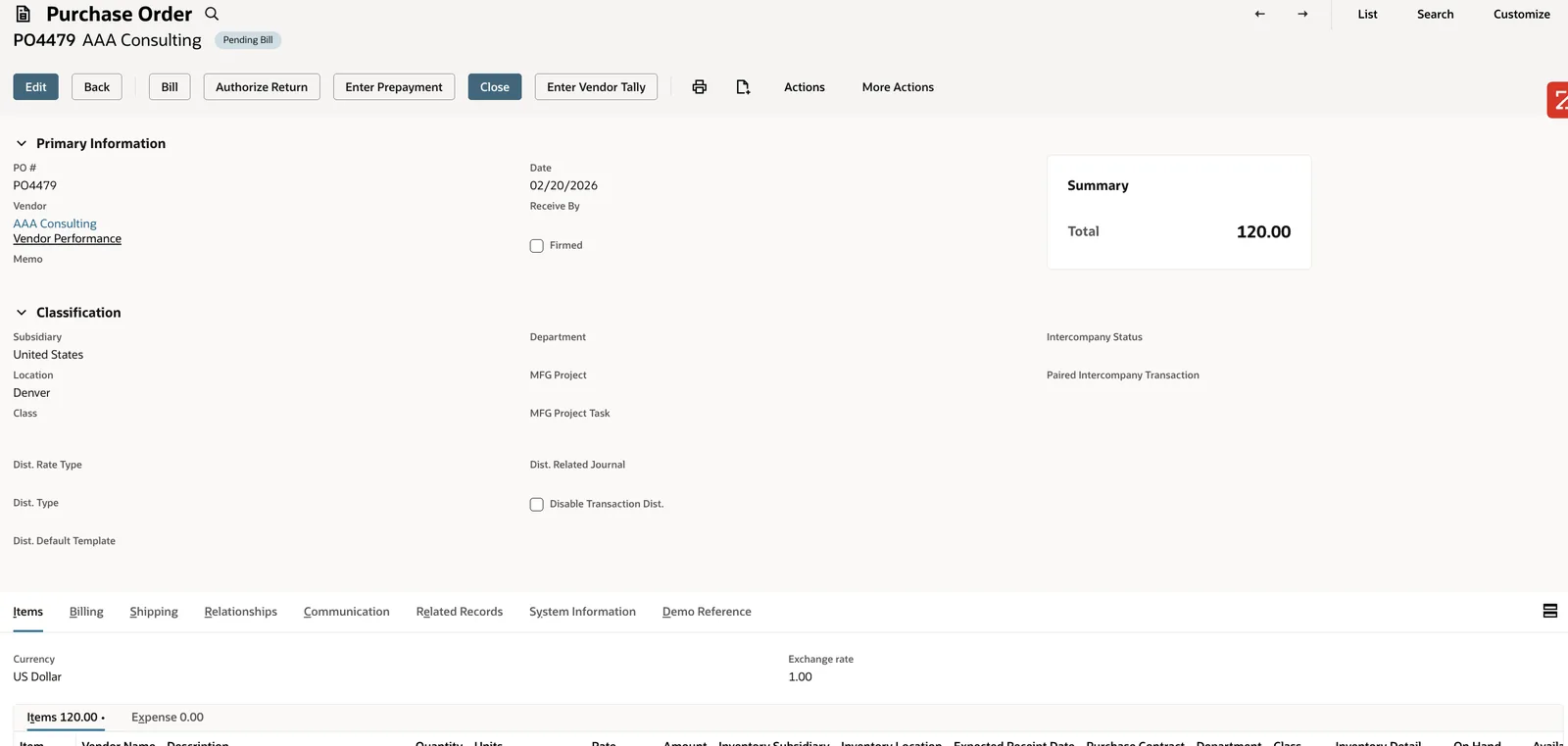
Purchase Order with Enter Vendor Tally button
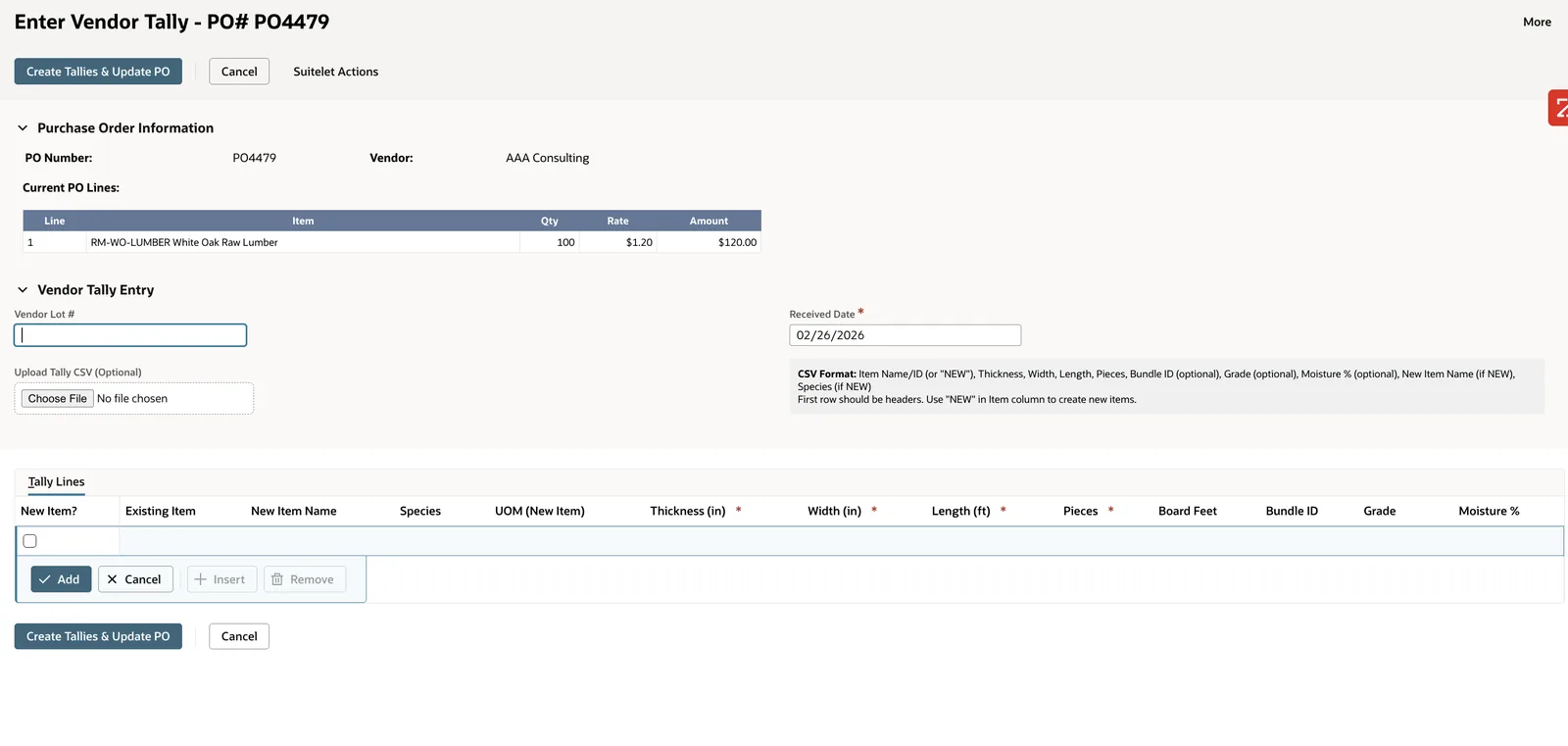
Vendor tally creation form with dimensions and CSV upload
Auto-Created Tallies
When you receive items into inventory using item receipts, LumberSuite can automatically create tally sheets based on received quantities. This streamlines the process for suppliers who don't provide detailed tally information upfront, allowing you to work with aggregate quantities while maintaining the ability to allocate material later.
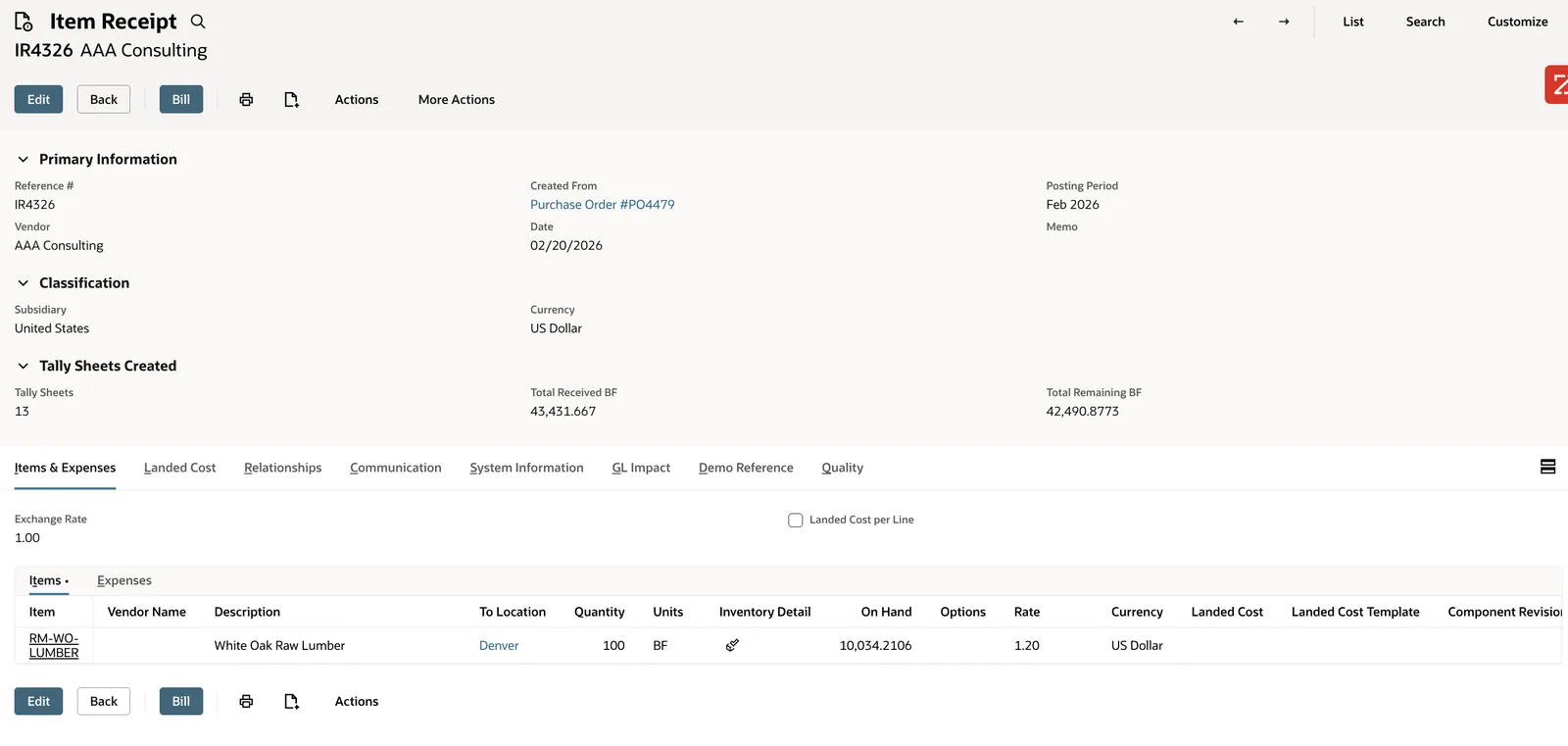
Item Receipt with 13 auto-created tally sheets
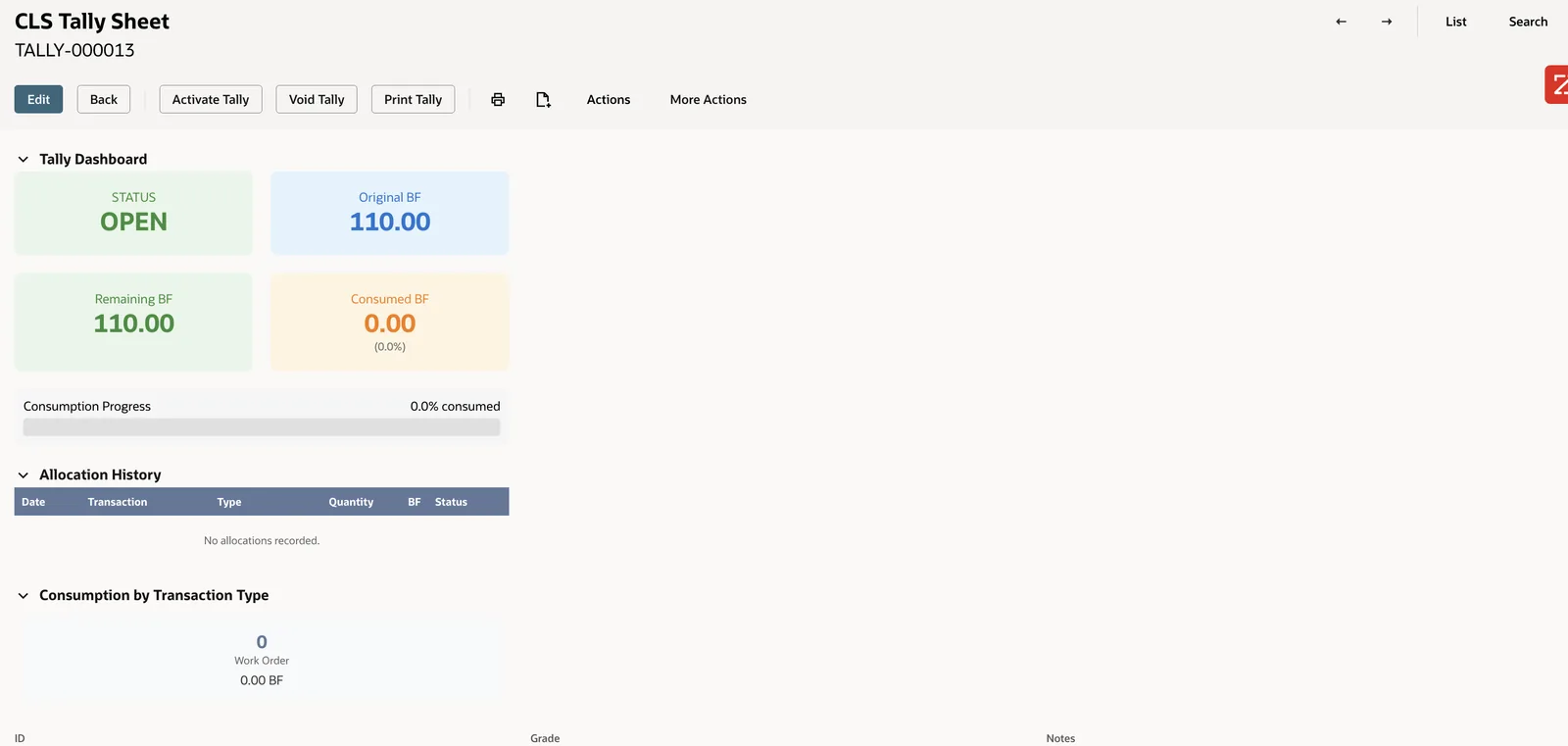
Tally sheet in OPEN status ready for allocation
Tally Allocation
Tally allocation links received material to specific work orders or production runs. When you allocate a tally to a work order component, the system tracks which specific tally materials are being used in which production activity. This enables precise yield tracking and traceability from raw material to finished goods.
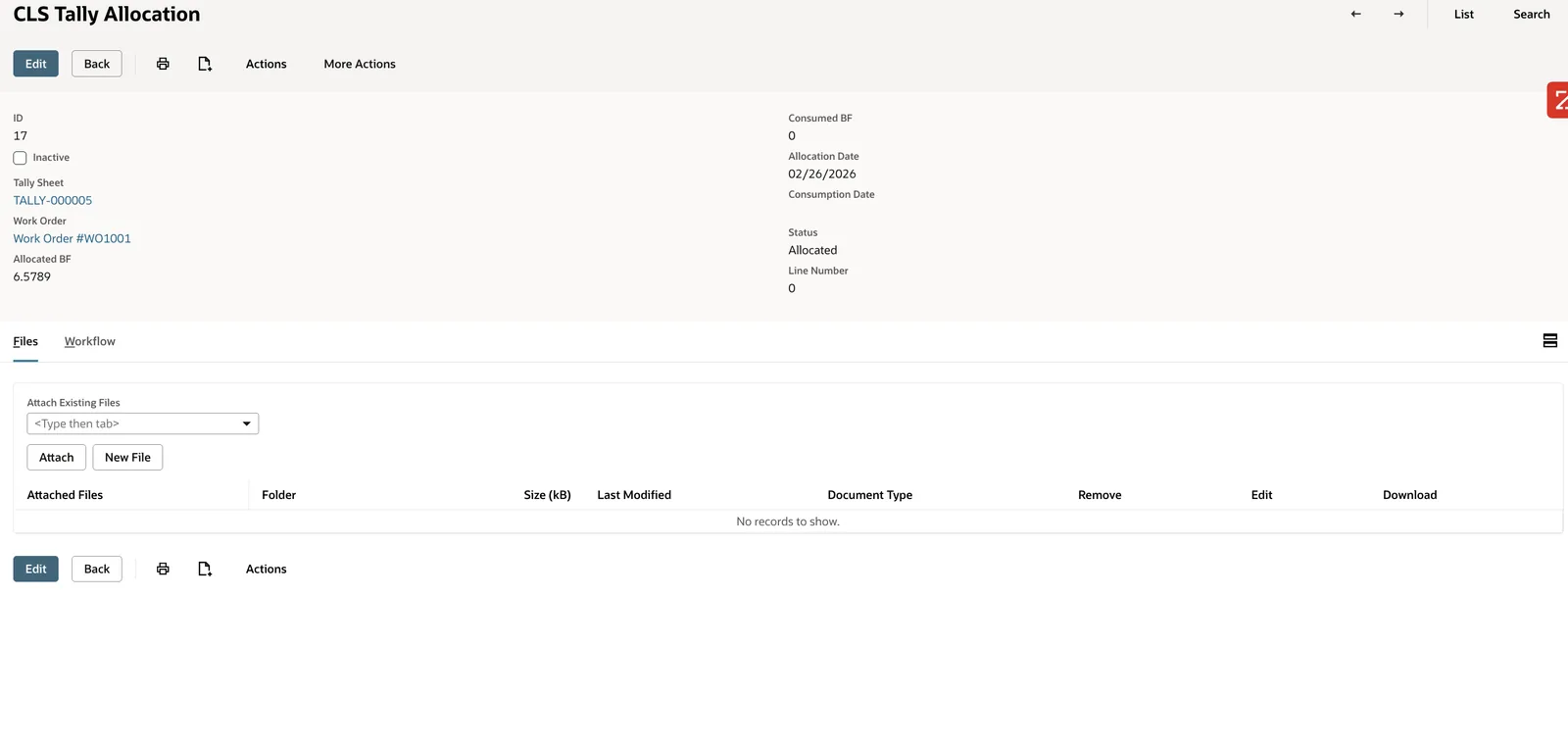
Tally allocation record linking tally to work order
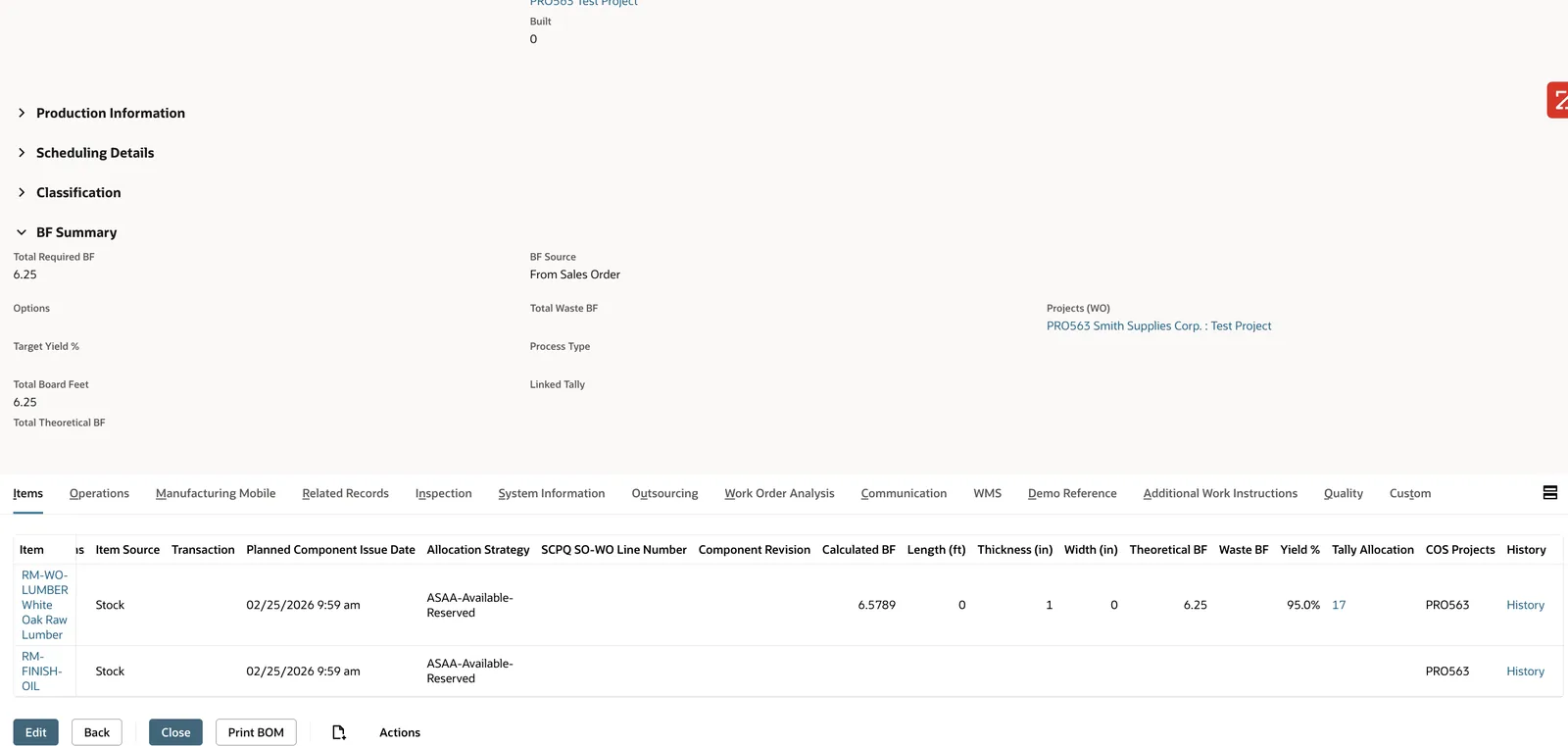
Work order component with tally allocation
Tally Consumption
As material is consumed in production, the tally tracking system updates consumption records. You can monitor what percentage of a tally has been consumed, how much allocated BF remains, and track waste. This enables real-time visibility into material usage and identifies inefficiencies in the production process.
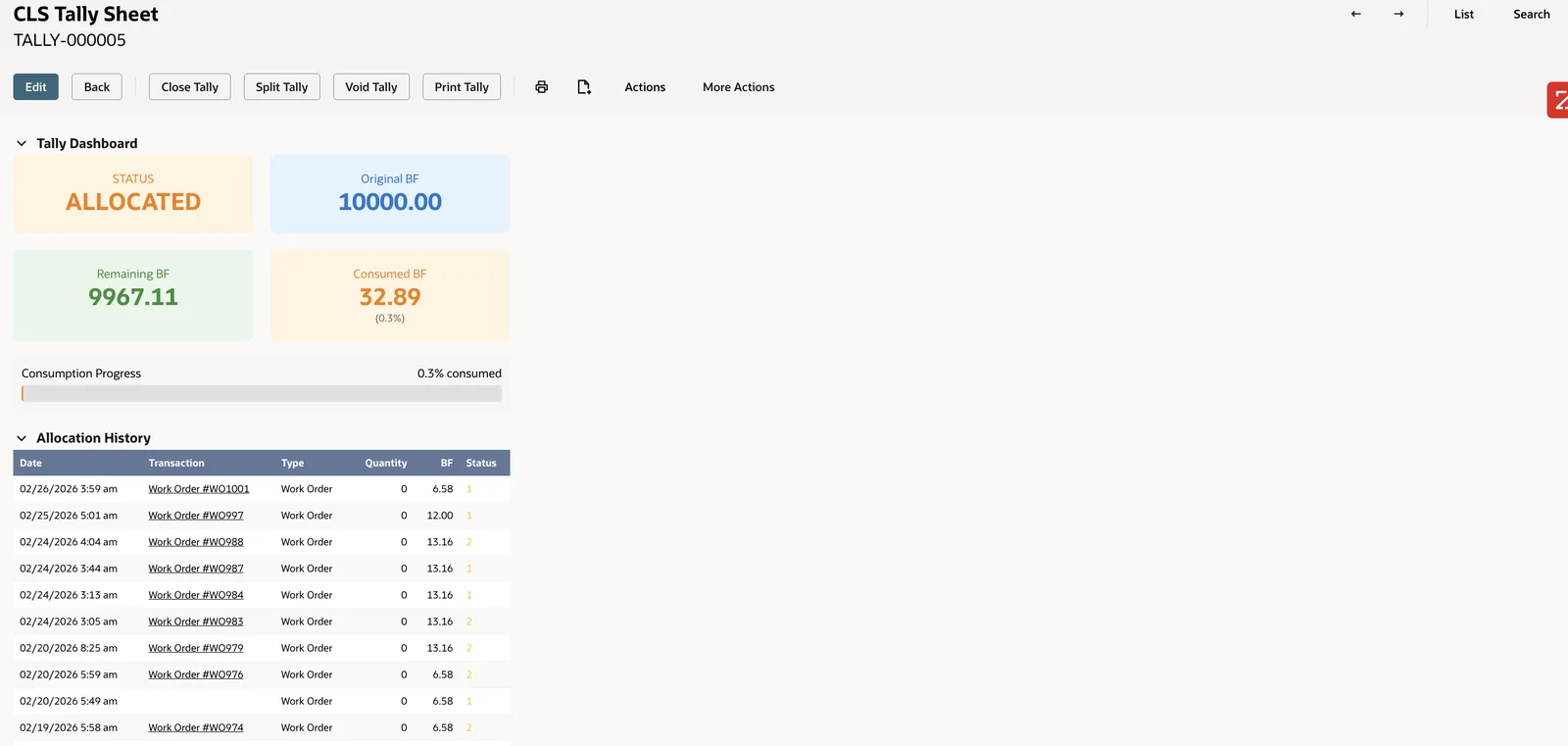
Tally tracking consumption percentage and allocated BF
Key Capabilities
- Manual vendor tally entry with individual item details
- CSV import for bulk tally uploads from suppliers
- Automatic tally creation from item receipts
- Tally allocation to work orders and production runs
- Real-time consumption tracking and waste monitoring
- Complete audit trail from receipt to consumption
- Tally status management (OPEN, ALLOCATED, CONSUMED, CLOSED)
Material Traceability
Track lumber from vendor tally through allocation to consumption, maintaining complete visibility and audit trails.
Flexible Workflows
Support for multiple entry methods adapts to different supplier capabilities and your receiving processes.
Yield Accountability
Detailed allocation and consumption tracking enables precise yield analysis and waste identification.
Operational Visibility
Real-time consumption tracking provides insights into production efficiency and material usage patterns.
Yield & Waste Tracking
Yield is board feet out divided by board feet in. LumberSuite measures it on every production run from the lumber the crew actually issued rather than the plan, and keeps one yield entry per work order. Yield Analysis then shows the plant's yield over time, by product and by job, against target, so you can see where the saw line loses wood while there's still time to act on it. Yield entries need "Yield Tracking" on in LumberSuite Settings.
Yield on the Completion Form
While a completion is being entered, its lumber lines show planned, actual and waste board feet, prorated to the quantity being completed, and a Yield Summary recalculates as quantities are typed (the waste columns need "Waste Tracking" on as well). A line that recovers more than five points below its expected yield shows a warning asking for a check or a waste reason. If waste on a line is more than half the planned lumber, or the overall yield is under 50%, LumberSuite asks for confirmation before the completion saves.
The Yield Register
When a completion builds product, LumberSuite writes one Yield Register entry for the work order. Input is the lumber actually issued, with planned board feet only for lumber that was never issued. Output is the board feet built across all of the job's completions. The entry is filed under the product made (the truss, not one of its components) and dated on the completion. Deleting a completion or an issue recalculates it, so the register never keeps a number for wood that went back to the yard.
Each entry works out yield, waste and the variance from the expected yield. It refuses output greater than input, flags anomalies such as a large variance or a yield over 98% or under 50%, and shows a variance gauge and a comparison with the last 30 days, the last 90 days and all time. Edits to an entry are marked as adjustments. Every entry also updates the item's average yield, which shows on the item's Lumber Profile next to its target.
Yield Analysis
Yield Analysis is filtered by date range (from the last 7 days to all time), item and location, and opens on the plant set as the "Default Location" in LumberSuite Settings. Summary cards show the number of entries, the average yield, total input, output and waste board feet, and the yield range, with a line saying how many runs met the target. The Yield Trend plots daily yield against a dashed target line: green at or above target, amber within five points, red below that.
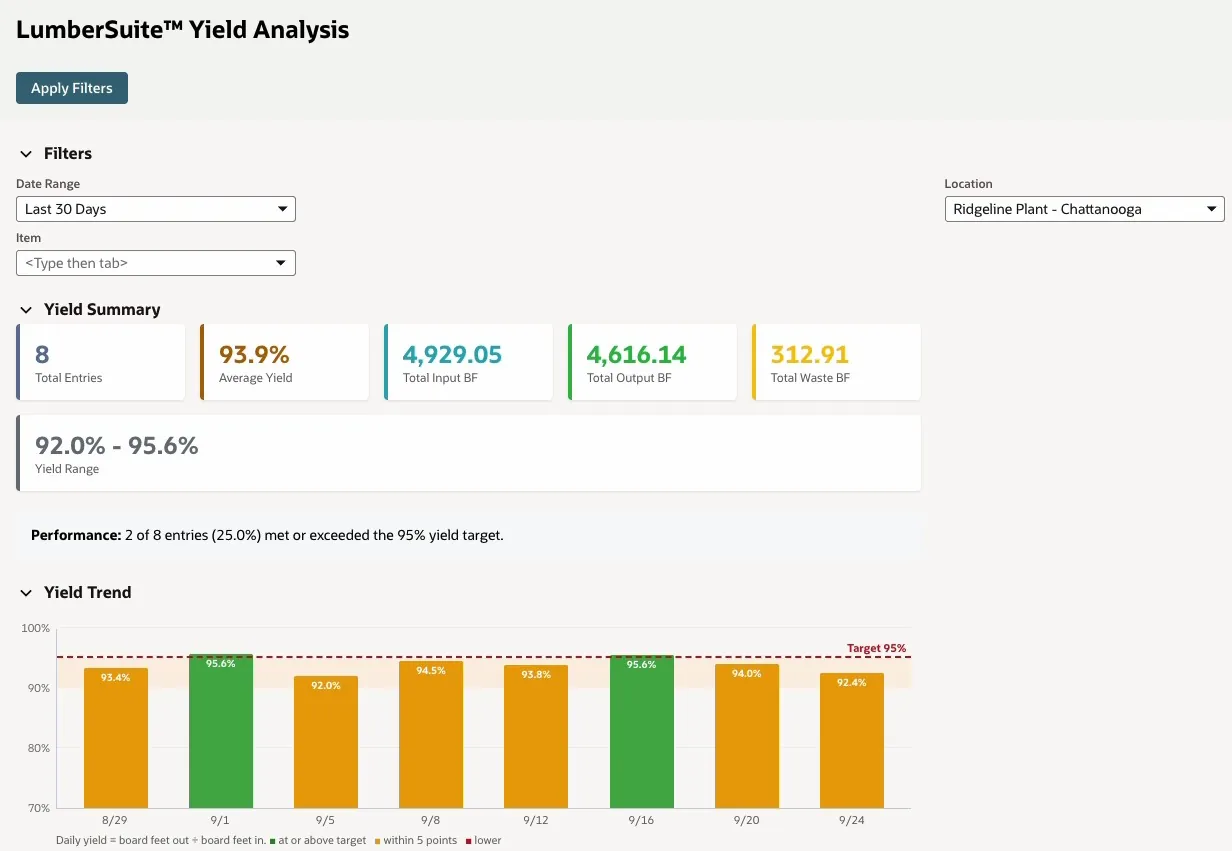
Yield Analysis for the Ridgeline plant, last 30 days: eight runs averaging 93.9%, and the daily trend against the 95% target
Yield by Product and by Job
Yield by Item shows each product's runs, board feet in and out and yield, with a status mark against target. At Ridgeline, the floor trusses run at 95.3%, on target, while the roof trusses sit at 93.0%. Yield by Job lists up to 15 of the latest work orders, each linked, with the customer, the product, board feet in and out, the yield and a waste reason when the entry has one: the reason recorded on it, or its largest waste category when the waste is broken down. Runs without one show a dash. The Cedar Creek Homes job completed that day sits at the top.
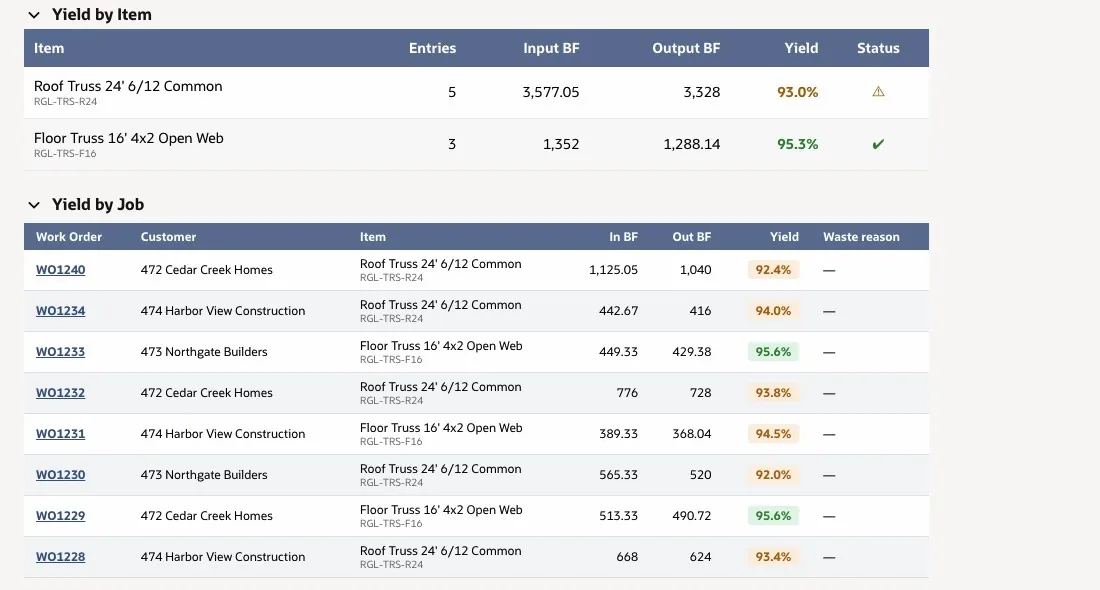
Yield by Item and by Job: roof trusses at 93.0%, under target; floor trusses at 95.3%; WO1240 for Cedar Creek Homes at 92.4%
Waste and Variance
Further down, the Variance Distribution counts runs at or above target, within five points, 5 to 15 points under, and 15 or more under. The Waste Summary shows total waste board feet as a share of input, the recovery rate, and input against output. Recent Yield Entries lists the latest runs with links to their work orders. The same entries feed the Yield view of the Executive Dashboard and the Yield Analysis report in the Report Generator.
Key Capabilities
- Yield from the lumber actually issued against the board feet built
- Planned, actual and waste board feet on completion lines, with warnings
- One Yield Register entry per work order, dated on the completion and recalculated when a completion or issue is deleted
- Variance against expected yield, anomaly flags and 30-day, 90-day and all-time comparison on each entry
- Yield Analysis by date range, item and location, opening on the Settings default plant
- Daily yield trend against target, yield by item and yield by job
- Waste reason per job where one is recorded, variance distribution, and a waste summary with recovery rate
- Average yield on each item's Lumber Profile
Repack Processing
Yards and plants rework lumber every day. A mill bundle gets broken into smaller packs, a random-length load gets sorted by length, a pack gets graded out, or boards get cut down into a precut product. LumberSuite handles this work in two ways. For a job on one bundle, the Repack button on the bundle opens a single screen that previews the result and then posts it, carrying the board feet, the value and the bundle's history through to the new bundles. For planned work, the Repack Builder lays out the outputs and the inputs in three steps and prints the plan for the floor.
Repack from the Bundle
Every open bundle with board feet left has a Repack button next to Regrade and Print Tally. It opens the Repack screen for that bundle. Across the top you pick the job: Break & re-bundle, Sort by length, Grade sort, or Resaw / trim to a product. Below that, the Source bundle strip shows the bundle the way the yard knows it: tag, item and size, grade, vendor and lot, certification, received date and days in the yard, yard location, board feet left, the lengths in a random-length bundle, and its average cost per BF next to its delivered cost per MBF. If some of the bundle is reserved for a work order, the strip shows that too, and the repack won't take those board feet.
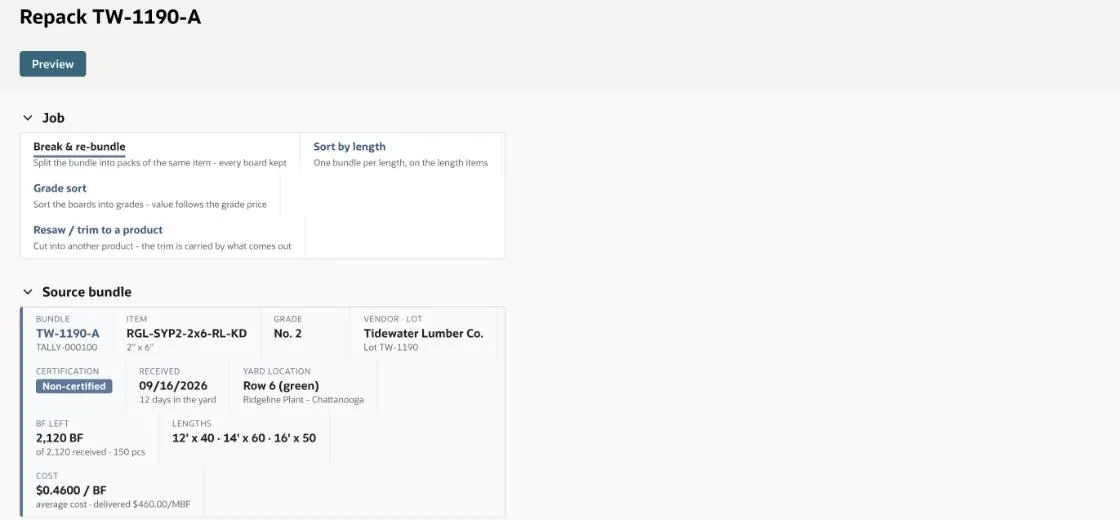
The Repack screen for bundle TW-1190-A: pick the job, then check the source, 2,120 BF of random-length No. 2 2x6 from Tidewater Lumber Co., 12 days in the yard
You enter the board feet and pieces taken, and LumberSuite fills in suggested output bundles for the job. A re-bundle splits the pieces into packs, and a sort by length makes one line per length on the matching length item. Each line has its item, grade, length, pieces, board feet, a new bundle tag (the source tag plus a suffix) and a yard location, and you can change any of them. A tag that's already on an open bundle is refused. The waste from the job gets a type, such as shorts, offcuts or downgrade, and a disposition such as Reprocess.
Preview, Then Post
Nothing moves until you've seen it. The preview shows lumber in, output, trim and yield; the value coming in at the bundle's NetSuite average cost; the cost per BF in and out; and every new bundle with its value and delivered cost per MBF, plus cost per piece when the output is stocked by the piece. It also spells out the inventory adjustment it will post. When the preview is right, the button changes to Post repack, and it posts exactly what you saw. If you change a line after the preview, LumberSuite shows you a new preview instead of posting, and a second click on Post repack never moves the wood twice.
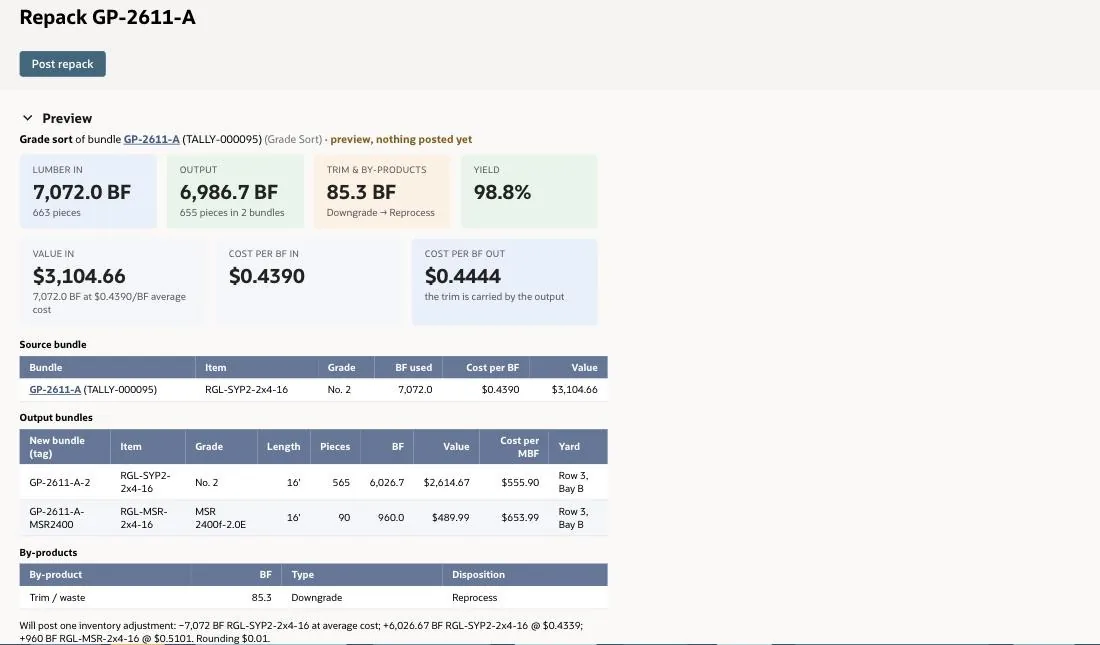
Preview of a grade sort on GP-2611-A: 98.8% yield, the value and cost per MBF of each new bundle, and the one inventory adjustment it will post
In the grade sort above, 7,072 BF of No. 2 2x4x16 from bundle GP-2611-A goes in at $3,104.66. Ninety pieces of MSR 2400f-2.0E come out onto their own bundle, 565 pieces stay No. 2 on a new tag, and 85.3 BF is recorded as a downgrade to reprocess, for a 98.8% yield. Value follows each grade's price modifier, so the MSR bundle carries more of it: $653.99 per MBF delivered, against $555.90 for the No. 2. The downgrade carries no value, so the cost per BF rises from $0.4390 in to $0.4444 out.
Posting does the whole job in one step. It makes one inventory adjustment when the item changes or boards are wasted, reduces the source bundle, creates the new tagged bundles, records the trim as a by-product, and lands you on a completed repack record (RPK-) that shows the same results. The value is carried to the cent: what leaves the source bundle is what lands on the new bundles, spread by board feet and, in a grade sort, by each grade's price modifier. The trim carries no value of its own, so what came out absorbs its cost. A straight re-bundle keeps the same item and wastes nothing, so it needs no adjustment at all.
Four Jobs, Run Live
We ran each job on SFI-certified bundles in the LumberSuite demo account. In every case, the value that went in came out on the new bundles.
- Break & re-bundle. A 1,024 BF bundle split into three packs of about 341 BF, each with its own tag. Every board is kept and the item doesn't change, so there's no inventory adjustment. The packs keep the bundle's $450.56 of value and its cost per MBF.
- Sort by length. 840 BF of random length sorted onto the 12, 14 and 16 ft items as 240, 280 and 304 BF, with 16 BF of broken boards recorded as shorts. That's a 98.1% yield, and one inventory adjustment moved the $386.40 of value onto the three new bundles.
- Grade sort. 683 BF graded out into 171 BF of MSR and 469 BF of No. 2, with 43 BF of culls recorded as a downgrade by-product. Value follows the grade price, so the MSR bundle comes out at $551.54 per MBF delivered. One inventory adjustment kept the $300.37 of value.
- Resaw / trim to a product. 420 BF of random length cut into 30 precut 2x6x12 stocked by the piece, with 60 BF of trim recorded for reprocessing. The pieces absorb the trim, so each one costs $6.44. One inventory adjustment kept the $193.20 of value.
New Bundles That Keep Their Story
Every output is a real bundle with its own tag, pieces, board feet, grade, length and yard location. It keeps the source bundle's vendor, lot, certification claim and received date, so a pack made today from June wood still ages as June wood, and an SFI bundle stays SFI through the repack. The new bundle's Source links back to the repack, and the source bundle's history shows the board feet repacked out. In the live run, every output bundle kept its received date, lot and SFI claim.
The Repack Builder: Plan a Repack in Three Steps
When a repack is planned ahead, with several outputs, the lumber to make them from and perhaps lumber still to buy, the Repack Builder on the repack record lays it out in three steps.
Step 1: Select Outputs
Search the items and enter the quantity of each output. Each row shows the board feet for that quantity next to NetSuite's own numbers (available, on hand, SO and WO committed, on PO and backordered), so you can see what's actually short before you plan.
Step 2: Select Inputs
Prepare Inputs suggests the lumber to consume. Tick the input items and quantities, and use Select Lots to choose exactly which lots to cut from: the picker lists each lot on hand at the repack's location with the quantity available. If stock won't cover the requirement, a Purchase Order panel suggests lines for the shortfall, with the quantity and board feet to order, defaulting to the item's preferred vendor.
Step 3: Repack Summary
Build Repack Summary lists the outputs and inputs, the board feet in and out, waste and yield, and how the inputs and purchase lines are shared across the outputs. Save the repack, and Print Repack prints the plan as a PDF for the floor: the location and species, then each output with the inputs allocated to it.
Key Capabilities
- Repack button on every open bundle, with four jobs: break & re-bundle, sort by length, grade sort, and resaw / trim to a product
- Source bundle strip with vendor and lot, certification, age, yard location, lengths and cost
- Preview of board feet, yield, value and cost per BF before anything posts
- One inventory adjustment per repack that carries the source bundle's value to the new bundles, and none for a straight re-bundle
- New tagged bundles that keep vendor, lot, certification and received date
- Trim, shorts and culls recorded as by-products with a type and disposition
- Board feet reserved for a work order stay on the bundle
- Three-step Repack Builder with a lot picker, suggested purchase lines and a printable plan
Receiving & Vendor Bills
Every load of lumber comes with three numbers: what the mill sold you, what your crew counted off the truck, and what the mill bills. LumberSuite puts all three side by side inside NetSuite. The yard counts every bundle against the purchase order, the order is corrected to the count, each bundle carries what it really cost with freight, and a bill for more wood than arrived is held before anyone pays it.
Count the Load Against the Order
From the purchase order, the yard clicks Enter Vendor Tally. The top of the page repeats the order as the mill sold it: quantity and unit, board feet, pieces, rate and amount for each line. Below it, the crew records the vendor lot, where the load is stacked, and one row per bundle with its item, size, pieces, bundle ID, grade and moisture. They can type the rows in, and the vs Ordered column checks each one as it goes in, or upload the mill's tally as a CSV file, which is counted in and written to the order in one step.
As each typed row goes in, LumberSuite works out its board feet, and the vs Ordered column compares the count for that item with its purchase order line. It speaks in boards, not footage:
- 21 pcs short, in red, when the count falls short of the order
- as ordered, in green, when it matches
- 3 pcs over or not on order, in amber, when the crew counts more than was ordered or finds an item the order never had
Two bundles of the same item are added together before they're compared with their line. The crew sees a short bundle while the truck is still there, not weeks later when the bill arrives.
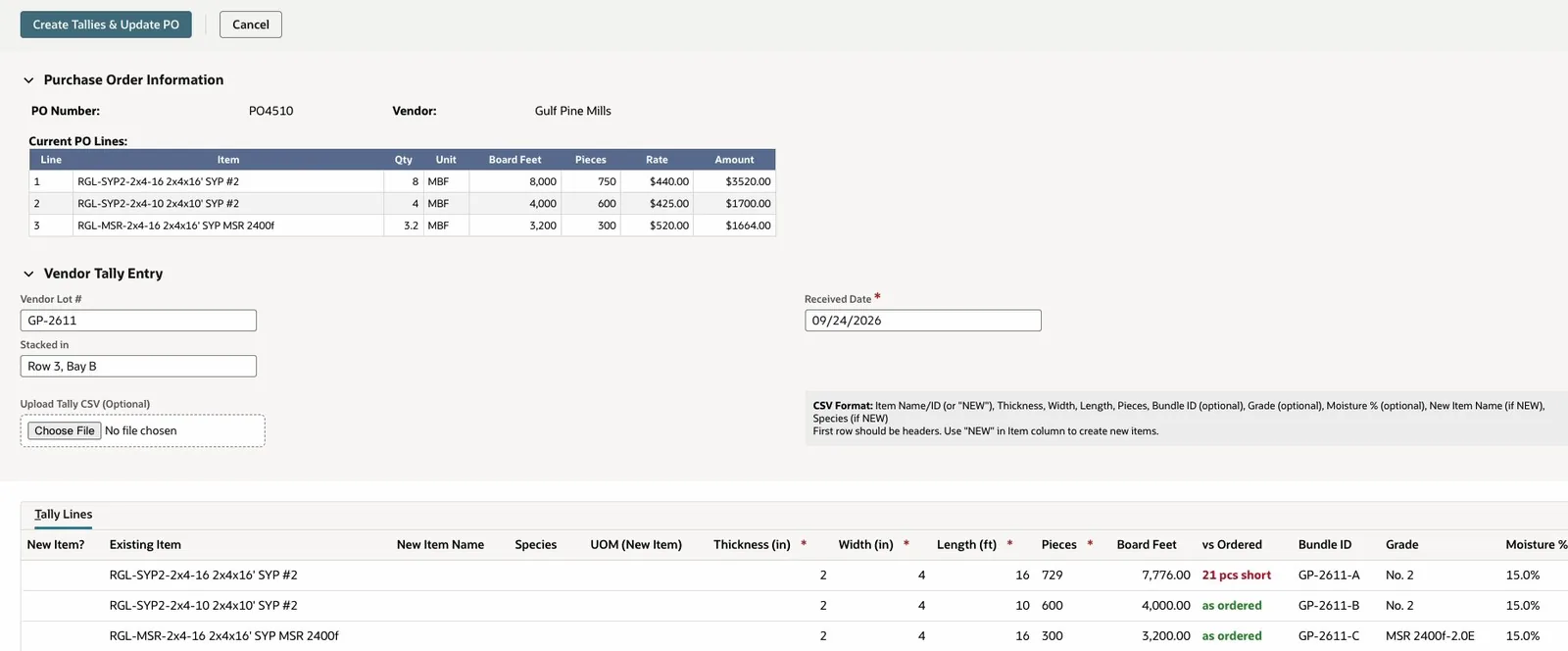
Counting Gulf Pine's load: the first 2x4x16 bundle is 21 pieces short of the 8 MBF ordered, and the other two match
The Purchase Order Follows the Count
Create Tallies & Update PO creates a bundle record for every counted bundle and rewrites the order's lines to the yard's count: the same item, in the same unit, at the mill's original price. Each line links to its bundle, and its description keeps what was ordered, ending in "· Ordered 8 MBF". The order now matches the truck without losing what the mill sold. On Gulf Pine's load, the 2x4x16 line became 7.776 MBF at $440.00, and the order total went from $6,884.00 to $6,785.44.
A purchase order that has already been received, billed or counted is locked, so the same load can't be counted twice.
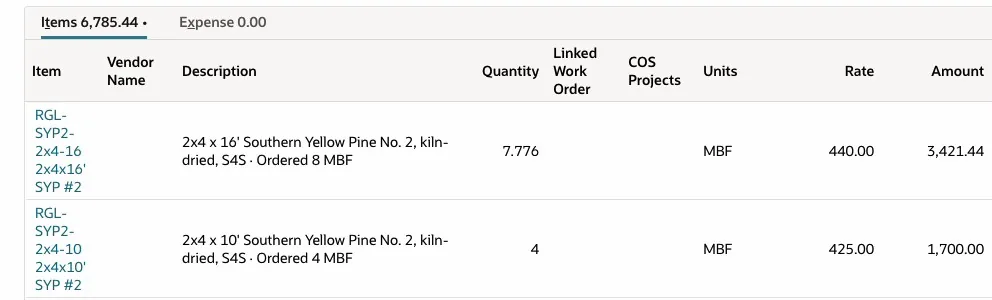
PO4510 after the count: 7.776 MBF at the mill's $440.00, with "Ordered 8 MBF" kept on the line and the items total down to $6,785.44
Buy in MBF, Stock in Board Feet
Mills sell by the thousand board feet, so LumberSuite lets you buy that way. Place the purchase order in MBF at the mill's $/MBF price. The count is written back to the order in MBF, the bundles hold board feet, and the receiving variance, landed cost and bill check each convert MBF to board feet on their own. The same wood can then be sold by the piece, linear foot, square foot, board foot or MBF. One chain runs from the mill to the customer: buy in MBF, stock in board feet, and sell in the unit your customer buys in.
Receive It, and Every Bundle Knows Its Variance
Receiving is the regular NetSuite item receipt. With Auto Create Tally turned on in LumberSuite Settings, the receipt links the bundles the yard already counted instead of creating new ones. The variance stamps and the freight spread described below are receipt steps too, so they need the same setting. The saved receipt shows a Tally Sheets Created section with the number of bundles, total received and remaining board feet, and every bundle ID with its grade and footage. Each ID is a link to the bundle's record.
The receipt also stamps each bundle with:
- its share of the board feet the mill ordered
- how far the count is from that order, in board feet and percent
- the purchase order it came from
- a variance note when the count is more than 2% off the order
The printed tally sheet shows the ordered board feet and the variance too, so the difference is on paper as well as in NetSuite.
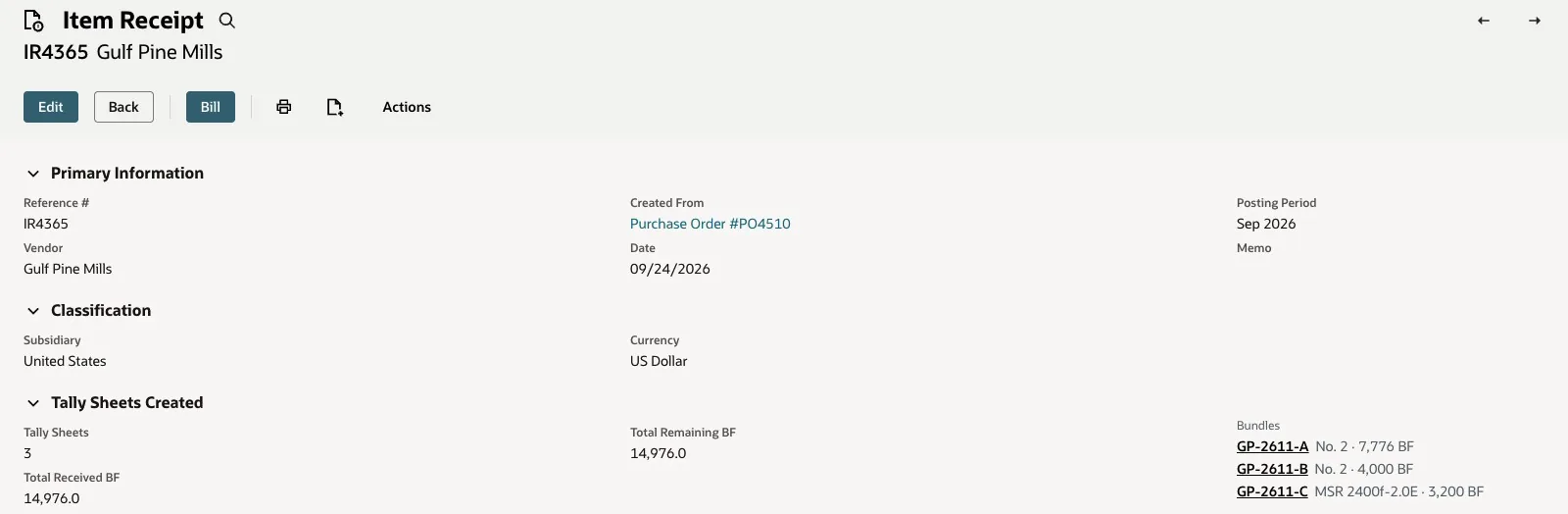
Item receipt IR4365 lists the three Gulf Pine bundles it put in the yard, each linked to its record
Landed Cost: Freight in Every Bundle
Key the inbound freight in the purchase order's Freight / Landed Cost field, and the order shows it beside the vendor. At receipt, LumberSuite spreads the freight over the load's bundles by board feet. Each bundle records its freight share, its landed cost per board foot and its delivered cost per MBF, which is the mill's price plus freight. The delivered $/MBF shows at the top of the bundle and on its printed tally sheet.
On Gulf Pine's load, $1,850 of freight put $395.30 on the 3,200 BF machine-rated bundle. It was bought at $520/MBF and now shows a delivered cost of $643.50/MBF. These figures are recorded on the bundles; LumberSuite doesn't post a landed-cost entry to the ledger.
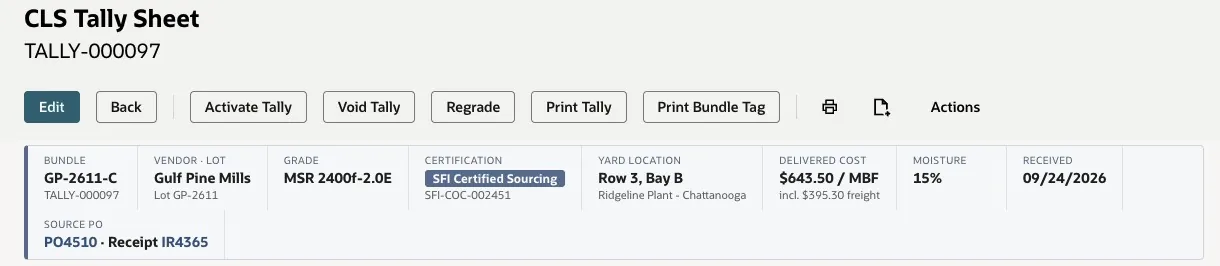
Bundle GP-2611-C: $643.50/MBF delivered, including its $395.30 share of the load's freight
The Mill's Bill, Checked Against the Count
When payables saves a vendor bill against a lumber purchase order, LumberSuite compares every lumber line with what the yard counted for that item. The saved bill shows a LumberSuite Receiving Variance panel with one row per item: billed board feet, tallied board feet, the variance in board feet and percent, the difference in boards and dollars, and a status of Within tolerance, OVER TOLERANCE or UNDER-BILLED. The tolerance is 2%. The billed board feet are also written onto each bundle, next to its count. The check reads the bundles linked to the order's receipts, so it also needs Auto Create Tally on.
Gulf Pine billed its sixteens at the full 8 MBF ordered, against a count of 7,776 BF. The panel shows the gap right away: 224 BF, 21 boards, $98.56 for wood that never came off the truck. That is the same $98.56 the count took off the purchase order.
Over-Billed Bills Go on Hold
A bill that charges for more board feet than the yard counted, beyond the 2% tolerance, is held automatically, so it can't be paid before someone reviews it. Gulf Pine's bill went on Payment Hold, and the panel reads "Billed more than the yard counted. Review before paying." with the hold named under it. Saving the bill is never blocked; payables decides what happens next.
A bill for less than the count is flagged UNDER-BILLED with its own note but never held. A bill that was held once isn't held again when it's edited, so once payables releases it, it stays released.
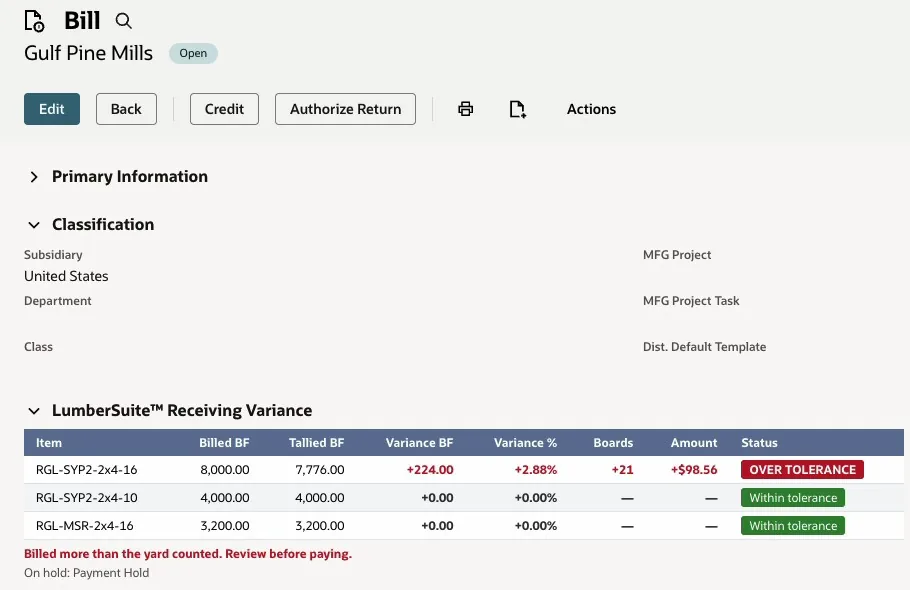
Gulf Pine's bill: the sixteens are billed 224 BF (21 boards, $98.56) over the yard's count, so the bill is on Payment Hold
Key Capabilities
- Vendor tally entry from the purchase order, typed in or uploaded as a CSV file
- A vs Ordered check, in boards, on every typed row: short, as ordered, over or not on order
- Purchase order rewritten to the count in its own unit at the mill's price, with the ordered quantity kept on each line
- Buy in MBF, stock in board feet, sell in the unit the customer buys in
- Item receipts that link the counted bundles and stamp each one with its ordered BF and variance
- Freight spread over the load into each bundle's delivered $/MBF
- Vendor bill check against the yard's count, with a 2% tolerance
- Automatic hold on over-billed bills, while under-billing is flagged but never held
Bundles & Yard
In LumberSuite every bundle in your yard is its own record in NetSuite. It is created when the crew counts the load at Vendor Tally Entry, or when the item receipt saves if Auto Create Tally is turned on in LumberSuite Settings, and from then on it knows where it came from, what grade and certification it carries, where it's stacked, what it really cost and where every board foot has gone. Regrades, kiln runs, repacks and shipments all start from the bundle, so the yard, the books and the paperwork tell the same story.
What a Bundle Knows
Open a bundle and a strip across the top answers the questions the yard, the office and an auditor ask, without a trip to another screen:
- The bundle tag and record number, the vendor and lot, and the grade
- The certification claim as a badge, with the mill's certificate code
- The yard location, such as Row 3, Bay B, and the plant it sits in
- The delivered cost per MBF, including the bundle's share of the freight on the purchase order
- The moisture reading and the received date
- The source: a link to the purchase order and receipt, or to the completion, regrade, kiln charge or repack that made the bundle
The yard location and moisture are typed once, at Vendor Tally Entry ("Stacked in" for the load, a moisture reading for each bundle), and they follow the wood onto any bundle made from it by a regrade, a kiln charge or a repack. The freight share and the certification are stamped when the item receipt saves, so they also need Auto Create Tally turned on. Below the strip, dashboard cards show the bundle's status and its original, remaining and consumed board feet, with a consumption bar.
Bundle History, With a Running Balance
Every bundle keeps its own ledger. Each row has the date, the movement, the document behind it as a link, the details and the board feet, and a Remaining column runs down the right-hand side:
- Received from a purchase order, or produced by a work order completion
- Reserved for a work order, shown as held, because reserving moves no wood
- Issued to a job, returned if the issue is reversed, and consumed at completion
- Regraded, dried in a kiln charge or repacked, in or out
- Shipped on an item fulfillment
The Remaining column always ends at the bundle's remaining board feet. If someone edited the bundle in a way no document explains, the difference shows as a single "Other adjustments" row instead of a total that quietly doesn't add up.
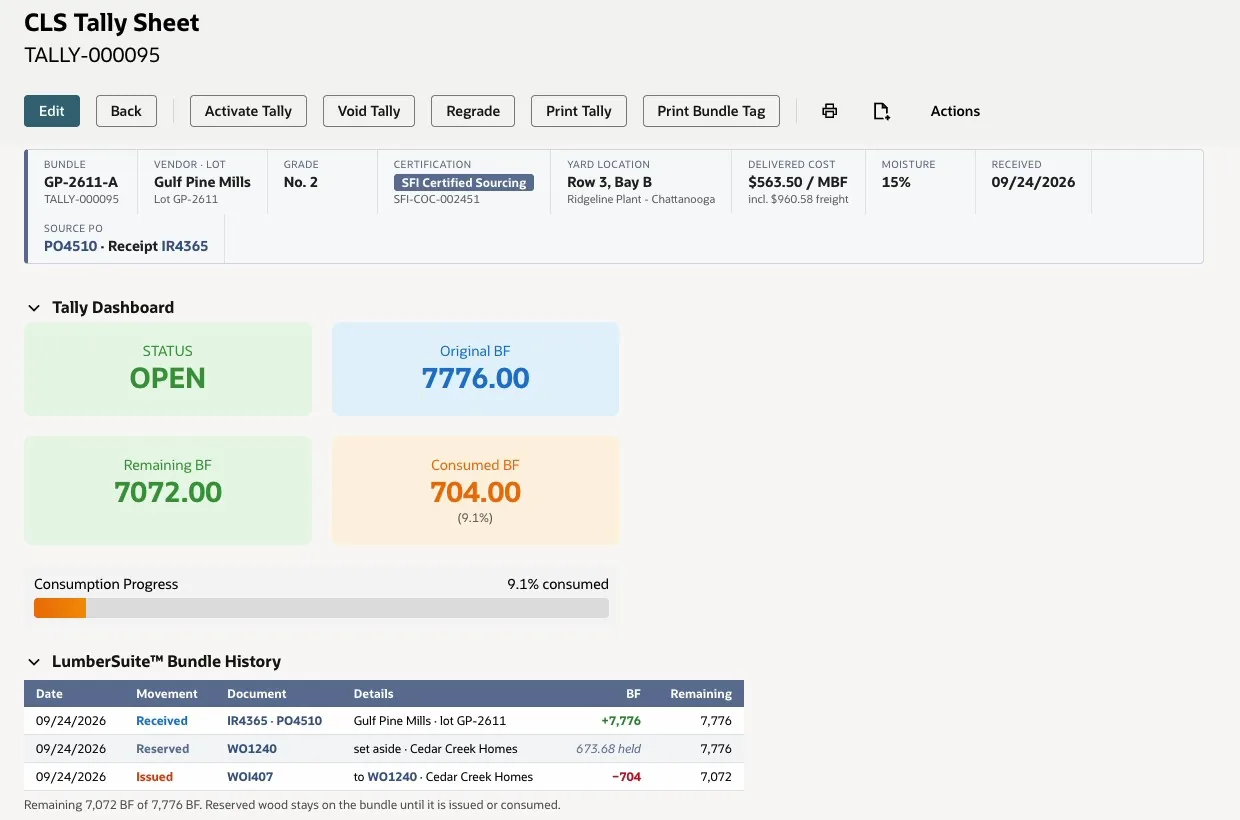
Bundle GP-2611-A after the Cedar Creek Homes job: 673.68 BF reserved, 704 BF issued, 7,072 BF left, each movement linked to its document
Random-Length Bundles, Counted Length by Length
A mill bundle often mixes lengths. At Vendor Tally Entry the crew enters each length as its own row under the same bundle ID, for example 40 pieces at 12', 60 at 14' and 50 at 16'. LumberSuite keeps those rows as length lines on one bundle, works out the board feet of each line and rolls them up into the bundle's board feet and pieces. The bundle then reads "RL 12-16'" on its tag, the facts strip lists each length with its count, and the tally sheet print carries a length-by-length table. When a whole bundle is regraded or kiln-dried, its length lines are copied onto the new bundle, so it stays counted the way it was stacked.
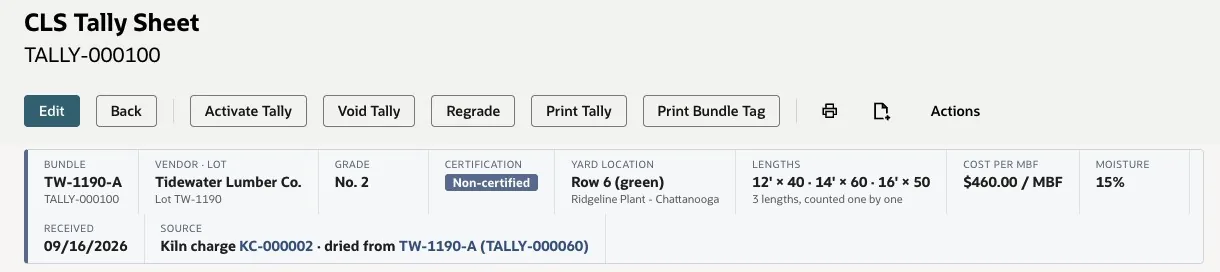
Kiln-dried bundle TW-1190-A, counted by length (12' x 40, 14' x 60, 16' x 50), keeps the green bundle's received date and yard row, and its source links to kiln charge KC-000002
Tally Sheet and 4x6 Bundle Tag
Two print buttons sit on every bundle. Print Bundle Tag produces a 4x6 tag for the bundle itself: the bundle ID in type you can read from a forklift, a Code 128 barcode of that ID, the item, grade, length (or the random-length range), pieces, board feet, yard location and moisture, the certification claim and code in a box, and the source documents and received date. Print Tally produces the full tally sheet: barcode, vendor, lot, grade, certification and source, size and pieces, the length table for a random-length bundle, and a board-foot summary with the delivered cost per MBF and, for a purchased bundle, the board feet ordered on the purchase order against what was counted.
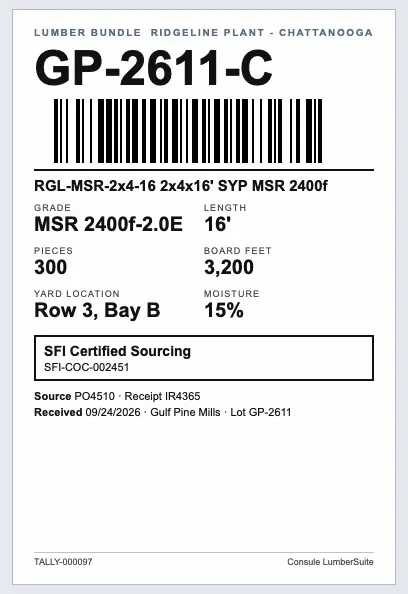
The 4x6 tag for bundle GP-2611-C: grade, length, pieces, board feet, yard location, moisture and the SFI claim, with the source and received date
Regrade and Degrade, With the Inventory Value to Match
When the grader finds boards that don't make the grade, they click Regrade on the bundle, pick the new grade and the item that carries it, and enter the board feet, pieces and a reason such as Warp/Bow. Nobody types a cost. LumberSuite takes the item's current average cost and applies the ratio of the two grades' price modifiers, unless someone enters a regraded cost per board foot. The page opens with Preview only ticked, so the value change is on screen before anything posts.
Posting creates one NetSuite inventory adjustment: the old item out at its average cost, the new item in at the regraded cost, and the difference to the adjustment account. The moved boards become a new bundle that keeps the lot, tag, yard location, moisture, certification, freight share and received date, plus the length lines when the whole bundle moves. The regrade record (RGR-) shows a before-and-after panel with the grade change, the board feet moved, the value change and a link to the adjustment. A grade change that stays on the same item just moves the board feet, with no GL posting.
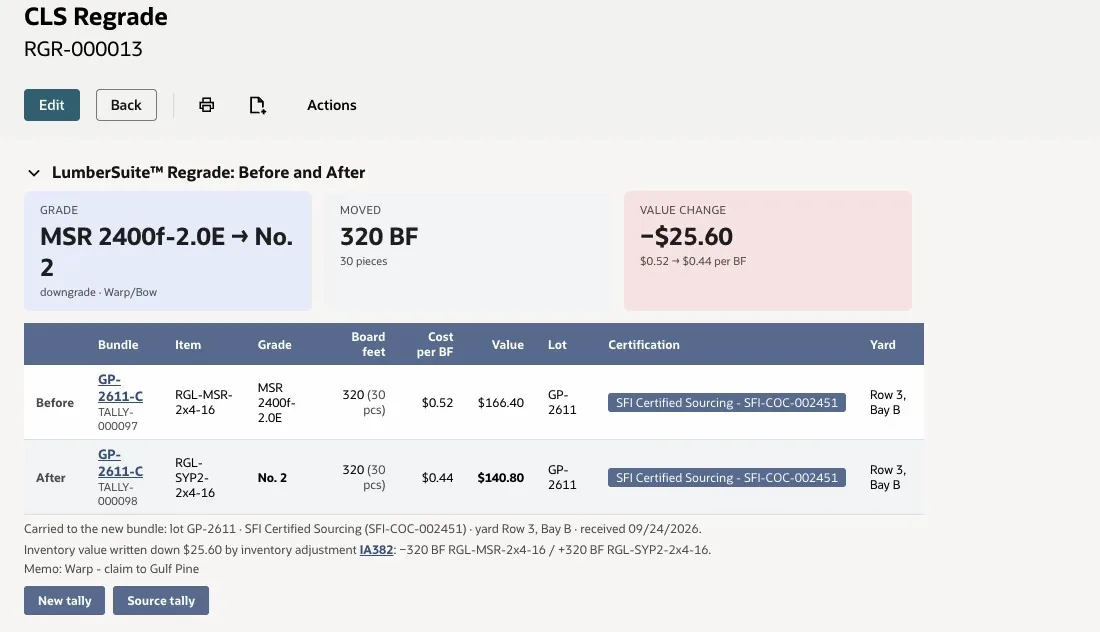
Regrade RGR-000013: 320 BF of MSR moved to No. 2 as a new bundle, value down $25.60 by one inventory adjustment, with the lot, yard location and SFI claim carried over
Kiln Charges: Green In, Kiln-Dried Out
A kiln charge (KC-) groups the green bundles dried together: the kiln, the day they were loaded, the target moisture, the moisture going in and the drying cost for the run. While the charge is drying, its In the Kiln panel shows the board feet loaded, the moisture in, the drying cost per board foot and each bundle with its lengths.
When the load comes out, the operator clicks Complete Kiln Charge, records the moisture out and confirms the drying cost. LumberSuite moves each green bundle to the kiln-dried item at its cost plus the drying cost per board foot, with one inventory adjustment per bundle, writes the moisture-out reading onto the new bundle and links it back to the charge. The Kiln Results panel then shows the board feet, moisture in and out, cost per board foot before and after, and each green bundle beside the kiln-dried bundle it became. The dried bundle keeps its received date, lot, yard location, certification and length lines. A charge with no kiln-dried item only records the new moisture.
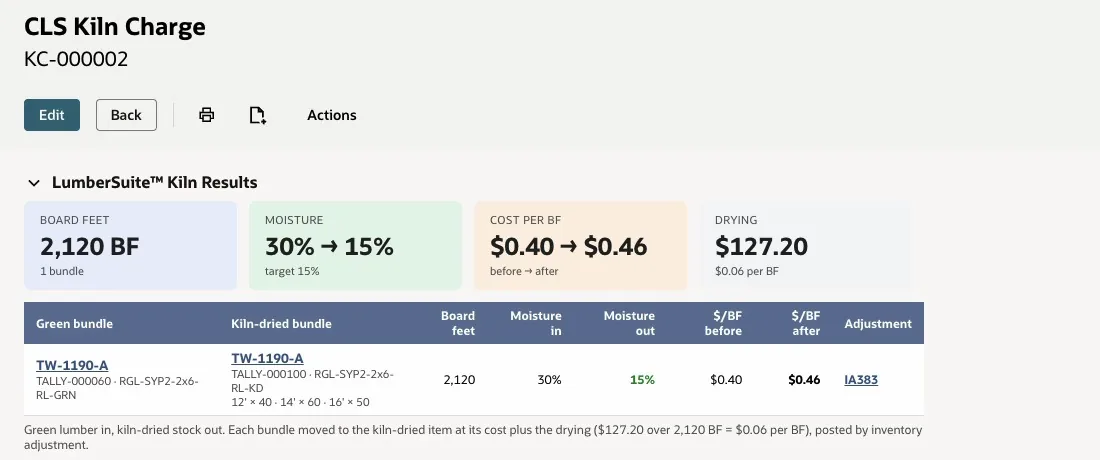
Kiln charge KC-000002, complete: 2,120 BF of green random-length 2x6 dried from 30% to 15% moisture, cost per BF from $0.40 to $0.46 with $127.20 of drying
Oldest Bundles Ship First
When a sales order line ships without a specific bundle named on it, the item fulfillment draws the board feet from the oldest open bundles of that item at the shipping location, by received date. It skips wood already reserved for work orders, splits a line across bundles when one isn't enough, adjusts the draw if the shipment is edited and puts the board feet back if it's deleted. A line that names a bundle ships from that bundle.
The saved fulfillment's LumberSuite Fulfillment Summary shows the board feet shipped and lists the bundles the load was pulled from, each linked, with its yard location and received date. That is the pick list for the yard and the record that the old wood went out first.
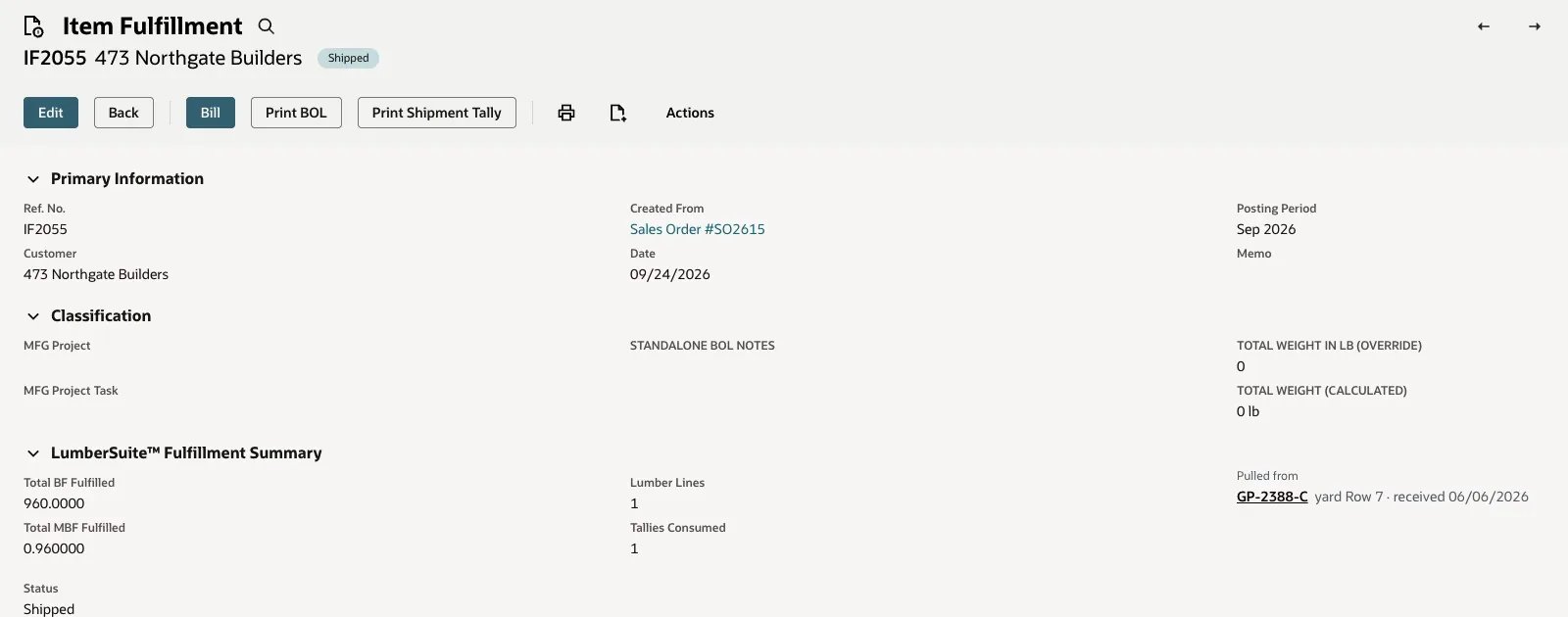
A 960 BF shipment to Northgate Builders, pulled from bundle GP-2388-C in yard Row 7, received in June
Inventory Aging at Cost
The Executive Dashboard's Inventory tab ages every open bundle by its received date into 0-30, 31-60, 61-90 and 90+ day buckets, each with the number of bundles, board feet and value at cost, and lists the five oldest bundles with their yard location. Value at cost is the remaining board feet times the item's NetSuite average cost at that location, the same cost your books use. A bundle with no received date gets its own bucket instead of landing in 90+, and regraded, kiln-dried and repacked bundles keep their original received date, so handling old wood never makes it look new. The Aging report link opens the Inventory Aging report in the Report Generator with the same numbers.
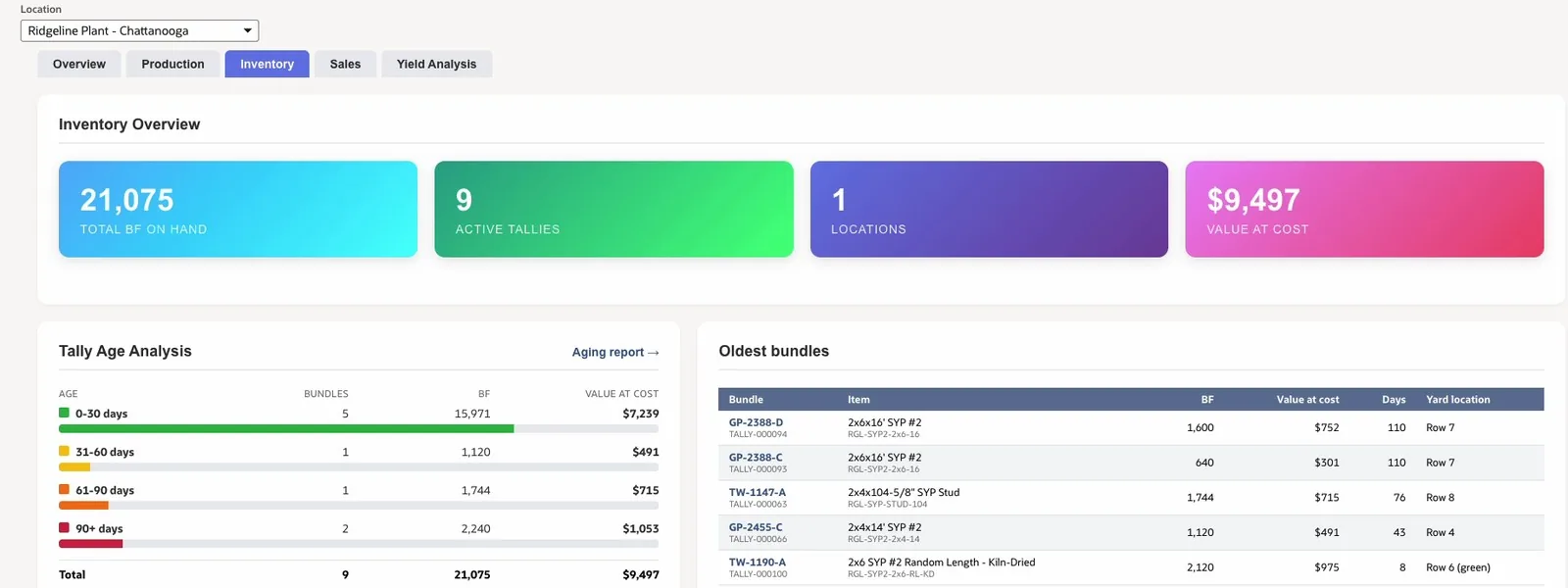
Executive Dashboard, Inventory tab: open stock by age at cost, and the five oldest bundles with their yard rows
The Board-Foot Movement Log
Alongside each bundle's ledger, LumberSuite keeps a movement log for the whole business. Quotes, sales orders, work orders and their issues, shipments with their edits and reversals, regrades, kiln charges and repacks each write a row with the item, date, board feet and source document. Receipts and completions show in each bundle's own history rather than in the log. The Control Center's Quick Stats total the board feet in the log and count today's LumberSuite transactions. Because the log is an ordinary NetSuite record, a saved search can put it on the Home dashboard as a portlet, so the day's issues, regrades, drying and shipments are waiting when you log in.
Key Capabilities
- A NetSuite record for every bundle, with a facts strip of tag, lot, grade, certification, yard location, delivered $/MBF, moisture and source
- Bundle History ledger with a document link on every row and a running Remaining balance
- Random-length bundles counted length by length and rolled up to one bundle
- 4x6 bundle tag with a Code 128 barcode, plus a full tally sheet print
- Regrade and degrade with a preview, one inventory adjustment and a new bundle that keeps its lot, yard location and certification
- Kiln charges that move green bundles to kiln-dried stock at cost plus drying
- Oldest-first bundle picking on shipments, with a Pulled from list on the fulfillment
- Inventory aging by received date, valued at NetSuite average cost
Chain of Custody
If you buy FSC, SFI or PEFC certified lumber, the claim has to follow the wood: onto each bundle, through everything you do to it, and onto the paperwork your customer receives. LumberSuite carries the mill's claim and certificate code from the vendor record to the load ticket, so the claim is never retyped, and a mix of wood never claims more than its weakest part.
The Mill's Claim, on the Purchase Order
Each vendor record holds its certification claim and certificate code, for example SFI Certified Sourcing with SFI-COC-002451. Claims are plain text, so FSC, SFI and PEFC all work. Open a purchase order from that vendor and LumberSuite shows the claim and code right beside the vendor, as LumberSuite Certification, so buying and the yard know what's on the truck before it arrives.
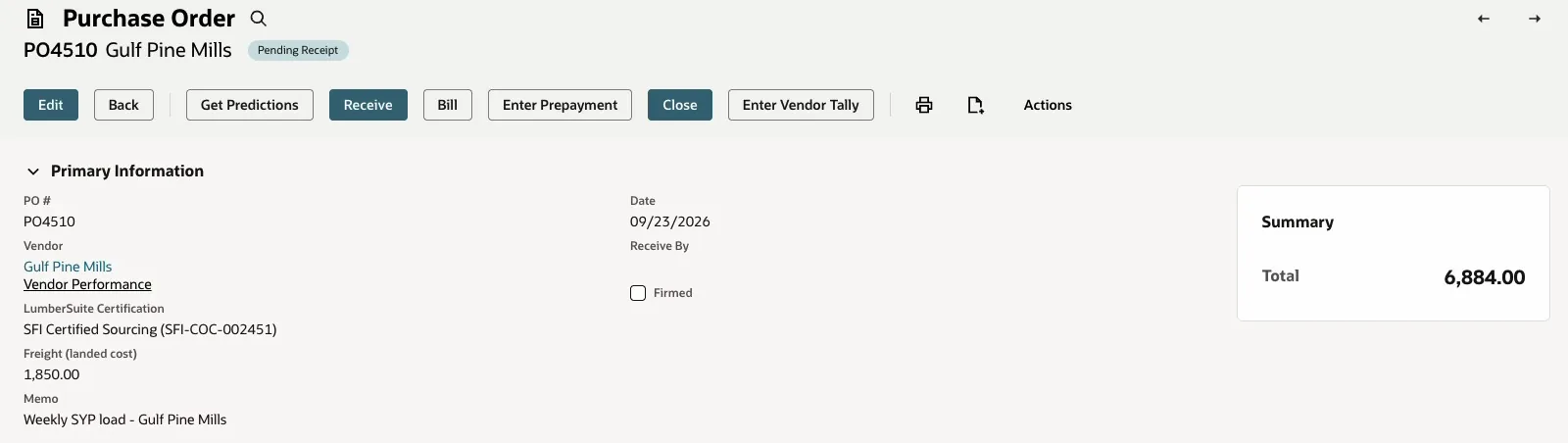
Purchase order PO4510 from Gulf Pine Mills, with the mill's SFI claim and certificate code beside the vendor
Stamped on Every Bundle Received
When the item receipt saves, every bundle from the load that doesn't already carry a claim takes the vendor's claim and code. This needs Auto Create Tally turned on in LumberSuite Settings, the same switch that links the counted bundles to the receipt. From then on the claim travels with the bundle: a badge in the bundle's facts strip, a boxed line on the 4x6 bundle tag and a line on the tally sheet print, all covered under Bundles & Yard.
Carried Through Regrade, Kiln and Repack
A regrade changes the grade, not where the wood came from. The new bundle keeps the claim and code, and the regrade's before-and-after panel shows the certification on both rows. Kiln charges dry through the same regrade engine, so a kiln-dried bundle keeps the claim of the green bundle it came from. A bundle repack stamps every bundle it creates, whether a re-bundled pack, a length sort, a grade sort or a resawn product, with the claim of the bundle it was cut from.
Output Bundles Take the Weakest Claim
When a work order completion builds product, LumberSuite creates an output bundle for it, and that bundle's claim comes from the bundles the job reserved and drew from. The weakest one wins. Claims rank in this order:
- FSC 100% (strongest)
- FSC Mix, SFI and PEFC certified
- FSC Controlled Wood and SFI Certified Sourcing
- Non-certified (weakest)
If any input is non-certified, the whole output is non-certified and carries no certificate code. If the inputs carry different certificate codes, the output lists them all. The completion's Production Results panel shows the output bundle with its claim, next to the bundles the lumber was drawn from.
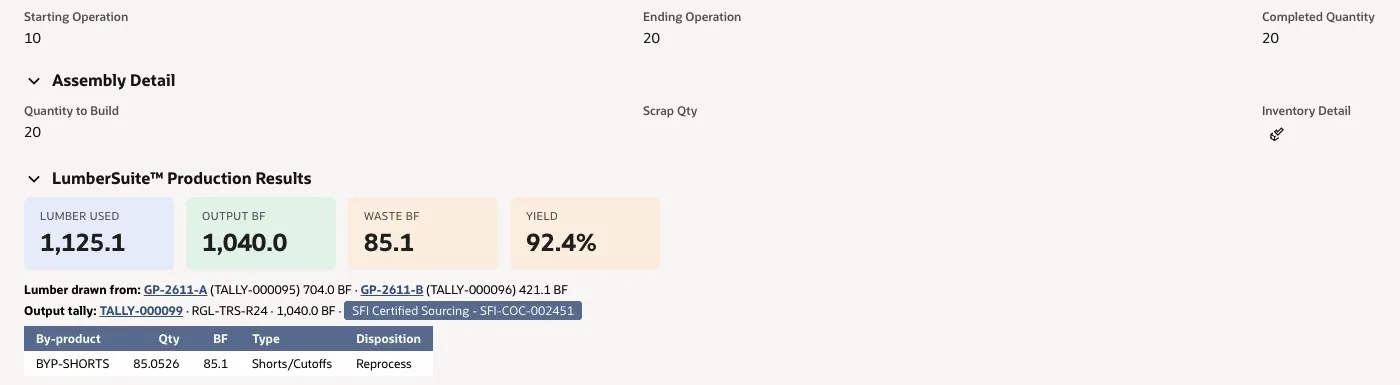
Twenty roof trusses built from bundles GP-2611-A and GP-2611-B: output bundle TALLY-000099 carries SFI Certified Sourcing and the mill's certificate code
On the Shipment and the Load Ticket
When the order ships, the item fulfillment gets a claim summary worked out the same way from the bundles the shipment drew from, such as "SFI Certified Sourcing - SFI-COC-002451", marked as multiple certificates when the codes differ. Print Shipment Tally on the fulfillment produces the load ticket that travels with the truck: customer, ship date, ship method, ship-from location, total board feet and the certification in the header, then each line with its bundles and each bundle's claim and code, and lines for the loader, driver and receiver to sign.

The load ticket for Cedar Creek Homes' 20 roof trusses, with the SFI claim in the header and against the bundle on the line
From the Roof Back to the Mill
Each record links to the one before it. The fulfillment's Pulled from list opens the output bundle. The output bundle's source opens the completion that built it, the completion names the bundles the lumber was drawn from, and each of those opens the mill's purchase order and receipt. When a builder on a certified job or a chain-of-custody auditor asks where the wood came from, the answer is a few clicks inside NetSuite.
Key Capabilities
- Vendor certification claim and certificate code, shown on every purchase order from that vendor
- Claim stamped on each received bundle, with Auto Create Tally on in LumberSuite Settings
- Claim carried through regrades, kiln charges and repacks
- Work order output bundles take the weakest claim of the bundles used
- FSC, SFI and PEFC claims ranked from FSC 100% down to non-certified
- Claim summary on the item fulfillment and the Shipment Tally load ticket
- A linked trace from the shipment back to the mill's purchase order
Process Targets & By-Products
Every cut loses some wood. Process targets tell LumberSuite how much of the lumber a process should keep, and by-product records account for the wood that didn't end up in the product: how many board feet, what kind of waste it was, and where it goes next. The target sizes every job, and the by-products explain the gap between lumber in and product out.
Process Targets
A Process Target record belongs to a process type. It holds the target yield, a minimum yield, and the kerf loss, shrinkage and defect rate the process is expected to lose, each as a percentage, with notes. A work order's process type, carried over from the sales order line when the job comes from an order, pulls its target yield. A yield typed on a lumber line overrides it, and with no process target the "Default Yield %" in LumberSuite Settings applies.
The target yield is what grosses up the lumber on every job. The work order's BF Summary shows it next to Lumber to pull, so the planner sees exactly how much extra wood the job carries for cutting waste.

WO1240 while still Planned: 1,040 BF required, a 95% target yield, so 1,094.7 BF of lumber to pull, and no bundles reserved yet
By-Products from Production
When a completion builds product, LumberSuite subtracts the board feet built from the lumber that went in (what the crew issued, or the plan when nothing was issued) and records the difference as by-products, with "Waste Tracking" or "Yield Tracking" on in LumberSuite Settings. If the job's process target has a kerf loss, the kerf share of the input is booked as Sawdust with the disposition Fuel. The rest is booked as Shorts/Cutoffs with the disposition Reprocess, and a job with no process target books all of its waste as shorts. Each record names the work order, the lumber it came from, its board feet, type, disposition and location, and points to a by-product item (BYP-SAWDUST or BYP-SHORTS) when one is set up. The completion's Production Results panel lists them.
Cedar Creek's 20 trusses: 1,125.1 BF in, 1,040 BF built, and the 85.1 BF left over recorded as a Shorts/Cutoffs by-product to reprocess
Tracked, Not Valued
By-product records are tracking records. They don't post inventory and carry no cost: NetSuite costs all the lumber the job consumed into the finished product, trim included. What the records give you is the board feet that left each run as sawdust or shorts, and where that wood is headed.
By-Products from Bundle Repacks
A bundle repack records its waste the same way. A sort by length books broken boards as shorts, a grade sort books its culls as a downgrade, and a resaw books its trim as shorts. The repack form suggests the type with a Reprocess disposition, and the operator can change either. In live runs on the demo account, a sort by length left 16 BF of shorts, a grade sort 43 BF of culls and a resaw 60 BF of trim, each on its own by-product record. The by-product carries no value of its own, so the new bundles absorb its cost, and the by-product record keeps the board feet.
A grade sort of GP-2611-A before it posts: 85.3 BF to be booked as a Downgrade by-product to reprocess, with its cost carried by the output ($0.4390/BF in, $0.4444/BF out)
Key Capabilities
- Process targets by process type: target yield, minimum yield, kerf loss, shrinkage and defect rate
- Target yield on each work order from its process type, with line and Settings fallbacks
- Lumber to pull grossed up by target yield on every job
- Waste split at completion: the kerf share as sawdust (Fuel), the rest as shorts (Reprocess)
- By-product records with type, disposition, board feet, source work order and location
- By-products from bundle repacks: shorts, culls and trim
- Tracking only: by-products post no inventory, and the wood's cost stays with the product
Work Order Integration
LumberSuite runs inside NetSuite's own work orders and adds the lumber to every step. When a job is saved, it works out how much wood the job needs, cutting waste included. When the job is released, it sets that wood aside from specific bundles in the yard. When the saw crew issues lumber, it draws down the bundles the boards really came from. And when the job is completed, it records what came out: the finished product as a new bundle, the offcuts, and the real yield. The planner, the floor and the office all work from the same board feet. The bundle steps need "Tally Management" on in LumberSuite Settings, and the yield figures need "Yield Tracking".
Sizing the Lumber, Waste Included
When a work order is saved, LumberSuite sets the board feet the job needs. A job created from a sales order line takes that line's board feet, scaled to the work order's quantity when it builds only part of the line. Without an order behind it, the job uses its Total BF, and failing that, the board-foot content of the product itself. The required board feet are split across the lumber lines by each line's share, then grossed up by the target yield: a job for 1,040 BF of trusses at a 95% target calls for 1,094.7 BF of lumber. The target is the yield typed on the line if there is one, else the process target for the job's process type, else the "Default Yield %" in LumberSuite Settings.
Each lumber line is stamped with its calculated board feet, its share before yield and the yield used, and the sizes and process type on the order line are carried onto the job. If the quantity, Total BF or product changes later, the lumber is sized again, unless "Allow WO Override" is on in LumberSuite Settings, which keeps the planner's own component quantities.
Work Orders from Sales Order Lines
Most truss jobs start with a customer's order. A work order created from a sales order line shows that order in Created From and is sized from the line, so the plant builds what was sold. Back on the sales order, LumberSuite's Board Feet Summary lists each work order the order created, with its status, product and quantity, one click from the job.
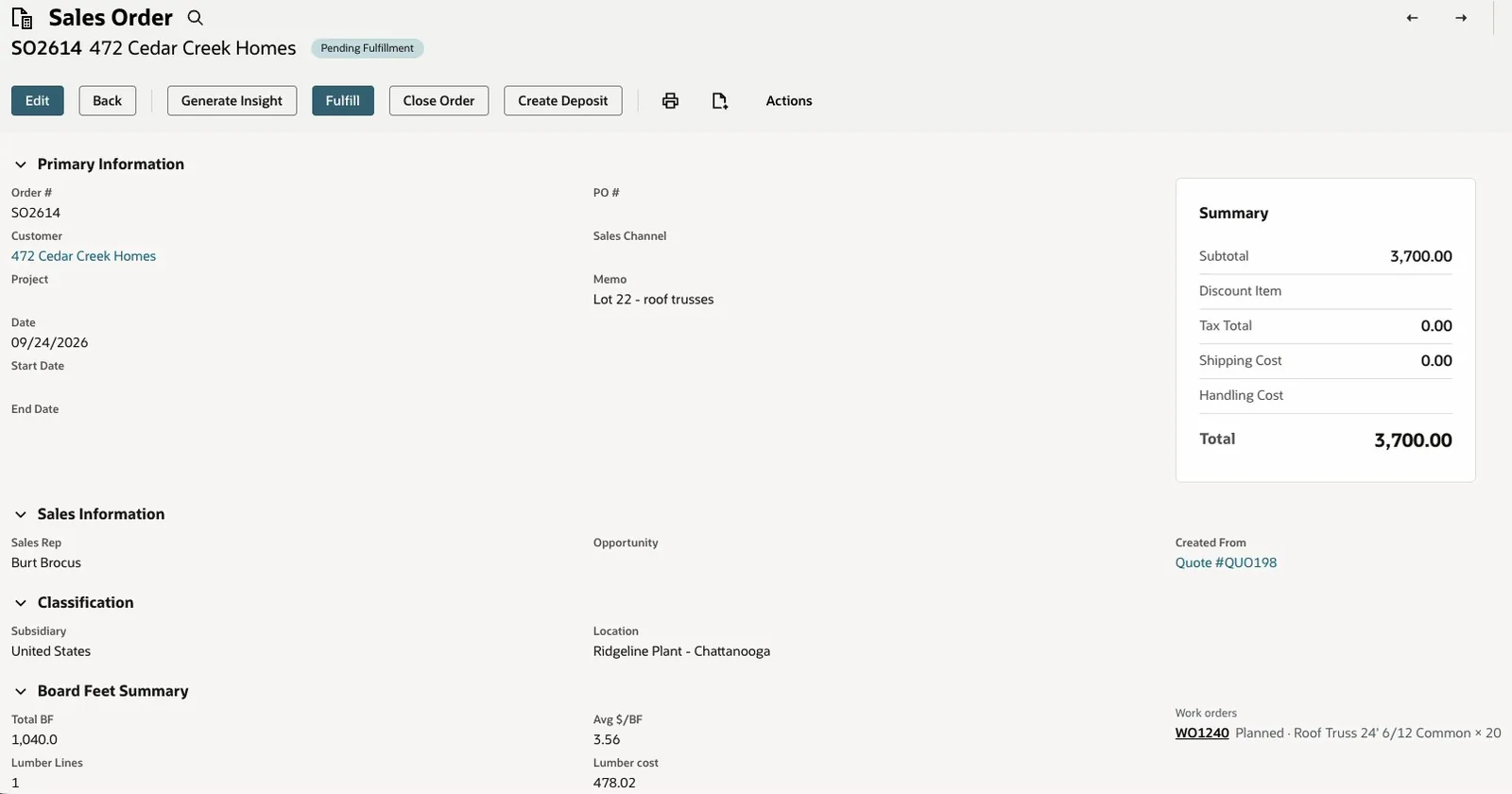
Sales order SO2614 for Cedar Creek Homes: 1,040 BF in the order, and work order WO1240 for the 20 roof trusses one click away in the Board Feet Summary
Bundles Reserved on Release
A Planned work order holds no wood, so stock isn't tied up by jobs that are only on the schedule. When the supervisor sets the job to Released, LumberSuite reserves bundles for each lumber line at the job's location, oldest received first, skipping wood already reserved for other jobs, and links them on the line. From then on, the shipping desk's automatic bundle pick passes over that wood, so nobody sells it out from under the plant. Setting the job back to Planned returns any reservation that hasn't been drawn. A job is never reserved twice, and the Tally Allocation screen won't reserve wood for a Planned job.
The Work Order's BF Summary
Every work order has a BF Summary: Total Required BF and where it came from, Lumber to pull after yield, the Target yield, and the Reserved bundles by yard tag with the board feet held on each. A Planned job reads "None yet". Once lumber is drawn, Drawn bundles appear with the board feet taken from each, so anyone opening the job can see whose wood it is using.
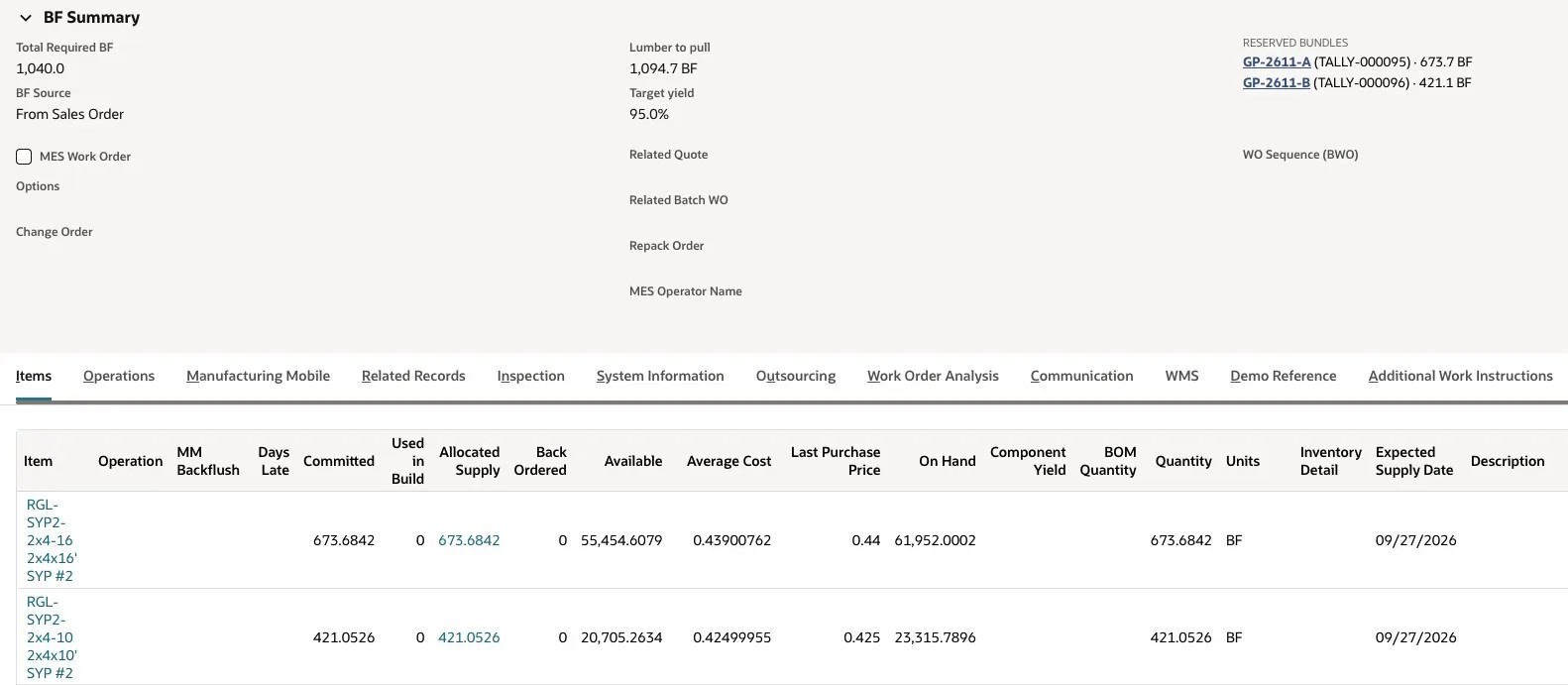
WO1240 after release: 1,094.7 BF to pull at a 95% target yield, reserved from bundles GP-2611-A and GP-2611-B, with the lumber lines sized to 673.68 and 421.05 BF
The Crew Issues What It Actually Pulled
On NetSuite's Work Order Issue, the saw crew records the lumber that really went to the saw, often a few boards more than the plan. LumberSuite draws those board feet from the job's reserved bundles, oldest first. Anything beyond the reservation is taken from the open bundles at the location, again oldest first: on WO1240 the extra 30 BF of 2x4x16 came off the same bundle, GP-2611-A. Every issue is written to LumberSuite's movement log, and if no open bundle has the wood, the log notes the shortfall as SHORT.
Deleting an issue puts its board feet back on the bundles. Lumber quantities on a saved issue can't be edited; the crew deletes the issue and enters a new one, so the bundles always match what was issued.
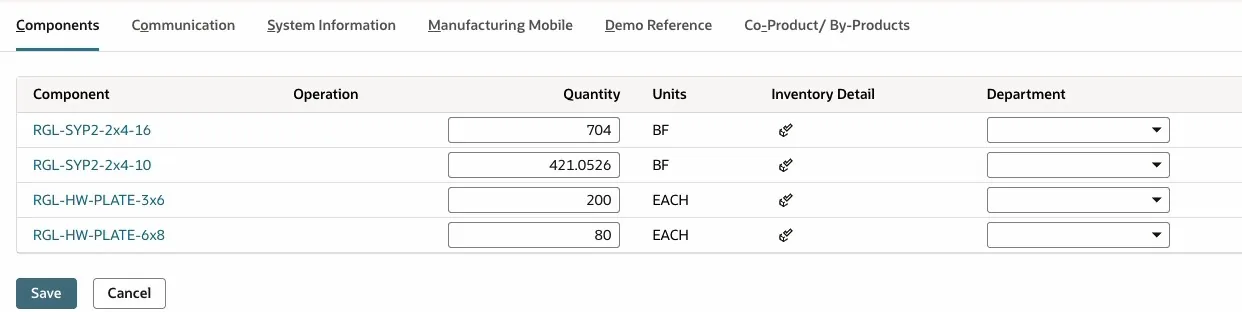
The Work Order Issue for WO1240: the crew records 704 BF of 2x4x16 where the plan called for 673.68 BF
Completing the Job
The completion is NetSuite's standard Work Order Completion. When it finishes the routing's last operation, LumberSuite does the rest in the same save:
- Lumber the crew issued is never drawn from the bundles a second time. On the final completion, lumber that was never issued is drawn from the reserved bundles at plan, and the rest of the reservation goes back to the yard. A partial completion leaves the reservation in place.
- When the product is set up as a lumber item, the finished goods become a new bundle with their board feet, a piece count for items stocked by the piece, the location and a link to the completion. The bundle ships oldest-first like received lumber and takes the weakest certification claim of the bundles it was cut from. Deleting the completion voids the bundle if nothing has used it.
- The gap between lumber in and board feet out is recorded as by-products, and the yield goes to the Yield Register (see Process Targets & By-Products and Yield & Waste Tracking).
Production Results on the Completion
The saved completion shows LumberSuite's Production Results panel: cards for Lumber used, Output BF, Waste BF and Yield, links to the bundles the lumber was drawn from, the output bundle with its certification badge, and a table of by-products. When Cedar Creek Homes' 20 roof trusses were completed, the panel showed 1,125.1 BF used, 1,040 BF built and a 92.4% yield, a little under the 95% target, on the day the job ran. If no lumber was issued, the first card reads Lumber (planned).
Twenty roof trusses completed: 1,125.1 BF used, 1,040 BF built, 92.4% yield, the two bundles the lumber came from, the new output bundle carrying the SFI claim, and 85.1 BF of shorts to reprocess
Work Orders Made Outside the Form
Not every work order is saved through the form. CSV imports, integrations, Manufacturing Mobile and NetSuite's own Create WO can make work orders that skip LumberSuite's sizing. Every 15 minutes, a scheduled sweeper finds Planned and Released work orders from the last 30 days whose lumber was never sized and sizes them the same way. It also reserves bundles for a recently released job that never got them.
Key Capabilities
- Required board feet from the sales order line, the work order's Total BF or the product's own BF content
- Lumber lines sized by BF share and grossed up by target yield
- Work orders from sales order lines, sized from the line and listed on the order
- Bundles reserved oldest-first on release; nothing held while Planned
- Work Order Issue draws down the reserved bundles, with any extra taken oldest-first
- BF Summary with lumber to pull, target yield, reserved and drawn bundles
- Finished-goods bundle and a Production Results panel on every completion
- Sizing sweeper for work orders made by import, integration or Manufacturing Mobile
Price Matrix & Quotes
Lumber sells off a price list that moves with the market: so much per thousand board feet for a species, grade and size. LumberSuite keeps that list in NetSuite and applies it to quotes and sales orders. A rep can leave the price off a lumber line, and LumberSuite fills it in on save from the price in effect on the transaction date, in whatever unit the customer is buying. With Advanced Reporting switched on in LumberSuite Settings, the quote also shows its board-foot margin before it goes out. A sales order for trusses shows what the wood inside them costs.
The Price Matrix
Each row in the CLS Price Matrix names a species, a grade and a size (thickness, width and length). Any of these can be left blank to mean "any", so one row can price a whole grade while another prices a single size. The price is entered per MBF, MSF, BF, linear foot or piece, with an Effective From date, an optional Effective To date and a priority. When more than one row fits an item, the most specific row wins, then the higher priority, then the latest start date. So when the market moves, the sales manager adds a matching row that starts on the day the new price takes effect, and from that day it wins over the old one; the items themselves don't change. The list opens from the Set up strip at the top of the LumberSuite Control Center.
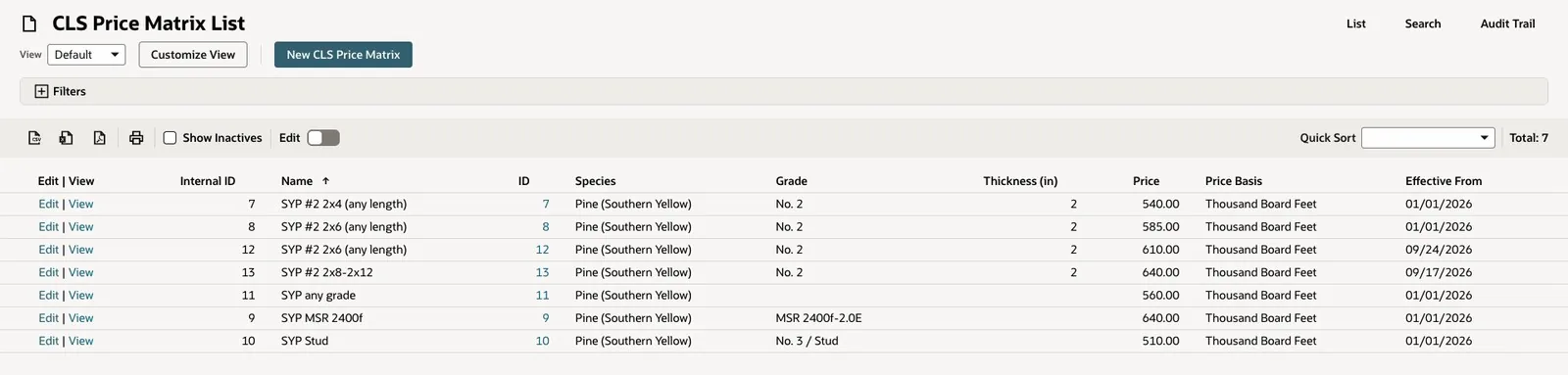
The Southern Yellow Pine price list: rows by grade and size, priced per thousand board feet, each with the date it takes effect. The No. 2 2x6 price moved from $585 to $610/MBF on 09/24/2026.
Blank Lines Priced on Save
The counter works on NetSuite's regular quote and sales order forms. The rep picks the customer and the lumber item, types the quantity and leaves the rate at zero. When the quote or order is saved, LumberSuite finds the price row for that item on the transaction date, converts it to the line's unit and fills in the rate and amount: a $/MBF row becomes a price per BF on a line sold in board feet, or a price per piece on a line sold by the each. The line's LumberSuite Price Basis column records the row it used, for example "$610/MBF - SYP #2 2x6 (any length)". A line that already has a price is never changed, so a negotiated price stays exactly as the rep typed it.

A Northgate Builders quote: 960 BF of 2x6x16 No. 2, added with the rate left at 0.00.
Quote BF Margin Analysis
Lumber margins are thin. With Advanced Reporting switched on in LumberSuite Settings, LumberSuite adds a BF Margin Analysis section to the quote. It totals the lumber lines and shows Total BF, the average price per BF, the BF margin in dollars and the margin %, with cost taken from each item's NetSuite average cost. On the Northgate Builders quote, the 960 BF line was priced at $0.61/BF from the new $610/MBF row, $585.60 in all, and the panel shows a $134.40 margin, 22.95%, before the quote goes to the customer.
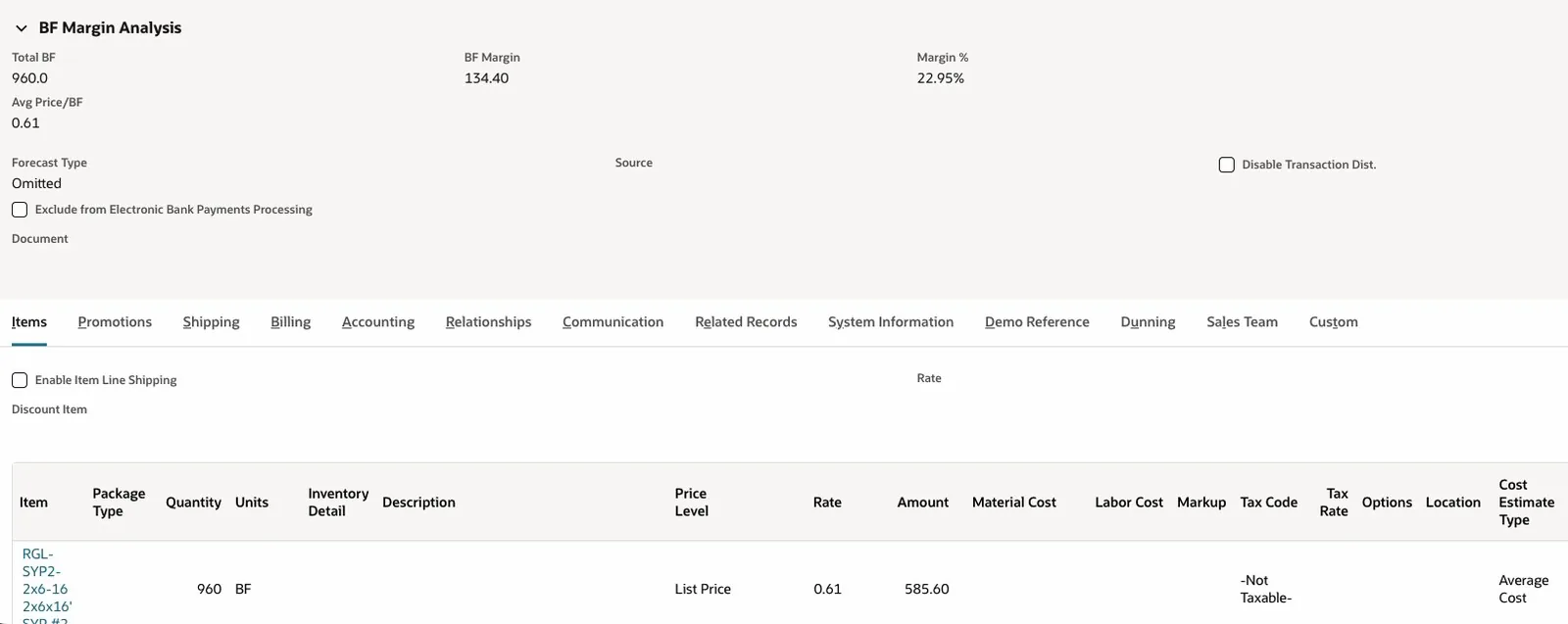
After the save: the line is priced at $0.61/BF ($585.60) from today's $610/MBF row, and BF Margin Analysis shows a 22.95% margin.
Today's Price on the Item
Every lumber item carries a LumberSuite Lumber Profile panel, and one of its rows is today's price from the matrix: the price in its own basis, the same price per BF and per piece, and the row it came from with its start date. On the 2x10x16 No. 2 pine item, for example, it reads $640.00 / MBF, $0.64 / BF and $17.07 / piece, from the SYP #2 2x8-2x12 row. When no row matches, the panel says so, which shows a gap in the price list before a rep tries to quote the item.
Lumber Cost for Trusses and Other Assemblies
A truss plant sells trusses by the each, so a board-foot margin would set the price of a whole truss against its wood alone. When a sales order carries assemblies, LumberSuite's Board Feet Summary shows the lumber cost instead: the wood inside the order, worked out from the lumber components of the assembly's current BOM revision, or from the lumber lines of the work orders the order created. Plates and hardware are left out. The same summary links each work order the order created, with its status, product and quantity, so anyone on the order can go straight to the job.
Cedar Creek Homes' order for 20 roof trusses on lot 22 carries 1,040 BF of lumber with a lumber cost of $478.02 on a $3,700 order, and links work order WO1240 beside it.
Cedar Creek Homes' truss order: 1,040 BF inside, lumber cost $478.02, and work order WO1240 linked in the Board Feet Summary.
Key Capabilities
- Price rows by species, grade, thickness, width and length, with a blank meaning "any"
- Prices per MBF, MSF, BF, linear foot or piece, with effective dates and a priority
- Most specific row wins, then the higher priority, then the latest start date
- Blank quote and sales order lines priced on save in the line's own unit, with the row used noted on the line
- Prices the rep typed are never overwritten
- Quote BF Margin Analysis with total BF, average price per BF, BF margin and margin % (Advanced Reporting on)
- Today's price on every lumber item's Lumber Profile
- Lumber cost of the wood inside truss and other assembly orders, with links to their work orders
Sales & Purchase BF
LumberSuite carries board feet through the sales cycle in NetSuite: on every quote and order line, in a summary on the sales order, on the shipment, and on the load ticket that goes out with the truck. Customers can buy by the piece, linear foot, square foot, board foot or MBF, and the board feet are worked out underneath, so the yard always knows how much wood is leaving. On the buying side, a purchase order can be written in MBF at the mill's price per thousand, and the yard's count is written back to it in MBF, as described under Receiving & Vendor Bills.
BF on Every Quote and Order Line
When a rep picks a lumber item on a quote or sales order, LumberSuite fills in its thickness, width and length and works out the line's board feet as the quantity is typed. A lumber line missing a size that the item's unit formula needs can't be added. On save, LumberSuite recalculates each line's BF, price per BF and extended cost and writes the Total Board Feet on the transaction. When the customer says yes, NetSuite's Sales Order button on the quote creates the order with the same lines and prices, and the board feet come with them.
Sales Order BF Summary
A saved sales order with lumber on it shows LumberSuite's Board Feet Summary: total BF, the number of lumber lines and the average price per BF. On a straight lumber sale, with Advanced Reporting switched on in LumberSuite Settings, it adds the BF margin and margin %. On an order for trusses or other assemblies it shows the lumber cost of the wood inside the order instead and links the work orders the order created, as described under Price Matrix & Quotes.
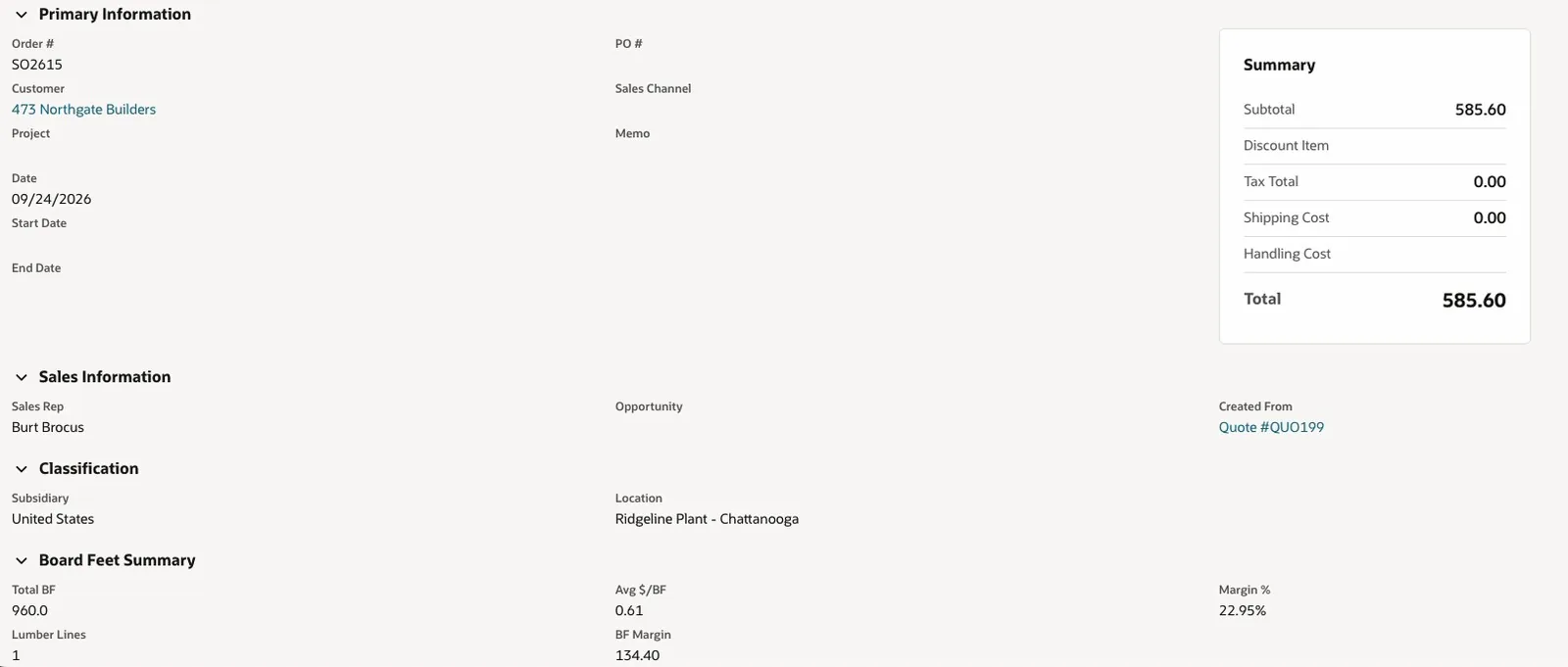
Sales order SO2615, created from quote QUO199: the same $585.60 total, with 960 BF at $0.61/BF and a $134.40 (22.95%) BF margin in the Board Feet Summary.
Selling by the Piece, LF, SF, BF or MBF
Each line keeps its quantity in the unit the customer buys in: pieces, linear feet, square feet, board feet or MBF. LumberSuite converts that quantity to board feet with the unit's formula, so every line has a BF figure whatever the unit, and an optional Selling UOM column can show the line in a second unit. Prices from the price matrix follow the same rule, so a $/MBF row can price a line sold by the piece. In the Ridgeline demo, Northgate Builders buys 960 BF of 2x6x16 off the yard, and Cedar Creek Homes buys 20 roof trusses by the each, which LumberSuite carries as 1,040 BF.
BF on the Shipment
When the yard ships an order, each lumber line on the item fulfillment carries its BF per unit from the order line, so the line BF and the shipment's total BF and MBF are right even when only part of the order ships. When a line ships without a named bundle, LumberSuite draws the wood from the oldest open bundles of that item at the shipping location. The LumberSuite Fulfillment Summary on the saved fulfillment shows the BF and MBF shipped, the number of lumber lines, how many bundles the shipment drew from, and a "Pulled from" list linking each bundle with its yard spot and received date.
Fulfillment IF2055 for Northgate Builders: 960 BF shipped, pulled from bundle GP-2388-C in yard Row 7, received in June.
Shipment Tally (Load Ticket)
The Print Shipment Tally button on the fulfillment opens a load ticket that travels with the truck. The header shows the customer, ship date, ship via, the location it shipped from, the total board feet and, when the wood carries one, the certification claim. Each line shows the item, quantity, unit and board feet, with the bundles it came from: tag, grade, yard spot, certification claim and BF, plus pieces by length for random-length bundles. The fulfillment number prints as a barcode at the top, and the ticket ends with lines for whoever loaded it, the driver and the receiver to sign.
The load ticket for Cedar Creek Homes: 20 roof trusses (1,040 BF), the bundle they came from with its SFI claim, and lines for the loader, driver and receiver.
Billing stays standard NetSuite: the invoice bills what shipped, and LumberSuite adds nothing to it.
Key Capabilities
- BF worked out on every quote and sales order line as the rep types, recalculated on save and carried from quote to order
- Sales order Board Feet Summary with total BF, lumber lines and average price per BF
- BF margin on straight lumber sales (Advanced Reporting on); lumber cost and work order links for assemblies
- Selling by the piece, LF, SF, BF or MBF, with BF tracked underneath and an optional Selling UOM column
- BF per unit carried onto each shipped line, correct on partial shipments
- Oldest-first bundle picking and a "Pulled from" list on the Fulfillment Summary
- Printable load ticket with a barcode, source bundles, certification claim and signature lines
- Purchase orders written in MBF at the mill's price, with the yard's count written back in MBF
Advanced Reporting
LumberSuite reports the business in board feet and dollars, straight from the records your team already keeps in NetSuite: bundles, work orders, yield rows, sales orders and the movement log. The owner gets an Executive Dashboard for the day-to-day picture. The controller gets eight ready-made lumber reports that print under the company letterhead, export to PDF, Excel or CSV, and arrive by email on a schedule. A BI tool can pull the same data through an export API. None of this depends on the Enable Advanced Reporting box in LumberSuite Settings; that box turns on the BF margin panels on quotes and sales orders.
Executive Dashboard
The dashboard opens on the plant set as the Default Location in LumberSuite Settings, or on all locations when none is set. The plant and the date range (today, this week, this month, quarter, year or a custom range) can be switched at the top, and five sections sit under them.
- Overview: board feet produced, average yield, board feet on hand and sales value, each compared with the previous period when the earlier period is large enough for the comparison to mean something. Below them sit alerts, quick stats and a 30-day production trend.
- Production: runs completed, board feet produced and the average per run, production by item with its yield and last run date, and the active work orders with percent complete.
- Inventory: board feet on hand, open bundles and value at cost, the age of every open bundle, the oldest bundles with their yard row, inventory by location and the top items by board feet.
- Sales: revenue, orders, board feet sold and the average $/BF, top customers, sales by species and recent orders.
- Yield Analysis: input, output and waste board feet, yield by operation type and by operator, a yield trend drawn against the target line, and the runs that came in low.
The charts carry labeled axes with round tick values, and the yield chart fits its axis to the data, so a run of 93% to 96% reads as a trend instead of a flat line along the top of a 0-100 scale. The target line is the default yield in LumberSuite Settings. The alerts flag bundles that are down to less than 100 board feet and repack orders that have sat unfinished for more than a week.
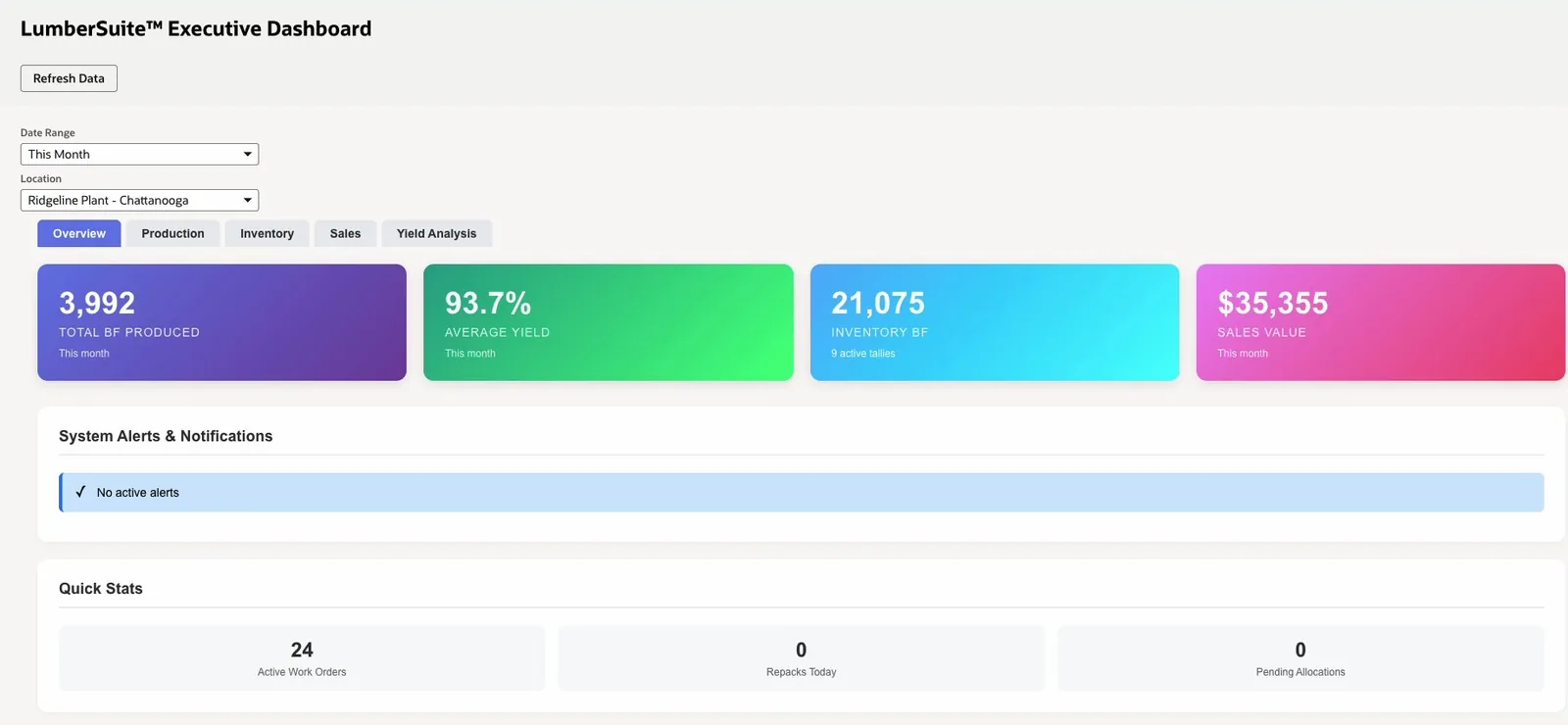
The Overview for the Ridgeline Plant, this month: board feet produced, average yield, board feet on hand and sales value, with alerts and quick stats below
How Old Is the Wood, in Dollars
The Inventory section ages every open bundle by its received date into 0-30, 31-60, 61-90 and 90+ days, with the bundle count, board feet and value in each bucket. Value is the board feet left times the item's NetSuite average cost at the bundle's location, the same cost your books use. Beside it, the five oldest bundles are listed by tag with the item, board feet, value, days in the yard and yard row, which tells the yard which pile to sell first. The Aging report link opens the Report Generator on the Inventory Aging Report for the same plant.
Bundles aged by received date and valued at cost, the five oldest bundles with their yard row, and the link to the full aging report
Report Generator: Eight Lumber Reports
Pick a category and a report, and the form shows only the filters that report uses: the location, a date range or an item, and for the Inventory Aging Report the age ranges it buckets by. Run Report opens the result in a new tab. Export to Excel and Export to PDF sit on the form and again on the finished report, which also offers CSV.
- Production Summary Report: production output, yield and efficiency
- Yield Analysis Report: yield by operation, item and operator
- Inventory Status Report: open bundles on hand by location and item
- Inventory Aging Report: open bundles aged by received date, valued at cost
- Tally Consumption Report: bundle consumption history and allocation details
- Repack Operations Report: repack operations and their yield
- Sales by BF Report: lumber sold by order line, with board feet, amount and price per MBF
- Work Order Status Report: active and completed work orders with the board feet they used
The set is fixed at these eight; LumberSuite does not include a report builder. For a question they don't answer, LumberSuite's bundles, yield rows and movement log are NetSuite custom records, so NetSuite's own saved searches can read them.
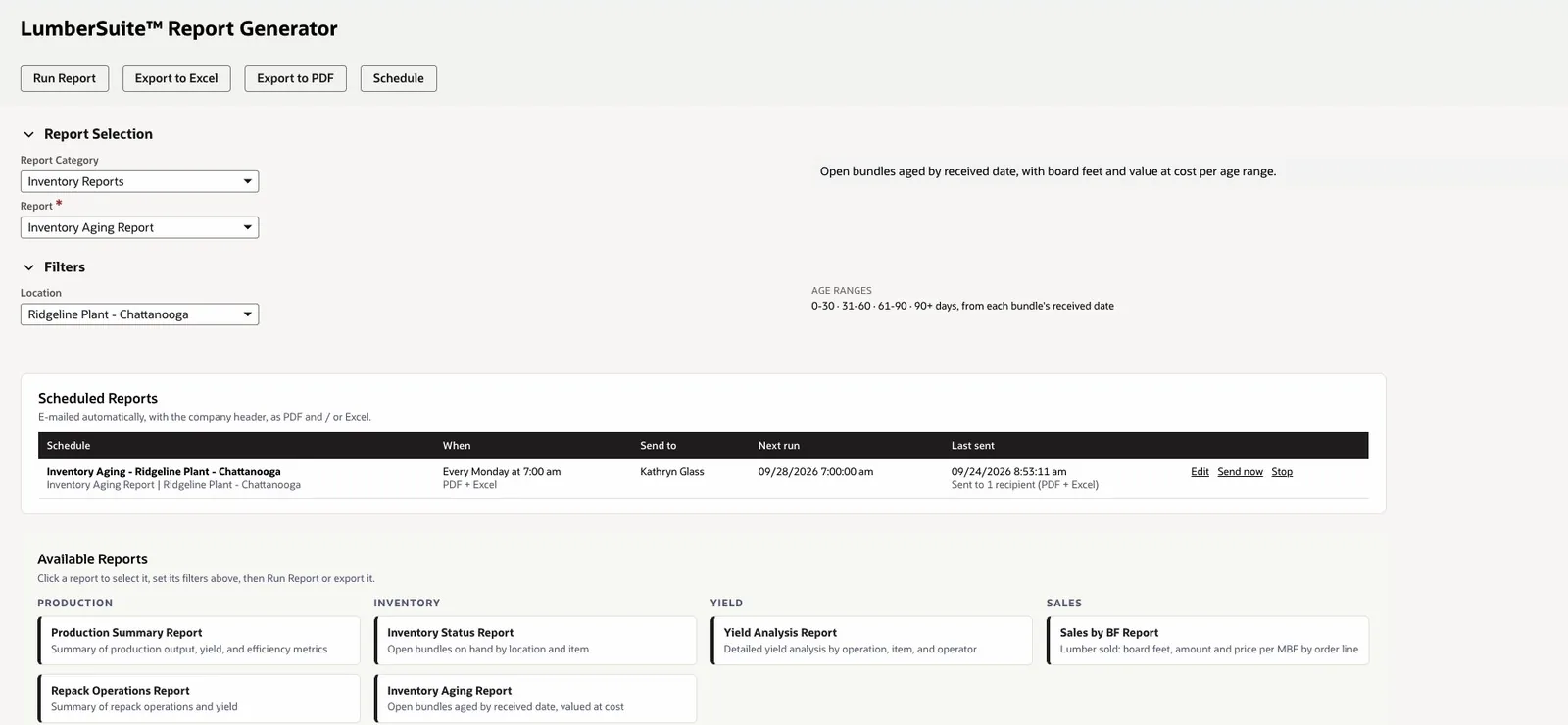
The Report Generator with the Inventory Aging Report picked for the Ridgeline Plant, a weekly Monday schedule sent as PDF and Excel, and the reports by category
Your Letterhead in PDF, Excel and CSV
Each report is headed with the company name, address, phone and logo from NetSuite's Company Information, then the title, the criteria it was run with, and who generated it and when. The same heading carries into every format. The PDF turns landscape when the table is wide, repeats the column headings on each page and numbers the pages "Page x of y". The Excel file is a real .xlsx workbook with the heading block on top and the column headings frozen, and the CSV holds just the rows, ready for another system.
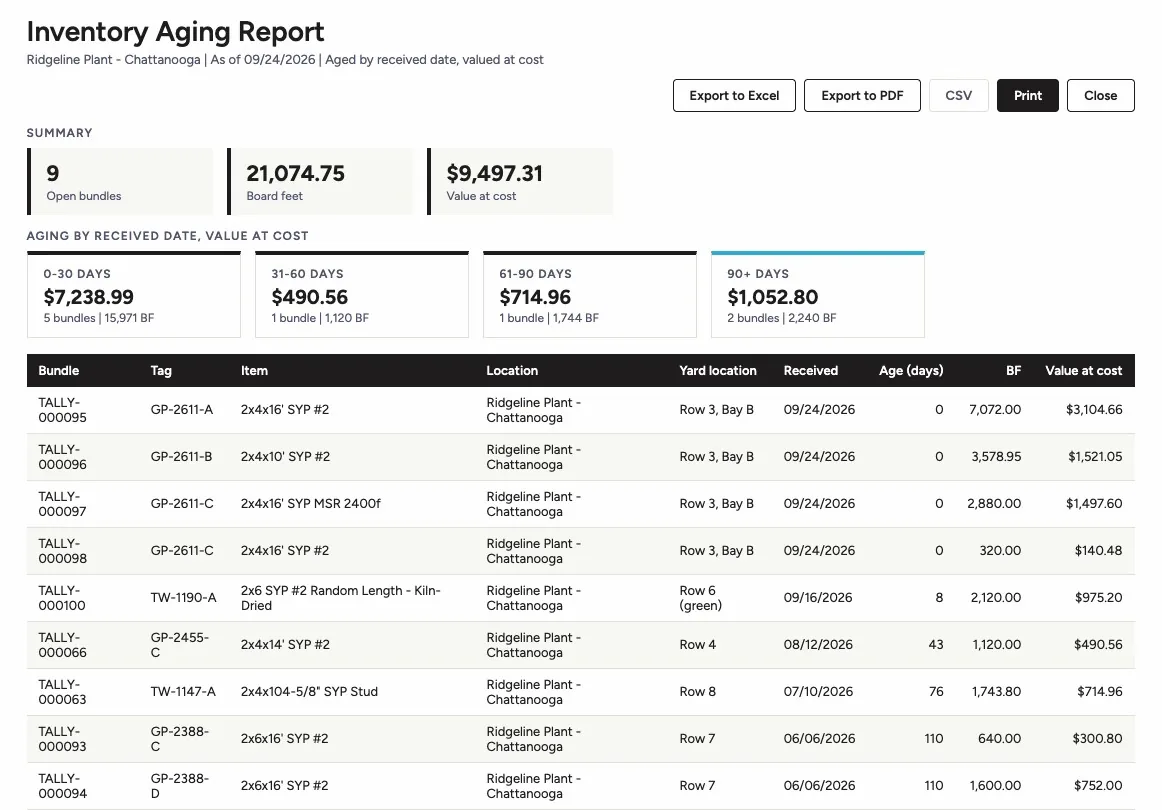
The finished Inventory Aging Report for the Ridgeline Plant, with Export to Excel, Export to PDF and CSV above the summary, the aging buckets at cost and a row per open bundle
Scheduled Reports by Email
Schedule saves the report with its filters and sends it daily, weekly on the day you pick, or monthly on a day from the 1st to the 28th, at the hour you set. It goes as PDF, Excel or both, to NetSuite employees and to outside addresses such as your lender or accountant. The Scheduled Reports list on the generator shows each schedule with its next run and when it was last sent, plus Edit, Send now and Stop. An hourly job sends whatever is due, built by the same code as the report on screen, so the Monday email matches what you would run by hand.
Export API for BI Tools
For a BI tool or a data warehouse, an authenticated NetSuite RESTlet returns production, yield, inventory, bundle, repack, allocation, sales, work order and KPI data as JSON, CSV or a summary, filtered by date and, where they apply, by location or item.
Key Capabilities
- Executive Dashboard with Overview, Production, Inventory, Sales and Yield Analysis sections, by plant and date range
- Alerts for bundles under 100 BF and repack orders unfinished after seven days
- Inventory aging in 0-30, 31-60, 61-90 and 90+ day buckets, valued at NetSuite average cost
- Eight ready-made lumber reports, each with only the filters it uses
- Company letterhead from NetSuite Company Information on every report
- Export to PDF, Excel (.xlsx) and CSV
- Scheduled email delivery: daily, weekly or monthly, as PDF, Excel or both, to employees and outside addresses
- Export API (RESTlet) returning JSON or CSV for BI tools
Control Center
The Control Center is where an administrator sees what LumberSuite is doing, checks that it is healthy and reaches the records that set it up. A Set up strip across the top links to the records that shape the catalog: the Item Generator, UOM Types (the board-foot formula behind each unit), the Price Matrix, Grades and Species. The module switches and defaults live on one LumberSuite Settings record, described below.
The Operations Cockpit
The Dashboard tab reads like a shift report. System Status shows that LumberSuite is active. Quick Stats totals the board feet in the movement log and counts today's LumberSuite transactions, the open bundles and the average yield. Active Modules lists every module under the desk that uses it (Buying, The yard, The plant floor, Selling and Roles), each marked On when its switch in Settings is on, or Installed when it is always available. Below them, Recent Activity lists the last seven days of yield entries, board-foot movements and new bundles, next to a 30-day board-foot chart and a yield gauge colored against the default yield in Settings.
The Features tab explains each module: what it does, what it depends on and what it changes, with a button to edit the settings. The Analytics tab shows the top items by board feet consumed and board feet by transaction type.
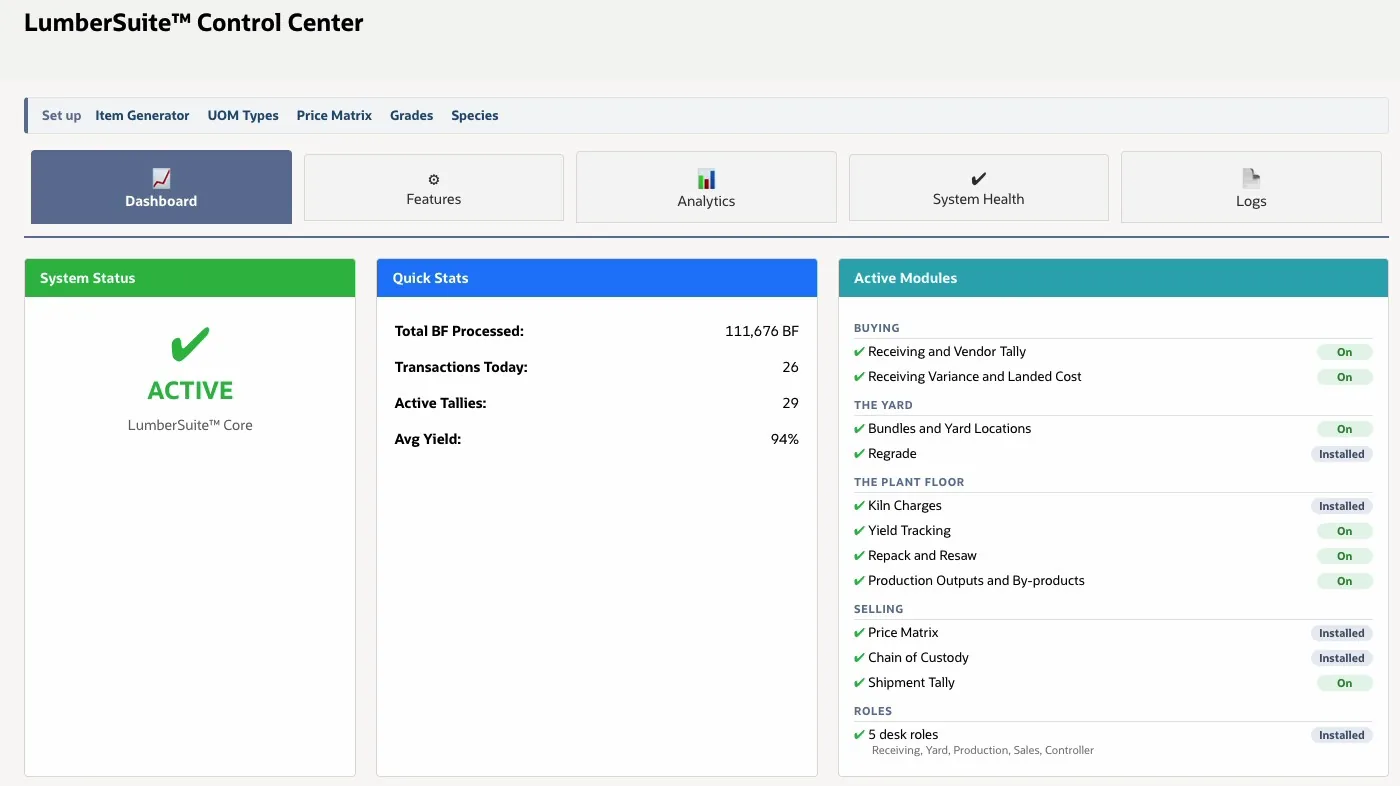
The Control Center dashboard: system status, quick stats, and the modules grouped by desk, each On or Installed, with the five desk roles at the bottom
System Health and Validation
System Health checks the settings record and the board-foot engine each time it opens, and lists the result of the last full validation for every check. Run Validation starts that full check in the background: the settings, the custom records, board feet on transactions, bundles with negative board feet left, yield data, the movement log and data integrity, including allocations whose bundle no longer exists. Each run is saved as a Validation Report record, and the latest one shows under the banner, for example "Last validation 8:57 am: 7 of 7 checks passed". When a check fails, LumberSuite emails the Admin Email address in Settings. Clear Cache reloads the settings after a change.
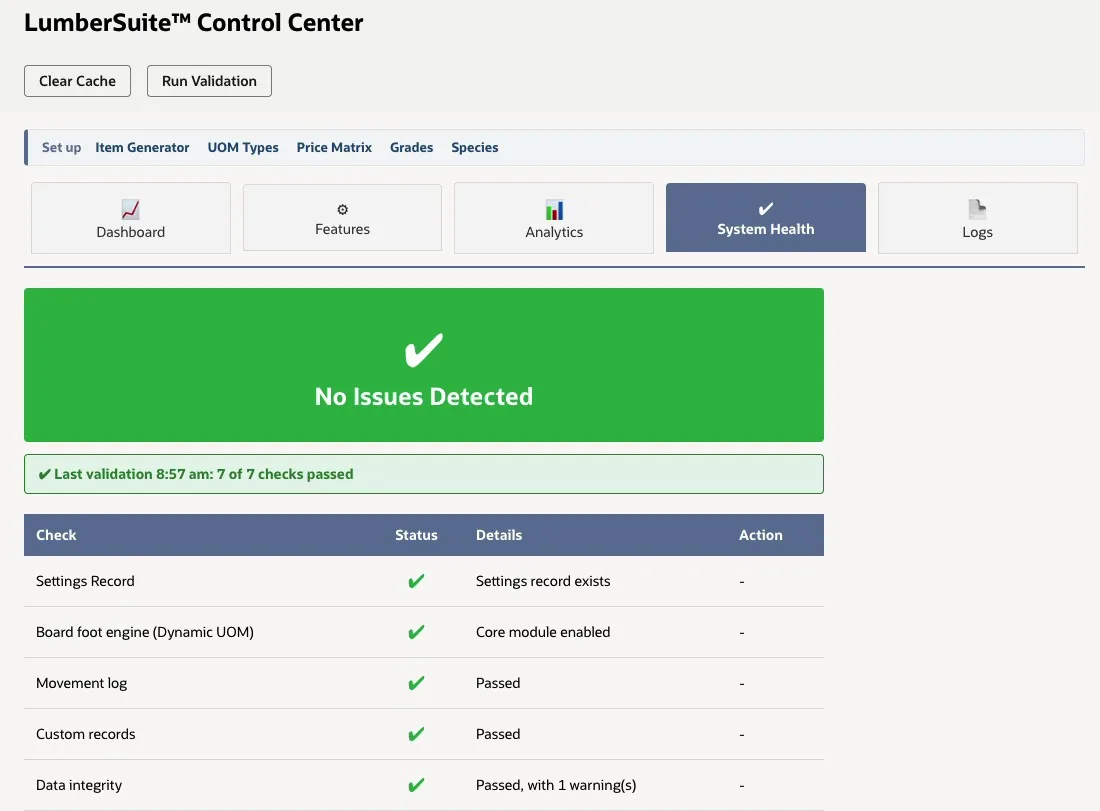
System Health after a validation run: 7 of 7 checks passed, with Run Validation and Clear Cache at the top
Settings and the Default Plant
One company-wide LumberSuite Settings record holds the switches and defaults. Modules turn on and off there (tally management, yield and waste tracking, repack, the board-foot engine's dynamic units, grades, moisture and advanced reporting), and LumberSuite refuses a combination that leaves a module without what it depends on: every module needs the board-foot engine, repack needs tally management and waste tracking needs yield tracking. The same record holds the default yield and waste percentages, board-foot decimal precision, oldest-first (FIFO) bundle use, required dimensions, the tax schedule and stock unit for new items, and the admin email for alerts.
Two switches do more than their names suggest. Enable Advanced Reporting is what adds the BF margin panels to quotes and sales orders. Auto Create Tally has to be ticked, with tally management on, for an item receipt to link the bundles counted at the dock and stamp them with their receiving variance, their delivered cost with freight and the vendor's certification.
The Default Location field picks the plant that the Executive Dashboard, Yield Analysis and Report Generator open on. Set it to the plant most people run, or leave it empty to open on all locations; anyone can still switch plants on the page.
Five Desk Roles
LumberSuite installs five NetSuite roles, one per desk: LumberSuite Receiving Clerk, LumberSuite Yard / Shipping, LumberSuite Production, LumberSuite Sales and LumberSuite Controller. Each role reaches the LumberSuite records its desk works with. The Control Center, Item Generator and Report Generator are limited to the Administrator and Controller roles. They are ordinary NetSuite roles, so you assign them to employees the usual way.
The Audit Trail
LumberSuite writes a movement-log row for quotes, sales orders, work orders and their issues, shipments with their edits and reversals, regrades, kiln charges and repacks, each with the item, date, board feet and a link to the document. Each bundle also shows its own history, receipts and completions included, with a running balance that ties to its remaining board feet, and every validation run is kept as a record.
Key Capabilities
- Operations cockpit: system status, quick stats, modules by desk, seven-day activity, a 30-day board-foot chart and a yield gauge
- Set up links to the Item Generator, UOM Types (each unit's editable board-foot formula), Price Matrix, Grades and Species
- One company-wide Settings record with module switches, enforced dependencies and defaults
- A default plant for the Executive Dashboard, Yield Analysis and Report Generator
- System Health, on-demand Run Validation, saved validation reports and email on failure
- Five desk roles: Receiving Clerk, Yard / Shipping, Production, Sales and Controller
- Movement log for orders, issues, shipments, regrades, kiln charges and repacks, plus a per-bundle history of every movement, each linked to its document
Item Generator
A lumber catalog is a grid: one species and grade in a handful of thicknesses, widths and lengths. In plain NetSuite each of those is an item typed in by hand. The Item Generator builds the whole grid in one pass, and every item it makes knows it is lumber: its real size, its board feet per piece and the units it is bought, stocked and sold in. It opens from the Set up strip in the Control Center, and that link can carry your naming pattern, cost and yield, so the form opens with your house standards already filled in.
Describe the Grid
Choose the species and grade, the item type (Inventory Item for rough or dimension lumber, Assembly Item for finished or remanufactured product) and the stock unit: board feet, square feet, linear feet or each. Then type the sizes as lists. Thickness goes in inches or quarters (2, or 4/4, 6/4, 8/4), widths in inches, and lengths in feet, with RL for random length. Every combination becomes one item, so 2-inch stock in 8, 10 and 12 widths and 12, 14 and 16-foot lengths is nine items. A run makes up to 60 items.
The name pattern builds each item name from tokens: {SP} and {GR} for the species and grade codes, {T}, {W} and {L} for the size, and {SPECIES} and {GRADE} for the full names. RGL-{SP}{GR}-{T}x{W}-{L} turns a Southern Yellow Pine No. 2 2x10, 16 feet long, into RGL-SYP2-2x10-16, and the description pattern names the same item "Pine (Southern Yellow) No. 2 2x10x16".
With Surfaced (S4S) ticked, the actual thickness and width are set to the standard dressed sizes, so a 2x10 is recorded as 1-1/2 x 9-1/4. The box is ticked by default for softwood species and cleared for hardwood. Board feet always come from the nominal size, so a 2x10x16 is 26.667 BF per piece either way. Random-length items get no fixed length; their board feet come from each bundle's tally.
The rest of the form sets how the item is bought and sold: the purchasing unit (thousand board feet, for example), the selling unit, the cost per board foot, the default yield, pieces per bundle and whether transactions may change the dimensions. Each new item gets the matching NetSuite units type with its stock, purchase and sale units, plus the subsidiary and tax schedule you pick.
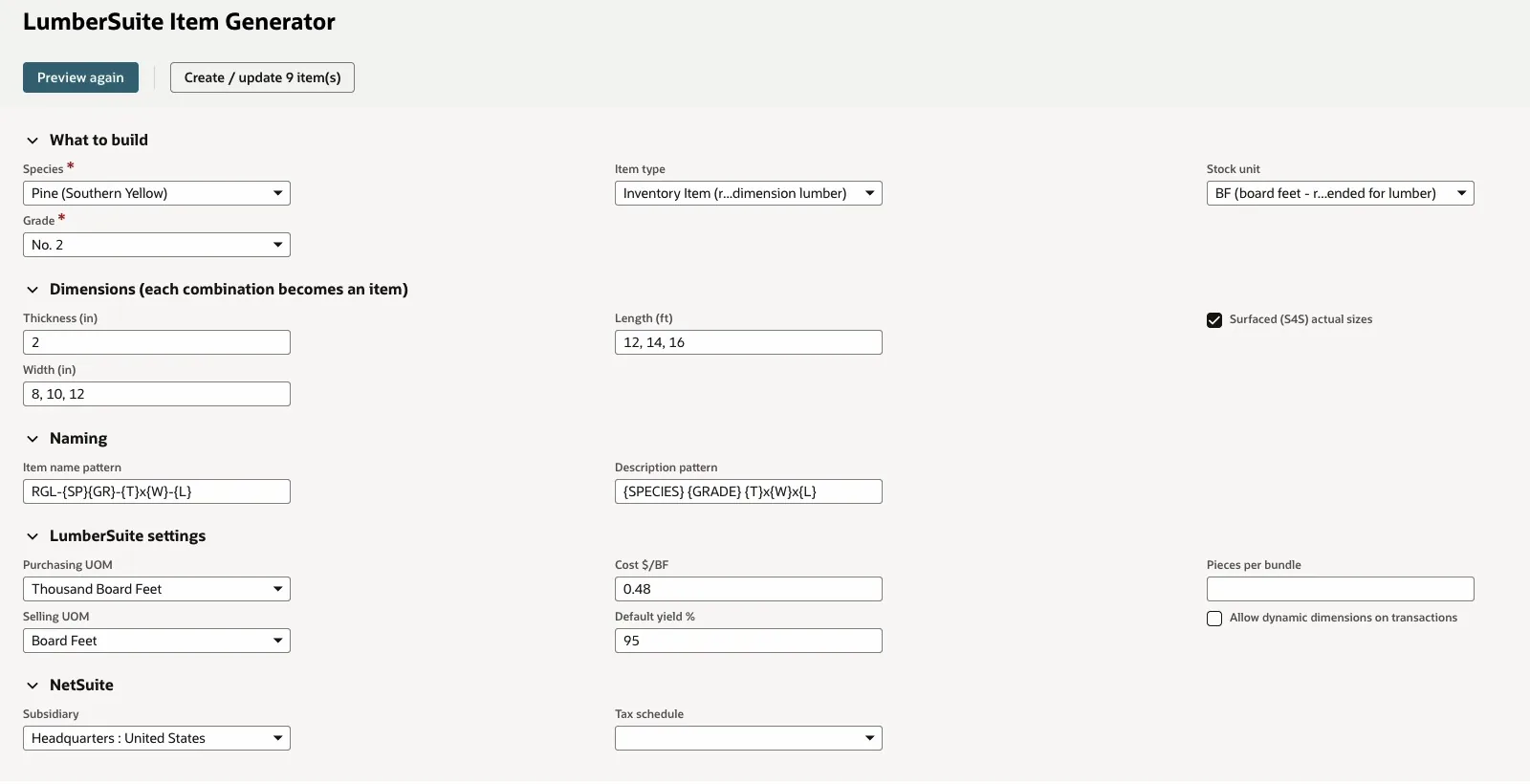
Southern Yellow Pine No. 2 in 2 x 8, 10, 12 x 12, 14, 16 ft, surfaced, named RGL-{SP}{GR}-{T}x{W}-{L}, bought in thousand board feet and sold in board feet
Preview, Then Create
Preview writes nothing. It lists every item the grid will make with its name, description, nominal size, actual S4S size and board feet per piece, and whether it will CREATE a new item or UPDATE one that already exists. When the list is right, Create / update saves them. The results page shows each item as created, updated or failed, with an Open link and a line such as "26.6667 BF/piece · S4S 1-1/2 x 9-1/4 · buy MBF · stock BF · sell BF". Build another grid opens the form again with the same settings.
Running a grid again never makes duplicates. An item whose name already exists gets its LumberSuite fields refreshed (species, grade, sizes, units of measure, cost per board foot, yield and pieces per bundle), and its NetSuite cost, units and accounting are left as they are.
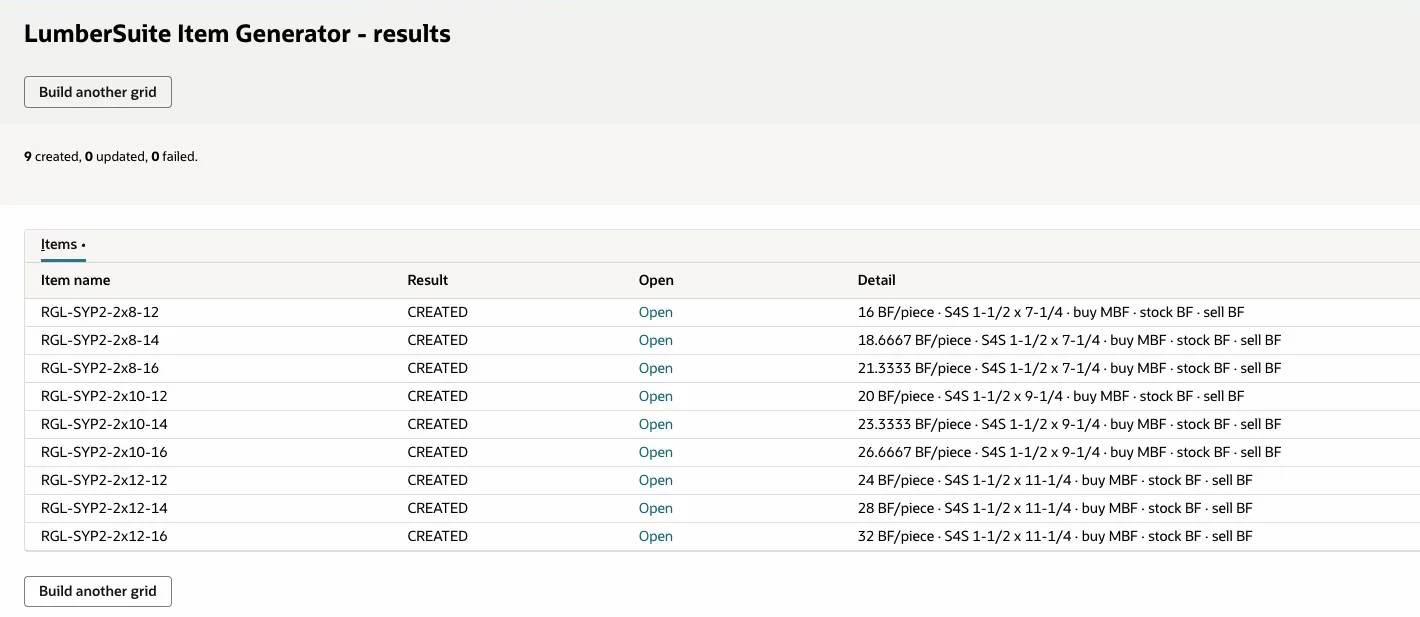
Nine items created in one pass, each with its board feet per piece, S4S size and buy / stock / sell units
The Lumber Profile on Every Lumber Item
Open any lumber item, inventory or assembly, and a LumberSuite Lumber Profile panel sits on the record with what LumberSuite knows about the wood:
- species and grade
- the nominal size against the actual size, for example 2 x 10 x 16' nominal → 1-1/2 x 9-1/4 x 16' actual (S4S)
- board feet per piece and pieces per MBF
- pieces and board feet per bundle, or a note that bundles are counted one by one at receiving
- how it is bought, stocked and sold: "Buy MBF · stock BF · sell BF"
- today's price from the price matrix, in its own unit, per board foot and per piece
- the last delivered $/MBF, from the newest bundle received on a purchase order
- the average yield over its production runs, against the target
The panel only reads; nothing on the item changes. The buyer checking what the last load cost, the counter quoting by the piece and the plant manager watching yield all get their answer on the item itself.
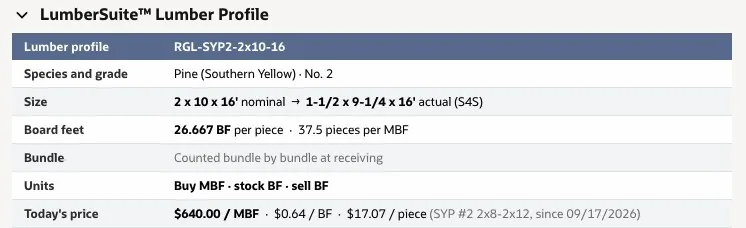
The Lumber Profile on RGL-SYP2-2x10-16: its S4S size, 26.667 BF per piece, bought in MBF and stocked and sold in BF, and today's price per MBF, per BF and per piece
Key Capabilities
- Species and grade grids of thicknesses, widths and lengths, up to 60 items per run
- Thickness in inches or quarters (4/4, 6/4, 8/4) and RL for random length
- Item name and description patterns built from species, grade and size tokens
- S4S dressed sizes, with board feet always figured on the nominal size
- Buy, stock and sell units, cost per BF, default yield and pieces per bundle on every item
- Preview before anything is written, and reruns that update LumberSuite fields instead of making duplicates
- Read-only Lumber Profile panel on every lumber item: size, BF per piece, units, today's price, last delivered $/MBF and average yield
Frequently Asked Questions
General Questions
What is LumberSuite?
LumberSuite is a NetSuite SuiteApp for lumber yards, distributors and truss plants. It works on NetSuite's own purchase orders, receipts, bills, work orders, quotes, sales orders and shipments, and adds what lumber needs: board feet under every unit, loads counted against the purchase order, bundle records with delivered cost, yard location and certification, regrades, kiln charges and repacks, work orders that reserve real bundles, yield on every job, a species, grade and size price matrix, and a set of lumber reports.
What modules are included in LumberSuite?
The modules follow the way a lumber business runs. Buying and the yard: Receiving & Vendor Bills, Tally Management, Bundles & Yard, Chain of Custody and Repack Processing. The plant: Work Order Integration, Process Targets & By-Products and Yield & Waste Tracking. Selling: Price Matrix & Quotes and Sales & Purchase BF. Setup and insight: Board Feet Engine, Item Generator, Control Center and Advanced Reporting. They share one set of records, so the bundle the yard counts at receiving is the same bundle a work order reserves and a shipment draws from. The 2026 Q3 release notes cover what's new.
How is board feet (BF) calculated?
A board foot is a piece 1 inch thick, 12 inches wide and 1 foot long, so a piece holds thickness (in) × width (in) × length (ft) ÷ 12 board feet, taken from the item's nominal size: a 2x10x16 is 26.667 BF. Each unit you buy or sell in has a UOM Type record with its own formula, which an administrator can edit. A piece uses the full size, a linear foot is thickness × width ÷ 12, square feet are multiplied by the thickness in inches, a bundle is its pieces per bundle times one piece, and MBF and MSF are thousands. Species and grade don't change the board feet; they change the price.
Board Feet & Tally
How do I set up lumber items?
Use the Item Generator, from the Set up strip in the Control Center. Pick the species and grade, the item type and the stock unit, then type the thicknesses, widths and lengths as lists; every combination becomes one item, up to 60 in a run, with its S4S size, board feet per piece and the units it is bought, stocked and sold in. Preview lists every item before anything is created, and running the same grid again refreshes the existing items instead of duplicating them. Each lumber item then shows a Lumber Profile with its sizes, units, today's price and average yield.
Can I import tallies via CSV?
Yes. Vendor Tally Entry opens from the purchase order. The crew can type one row per bundle, and each typed row is checked against its order line, in boards, as it goes in. Or they can upload the mill's tally as a CSV file with each bundle's size, pieces, bundle ID, grade and moisture, which is counted in and written to the order in one step. Either way, Create Tallies & Update PO creates the bundles and rewrites the order to the count. When a mill sends no tally, saving the item receipt can create the bundles from the received quantities instead, with Auto Create Tally on in LumberSuite Settings.
How are bundles reserved for work orders?
Automatically, when the work order is released. A Planned work order holds no wood. On release, LumberSuite reserves bundles for each lumber line at the job's location, oldest received first, skipping wood already reserved for other jobs, and lists them on the work order's BF Summary. The crew's Work Order Issue draws from those bundles, and at the final completion any reservation that wasn't used goes back to the yard. The Tally Allocation screen is still there for reserving a specific bundle by hand.
Yield & Repack
How is yield calculated?
Yield is board feet out divided by board feet in. LumberSuite writes one Yield Register entry per work order: input is the lumber the crew actually issued, with the plan used only for lumber that was never issued, and output is the board feet built across all of the job's completions. Yield Analysis then shows it over time, by product and by job, against target. Twenty roof trusses built from 1,125.1 BF of lumber into 1,040 BF is a 92.4% yield.
What happens if yield drops below target?
It shows up in several places. While a completion is being entered, a lumber line that recovers more than five points below its expected yield shows a warning asking for a check or a waste reason. The Yield Register entry records the variance from the expected yield and flags anomalies. In Yield Analysis the trend is green at or above target, amber within five points and red below that, and each job's yield is colored against the target, so a low run shows up the day it is completed.
How do I repack a bundle?
For a job on one bundle, click Repack on the bundle and pick break & re-bundle, sort by length, grade sort or resaw / trim to a product. LumberSuite suggests the output bundles and previews the board feet, yield and value, and nothing posts until you say so. Posting creates new tagged bundles that keep the vendor, lot, certification and received date, records the trim as a by-product, and posts one inventory adjustment when the item changes or boards are wasted. To plan a repack ahead, the Repack Builder works in three steps (select the outputs, select the input lumber and lots, and review the summary with board feet in and out and yield) and prints the plan for the floor.
Work Orders & Sales
How does board feet appear on work orders?
When a work order is saved, LumberSuite sets the board feet the job needs: from the sales order line it was created from, else the work order's Total BF, else the product's own board-foot content. It splits that across the lumber lines and grosses it up by the target yield, so a job for 1,040 BF at a 95% target calls for 1,094.7 BF of lumber. The work order's BF Summary shows the required board feet, the lumber to pull, the target yield and, once the job is released, the bundles reserved for it.
Can I see BF summaries on sales orders?
Yes. A saved sales order with lumber on it shows a Board Feet Summary: total board feet, the number of lumber lines and the average price per board foot. On a straight lumber sale, with Advanced Reporting on in LumberSuite Settings, it adds the BF margin; on an order for trusses or other assemblies it shows the lumber cost of the wood inside the order and links the work orders the order created. Each line keeps its quantity in the unit the customer buys in, whether pieces, linear feet, square feet, board feet or MBF, with its board feet worked out underneath.
Receiving, Custody & Pricing
Can LumberSuite stop us paying for wood that never arrived?
Yes. When a vendor bill is saved against a lumber purchase order, LumberSuite compares each billed line with the board feet the yard counted and shows a Receiving Variance panel on the bill. A bill for more than the count, beyond a 2% tolerance, is held so it can't be paid before someone reviews it. A bill for less is flagged but not held.
Does LumberSuite track FSC, SFI and PEFC certification?
Yes. The claim and certificate code on the vendor record show on the purchase order, are stamped on every bundle when the receipt saves, and carry through regrades, kiln charges and repacks. A finished-goods bundle takes the weakest claim of the bundles it was built from, and the load ticket prints the claim for the customer.
Which settings do these features need?
Each module has a switch in LumberSuite Settings, and two are worth knowing. Auto Create Tally has to be on for the item receipt to link the bundles the yard counted and stamp them with their variance, delivered cost with freight and certification, and for the bill check that reads them. Enable Advanced Reporting adds the BF margin to quotes and straight lumber sales orders; the Executive Dashboard and the eight reports don't depend on it.
How are lumber prices set on quotes and orders?
From the Price Matrix: rows by species, grade and size, priced per MBF, MSF, BF, linear foot or piece, each with the date it takes effect. A rep can leave the rate at zero on a lumber line, and when the quote or order is saved LumberSuite fills it in from the row in effect that day, converted to the line's unit. A price the rep typed is never changed.
Does LumberSuite change NetSuite invoices?
No. Invoices are NetSuite's own and bill what shipped. LumberSuite's board feet travel on the quote, the sales order, the item fulfillment and the load ticket.