FactorySync 2026 Q2 Release
AI-Powered Finite Capacity Scheduling, Planner Mode & Bulk Operations for NetSuite
What's New
The FactorySync 2026 Q2 Release introduces intelligent production scheduling capabilities directly inside NetSuite. Test changes risk-free, move work orders in bulk, and let AI optimize your shop floor schedule.
Planner Mode
Test schedule changes in a sandbox before applying to live. Full undo support with batch apply.
Bulk Move
Shift multiple work orders forward or backward by days, or schedule to capacity from a target date.
Finite Capacity
Capacity-aware drag & drop with overload detection, smart bumping, and priority rules.
Optimize Schedule
AI-powered analysis recommends schedule improvements. Select and apply with one click.
Zero Risk Testing
Planner Mode lets you test any schedule change without touching NetSuite data until you're ready.
No Overloads
Finite capacity scheduling prevents work center overloading with automatic capacity checks.
AI Optimization
One-click analysis finds work orders that can finish earlier and applies changes in priority order.
Bulk Operations
Move dozens of work orders at once with capacity-aware scheduling from any target date.
Planner Mode (What-If Scheduling)
Planner Mode lets production managers test schedule changes without affecting the live schedule. When active, all drag-and-drop operations are queued in memory instead of saving to NetSuite.
How It Works
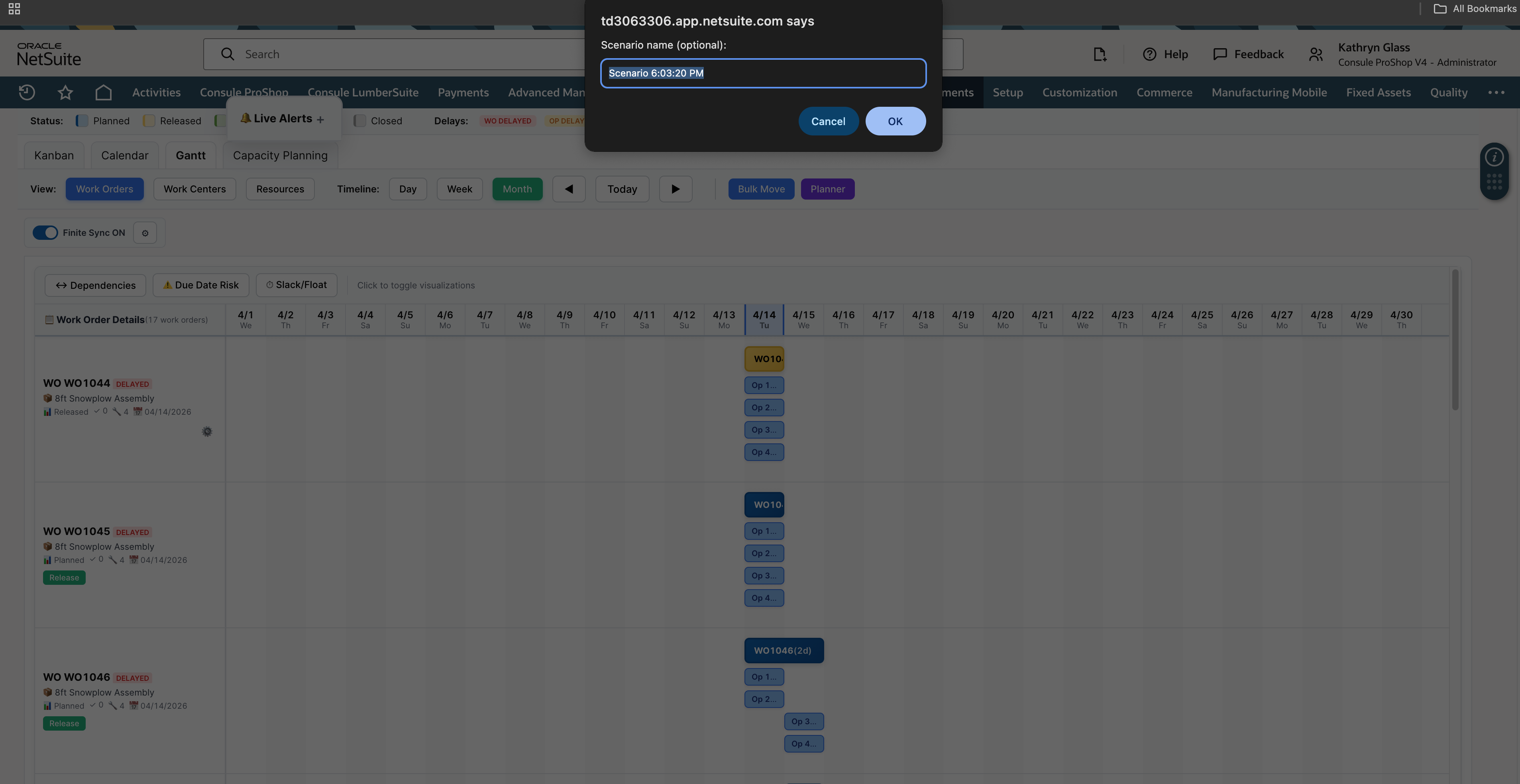
- Enter Planner Mode — Click the Planner button in the toolbar. A dialog prompts for an optional scenario name.
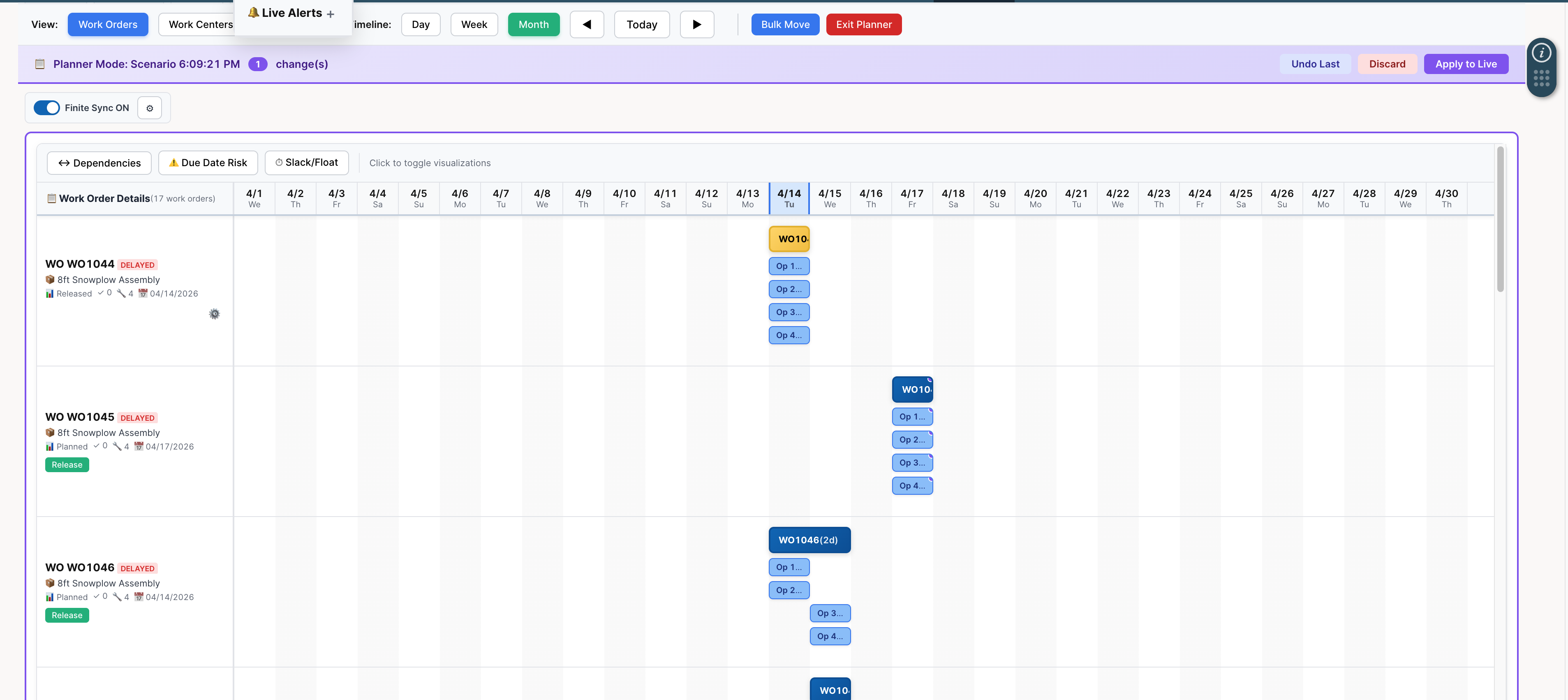
- Make changes — Drag operations to new dates or work centers. Each move is tracked with full undo support. A purple banner shows the scenario name and change count.
- Review — Switch between Work Order, Work Center, and Resource views. Changes made on one view are reflected on all others.
- Undo or Discard — Click Undo Last to revert the most recent change, or Discard to restore the entire schedule to its original state.
- Apply to Live — Click Apply to Live to save all queued changes to NetSuite in a single batch.
Supported Actions
- Move operations to different dates (Work Order and Work Center views)
- Reassign operations to different work centers
- Move resource assignments to different dates or employees (Resource view)
- Bulk move multiple work orders by a number of days
Bulk Move
Bulk Move allows production managers to shift multiple work orders forward or backward by a specified number of days. Available from the Gantt toolbar.
How It Works
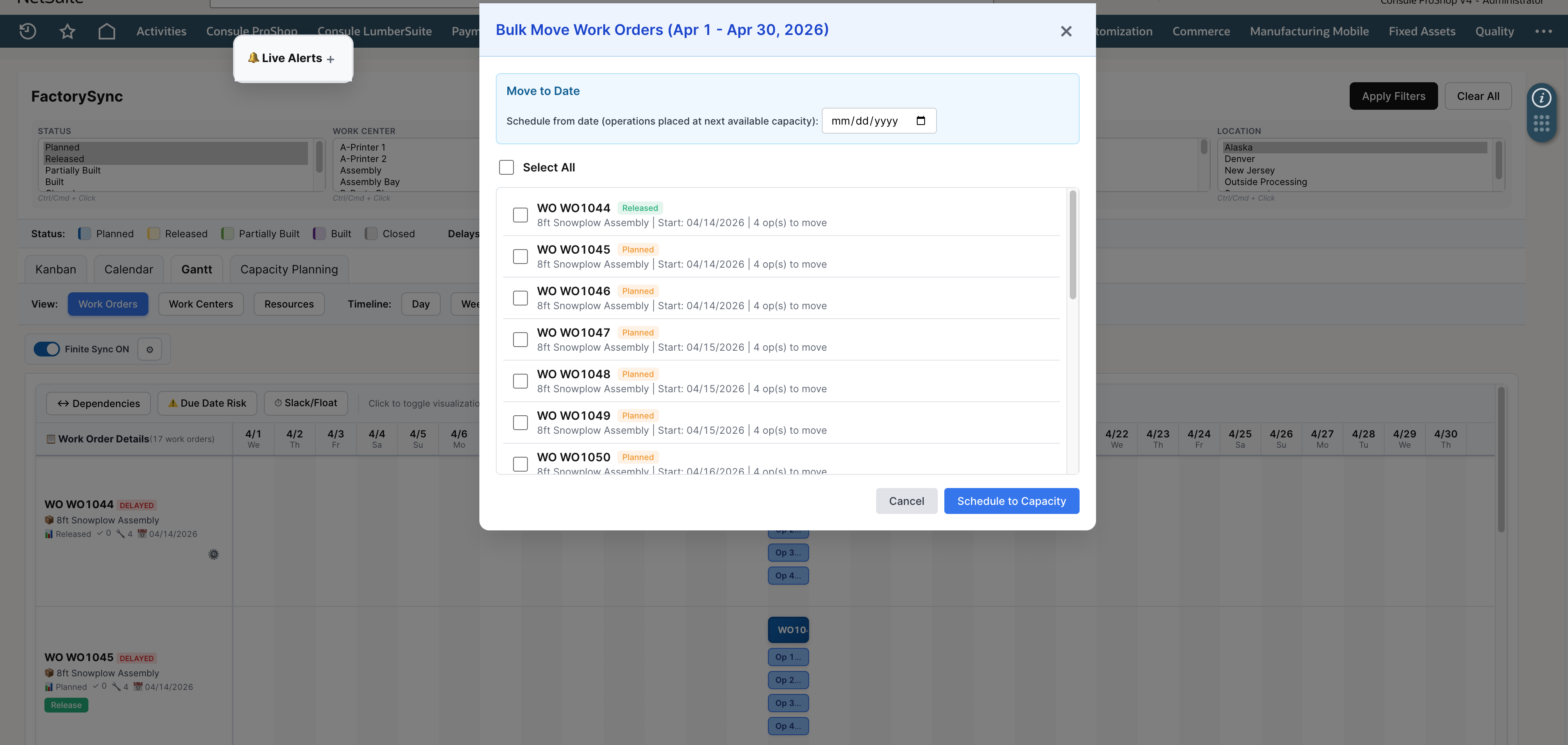
- Click the Bulk Move button to open the modal
- Select work orders using checkboxes. The list shows all work orders in the current view with status and due date information.
- Choose the number of days and direction (forward or backward). In finite mode, a target date picker is available to schedule all selected work orders to capacity from that date.
- Click Schedule to Capacity to apply. All operations, resource assignments, and work order dates are shifted together.
Finite Mode Behavior
When Finite Sync is enabled and a target date is selected, the system uses capacity-aware scheduling to place each work order at the next available capacity slot from the target date. Work orders are processed in priority order. Fully integrated with Planner Mode — bulk moves can be queued and undone.
Finite Capacity Scheduling
Finite capacity scheduling ensures that no work center is overloaded beyond its daily capacity. The system reads work center calendars from NetSuite to determine available hours per day.
Capacity-Aware Drag and Drop
When Finite Sync is enabled, every drag-and-drop move is checked against work center capacity. If there's room, the operation is placed immediately and downstream operations cascade forward automatically.
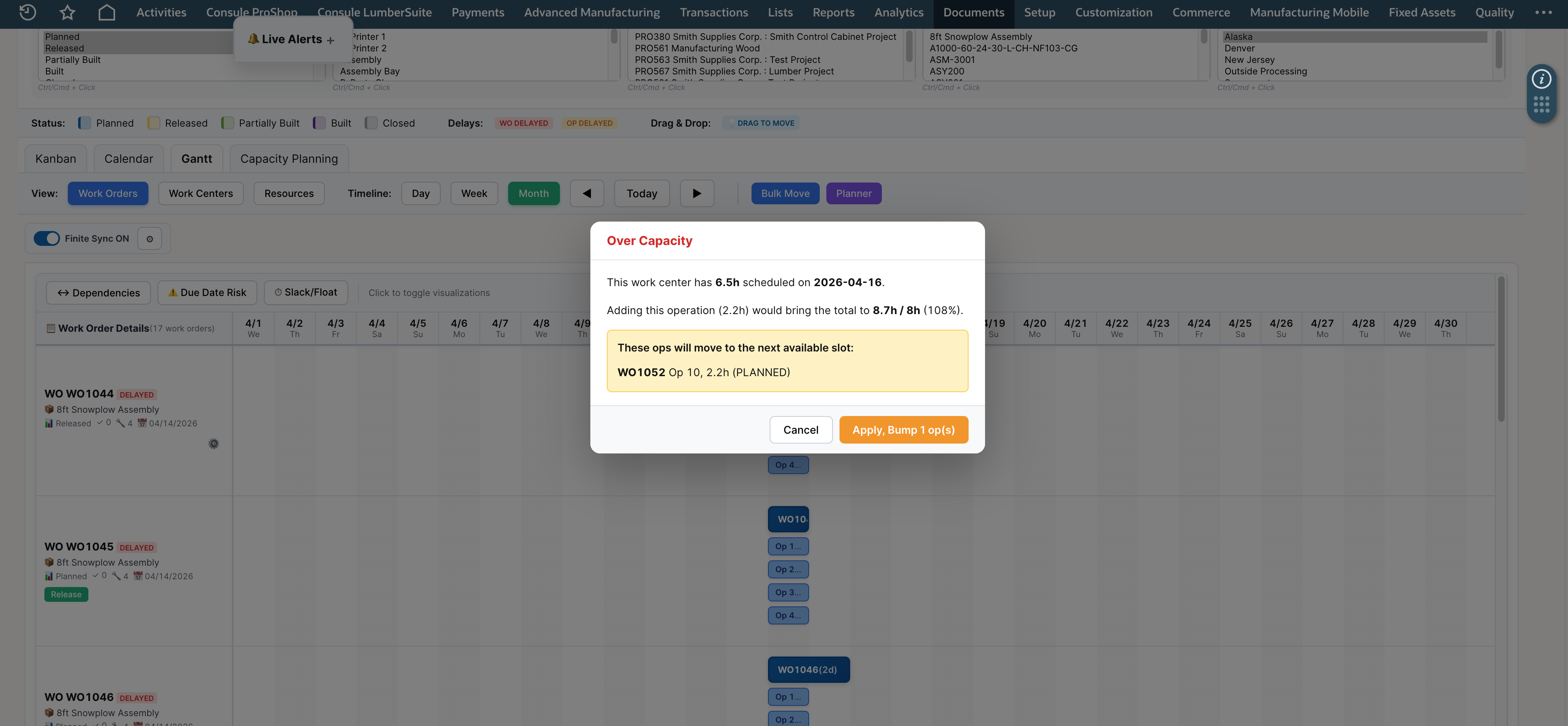
If the move would exceed capacity, an Over Capacity dialog shows the current utilization and gives you the option to bump lower-priority work to make room.
Smart Priority Bumping
Released and In Progress operations are never displaced. The system intelligently identifies which lower-priority Planned operations can be moved to free up capacity for higher-priority jobs.
Optimize Schedule
The Optimize Schedule feature analyzes the current schedule and recommends improvements based on work order priority and work center capacity.
Accessing the Feature
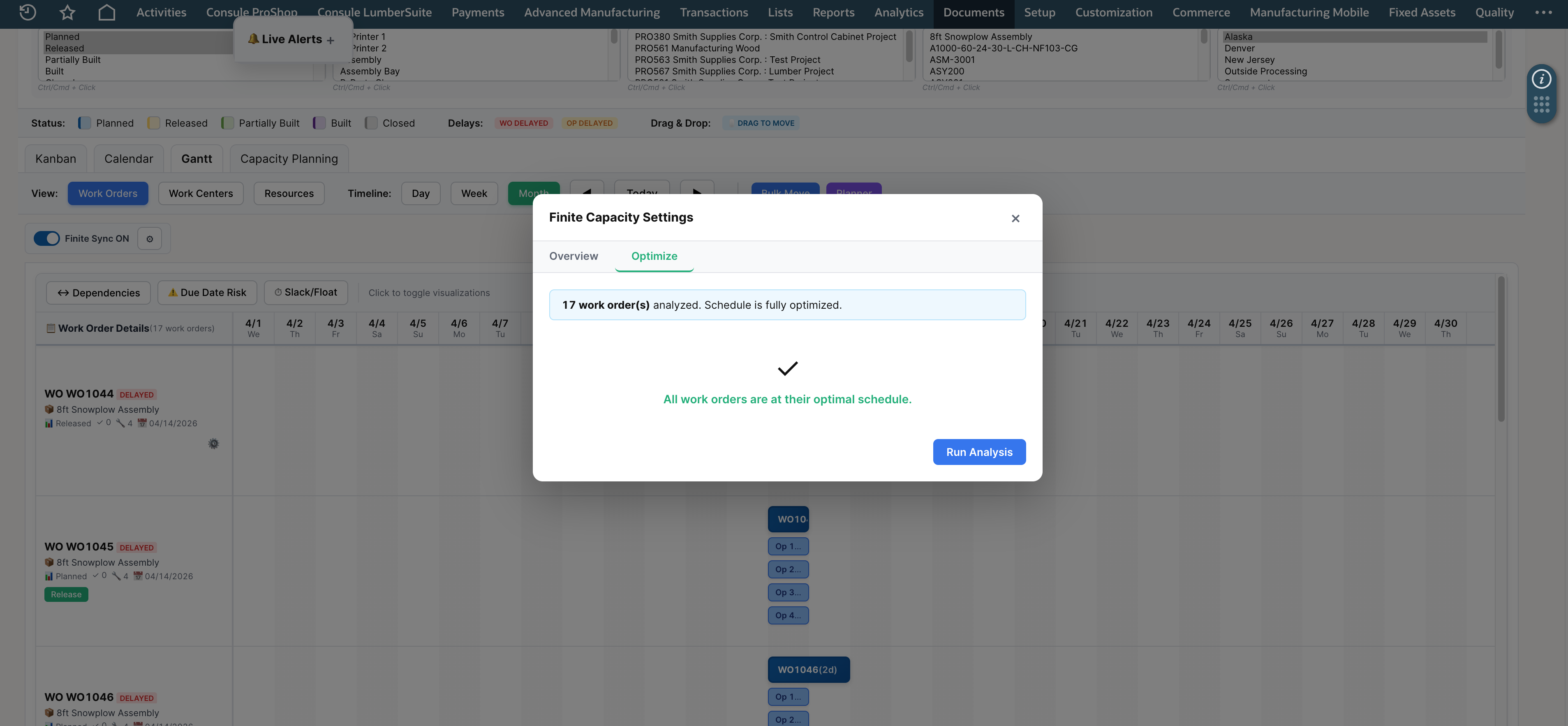
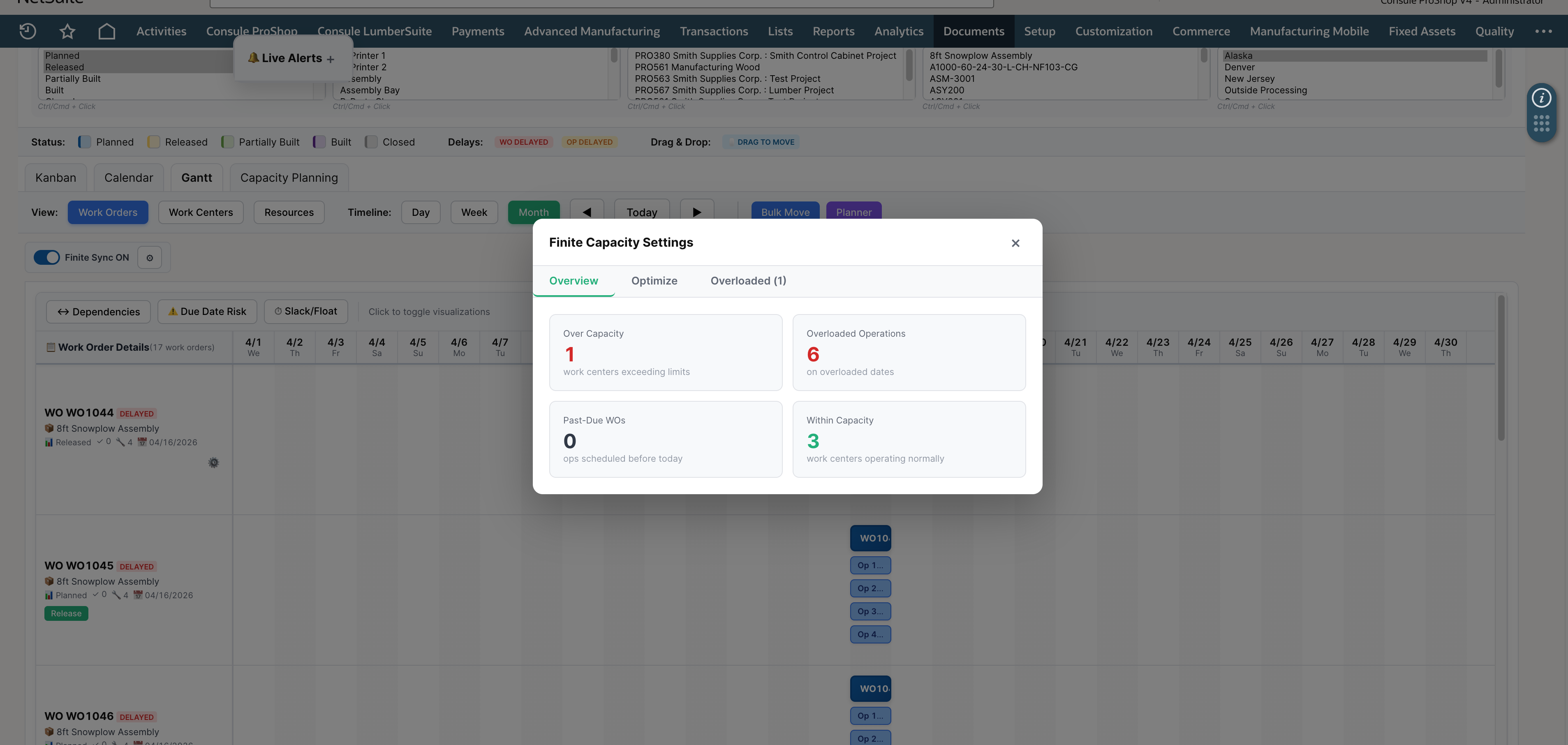
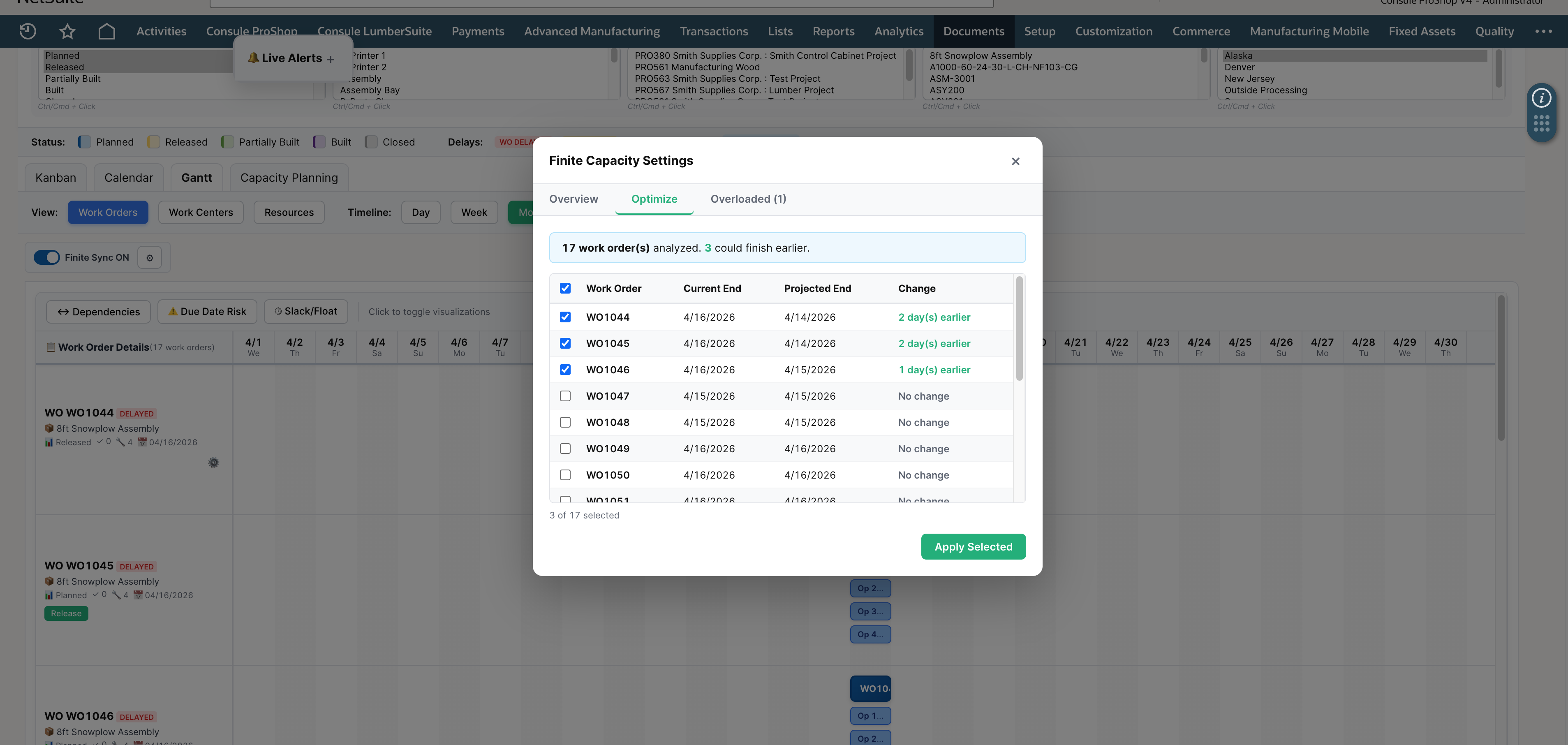
Click the gear icon next to the Finite Sync toggle to open the Finite Capacity Settings modal. The modal has three tabs:
Overview Tab
Summary cards providing an at-a-glance view of your schedule health:
- Over Capacity — number of work centers exceeding limits
- Overloaded Operations — operations on overloaded dates
- Past-Due WOs — operations scheduled before today
- Within Capacity — work centers operating normally
Overloaded Tab
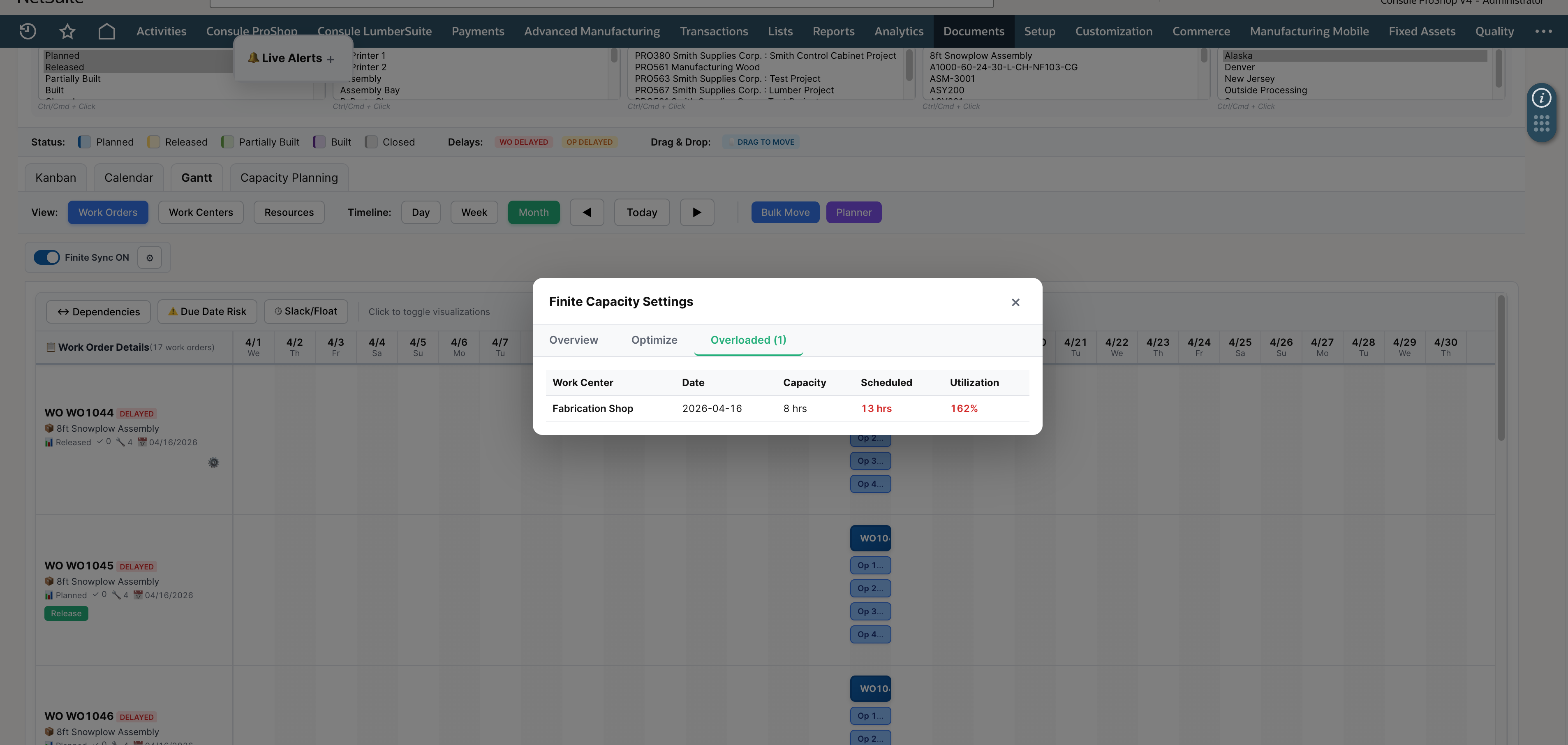
See which work centers are over capacity, with the specific dates, hours, and utilization percentages. Identify bottlenecks before running the optimizer.
Optimize Tab
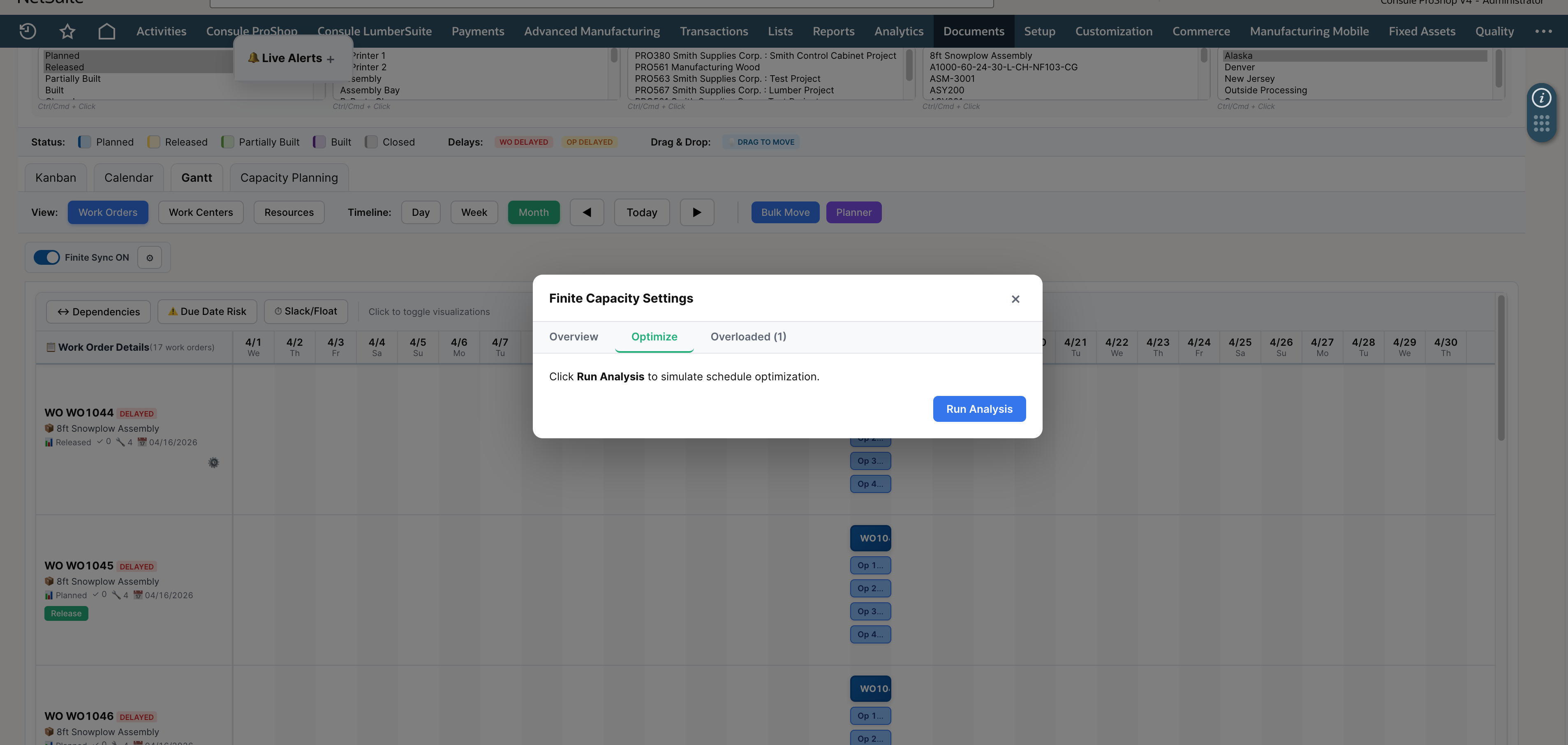
Click Run Analysis to find work orders that could finish earlier. Review the recommendations, select which to apply, and click Apply Selected.
Applying Changes
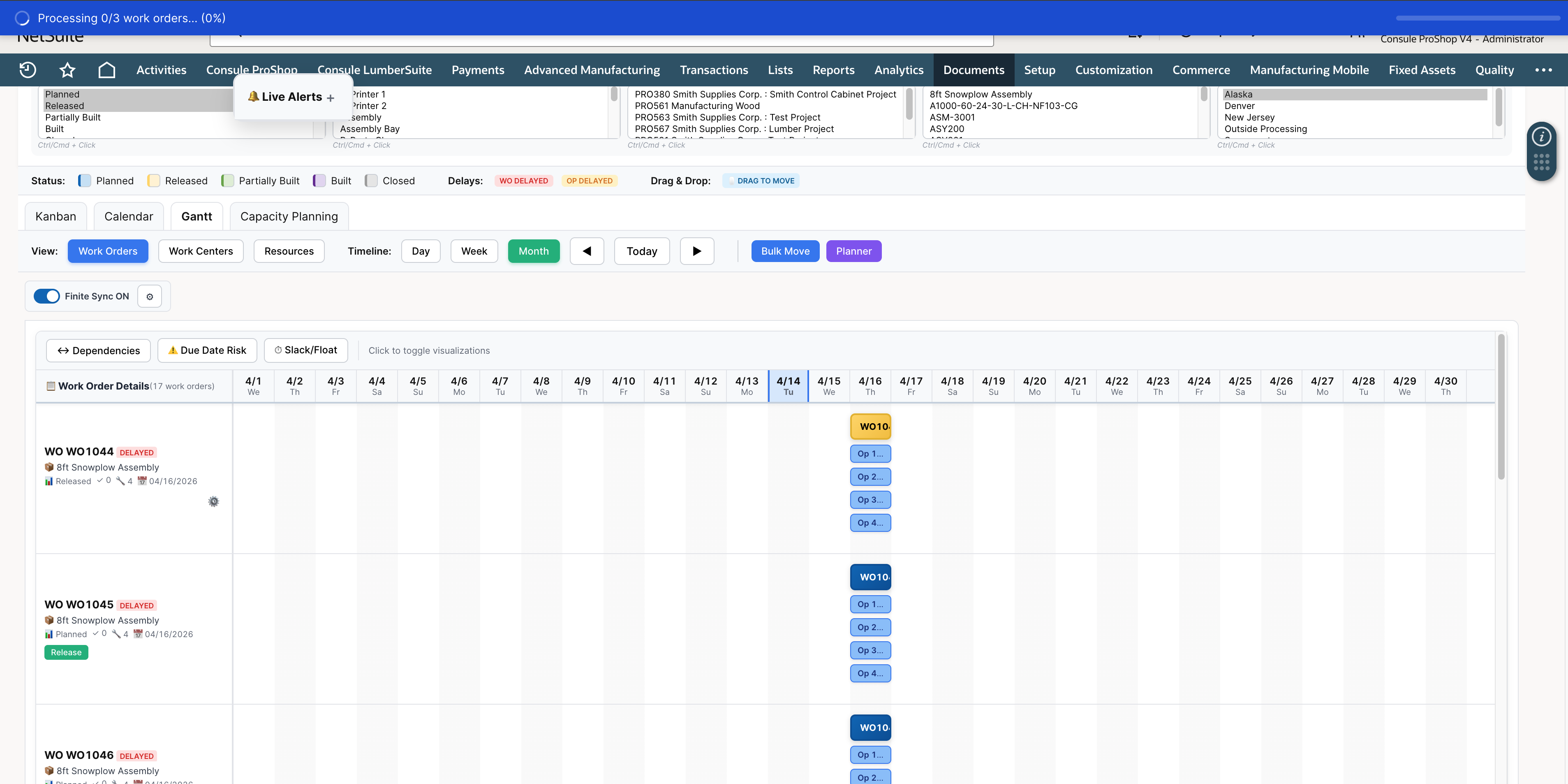
After clicking Apply Selected, the system processes each work order and reschedules its operations to the optimized dates.
When the schedule is already fully optimized: